Advertising Help Centre

Sponsored Products Guide

Showcase your product to millions of shoppers directly in their search results. This guide covers key topics for using our self-serve platform.

Step 2: Create an Ad Group, Add an Image, Headline and Set-up a Call-to-action Link

Relevant to: Sponsored Brands

An ad group is a collection of advertised items with similar keywords or attributes. They are required elements of all campaigns, regardless of targeting type. 
 
Ad groups can be updated during the campaign flight as part of the optimization process. Changes to ad groups on Sponsored Brands campaigns will generally require the campaign to be re-reviewed. Changes specifically to the image, headline and URL in-flight will require the campaign to be paused in addition to re-review. 
  
Only one ad group is currently allowed per Sponsored Brands campaign. They must also include an image of your logo, a headline and a click URL. 


1. To start an ad group, enter a name in the text box provided. ​​​​​
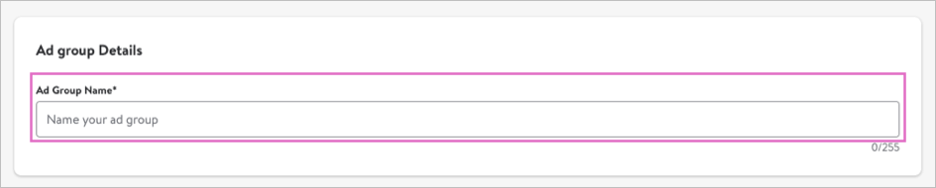
To start an ad group, enter a name in the text box provided


Tip: We recommend a naming convention that clearly distinguishes the content of the ad group. For example: "Great Value Household Sprays" or "Great Value Household Wipes."


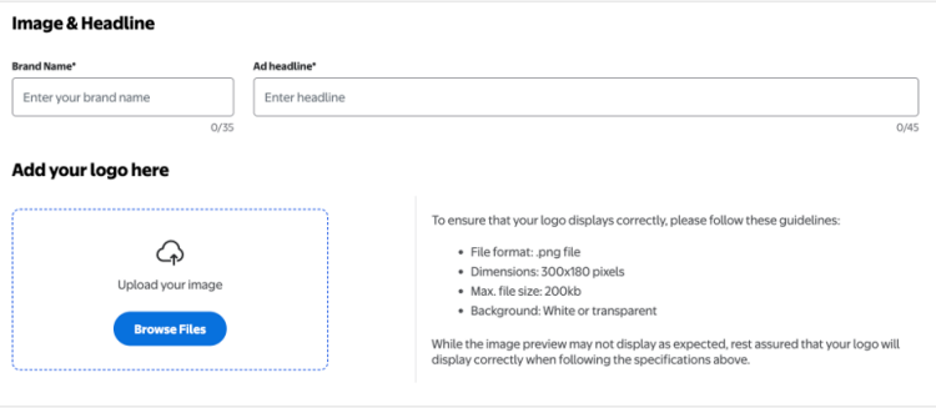
2. Enter your brand name and add a headline.

Enter your brand name and add a headline.

Notes: 

Brand names are limited to 35 characters maximum. Enter your brand name exactly as it appears on Walmart.ca, reflecting correct capitalization and spacing of characters. Special characters allowed.

Headlines are limited to 45 characters maximum. No special characters allowed.


3. Add your brand logo.
To ensure that your logo displays correctly, please follow these guidelines:

  • File format — PNG 
  • Dimensions — 300 x 180 pixels
  • Max. file size — 200KB


Upload Image & Headline


Sponsored Brand Ad Links

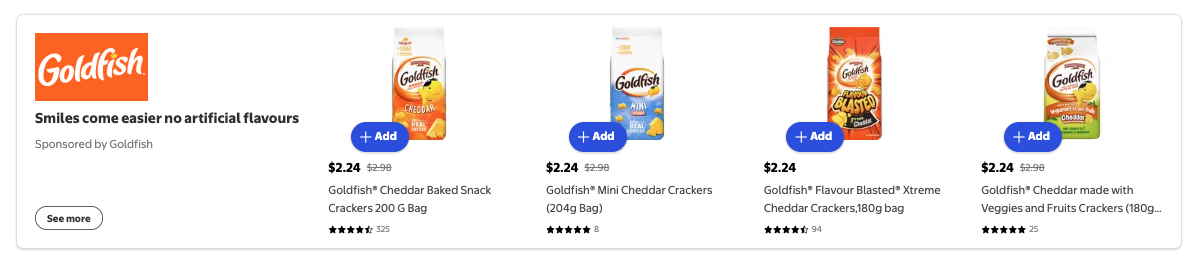
Sponsored Brands ads include your brand logo, a headline, a call-to-action and up to four items with shoppable links.

Sponsored Brand Image


Set-up Search and Browse Links

Navigate to the Add Link section of the campaign creation tool. You'll have the option to select the link type you want to generate. 


Generate a Search Link:

  • Select the Search link option to create a search page link.
  • In the Keyword field, enter the keyword that best describes the items you want to advertise in your Sponsored Brands campaign.
Create a link to a Search page


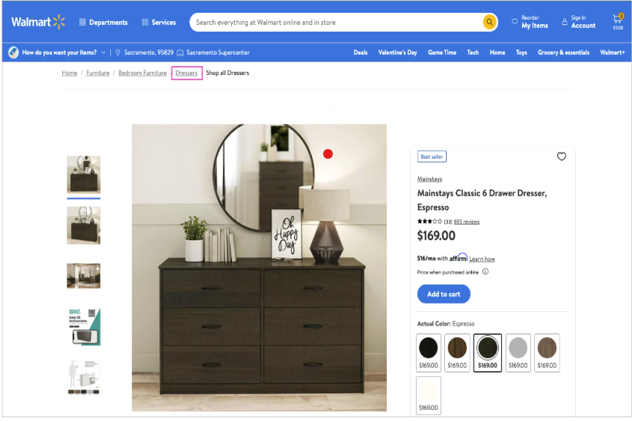
If you are unsure about which term would work best, your item’s page taxonomy can provide you with some guidance.

Important Note: To ensure consistency and accuracy, links must always be generated using the keyword tool. Manual typing or pasting of links is not recommended.

Click the Create link button to view your correctly formatted link in the Link field.

If you're a Marketplace seller, your link must include your Seller ID as a hidden facet in this format: &%20hidden_facet=retailer_id%3A12345. When applicable, the link generator will automatically add this for you when clicking on Create link.


Generate a Browse Link:

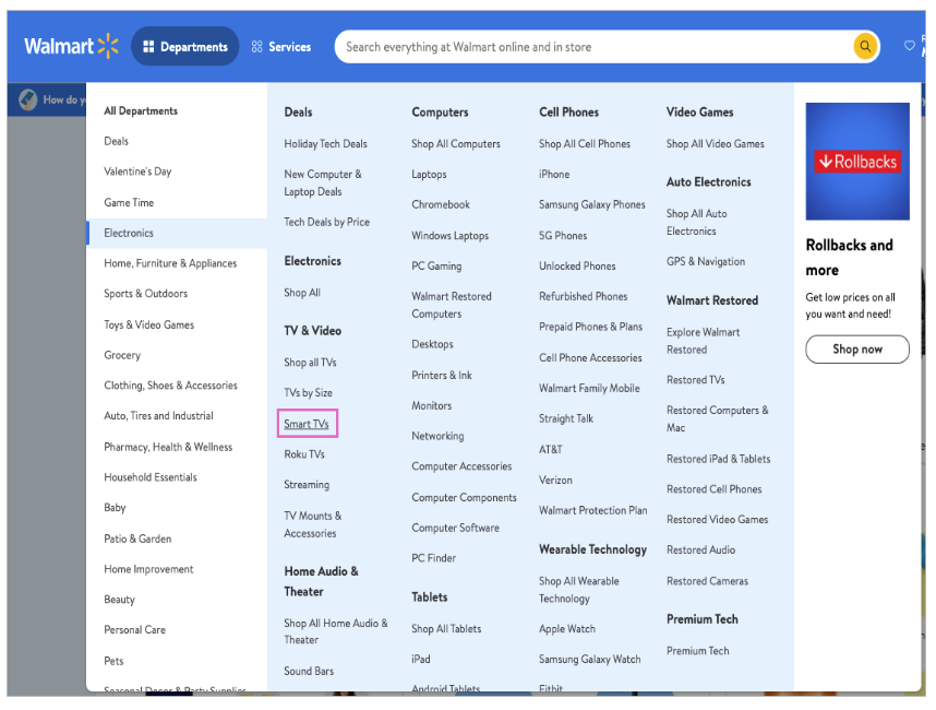
To create a browse page link, make sure that all the items that you are advertising in your campaign can be found under the same category (e.g., Electronics / TV & Video / Smart TVs).

To locate your category taxonomy IDs, start on the Walmart.ca homepage. Open the All Departments menu and select your category and subcategory. 

Auto-calculate option for budget setting


  • Once the appropriate category page has been located, copy its URL. 
  • If the URL contains a plus sign (+), such as in https://www.walmart.ca/browse/...+..., replace each + with %20, which represents a space character in URL encoding.
  • Paste the corrected URL into the designated Link field.
  • If the URL includes the parameter typeahead=&, remove this portion entirely before proceeding.