Relevant to: Sponsored Brands
Getting started
When setting up your Sponsored Brands campaign, it is important to focus on items with distinct features, such as item category (e.g., t-shirts).
Apply the same methodology when choosing your keywords, so that they are highly related to the items you are advertising. This ensures that your ads are eligible to appear when customers are searching or browsing precisely what you offer.
If you want to advertise different product sub-categories (e.g., short sleeve t-shirts, longsleeve t-shirts), create separate campaigns for each.
Promoted items must be:
- Published
- In stock
- Winning the buy box
Add Items to Your Ad Group
To add items to your ad group, navigate to the Item List section and search for them using the search functionality next to the Select Items to Advertise field. Items can be found using the item ID, the item name, the brand name or various keywords.
In the result list, click Add Item to add items to your ad group. Added items appear on the immediate right of the results list, with a status slider to enable or disable them. All added items are enabled by default.
- Sponsored Brands campaigns require a minimum of two items per ad group to go live.
- Sponsored Brands ads can display up to four items at a time. Clicks on the displayed items lead directly to their item pages.
- Walmart’s algorithm selects the four most relevant items based on the customer’s search query and the advertiser’s bid amount, ensuring a seamless shopping experience.
- We recommend adding ten items to your ad group, so if any item goes out of stock, you will still have items available to display in your ad.
Upload items to your ad group with a .csv file
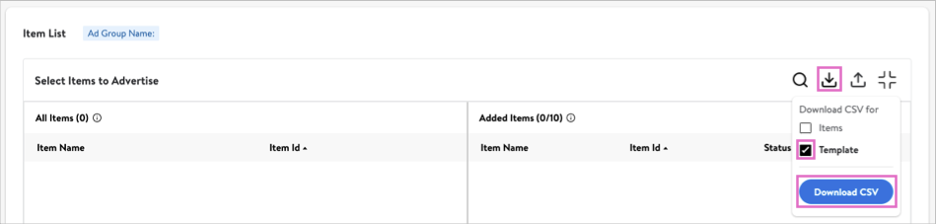
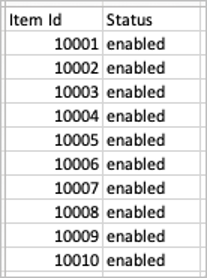
You can also uplaod a list of items to your ad group by using the provided .csv template. To get started, download the template by clicking on the Download CSV button.