Relevant to: Sponsored Brands
Showcase your product to millions of shoppers directly in their search results. This guide covers key topics for using our self-serve platform.
Relevant to: Sponsored Brands
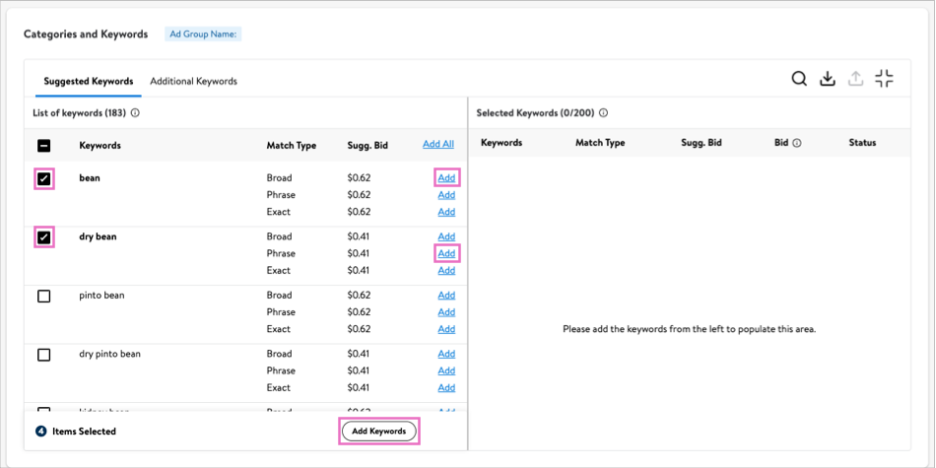
Add keywords your ad group under the Keywords section. A list of suggested keywords is populated based on the items you added in when you created your campaign.
-OR-
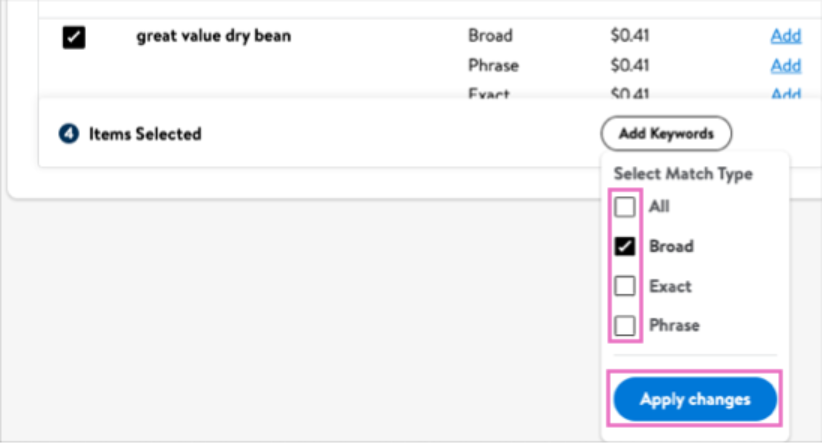
Choose which match types you want to add using the checkboxes. Click Apply changes.
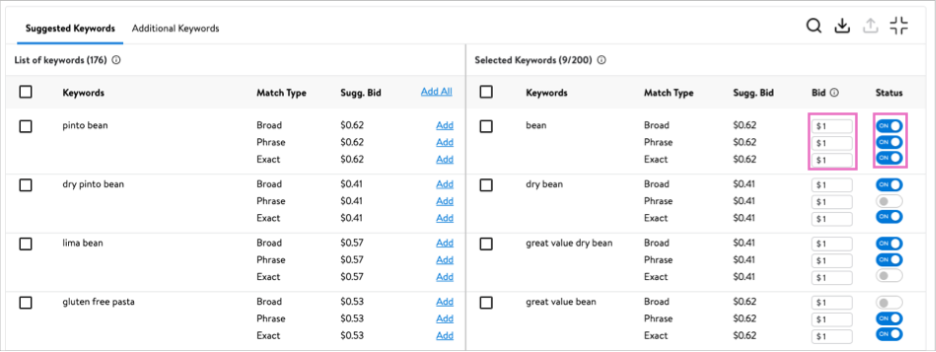
Confirm the keywords you've added in Selected Keywords on the immediate right. This section allows you to enable and disable keywords and set bids at the match type level. Refer to Setting Bids for more information on bidding.
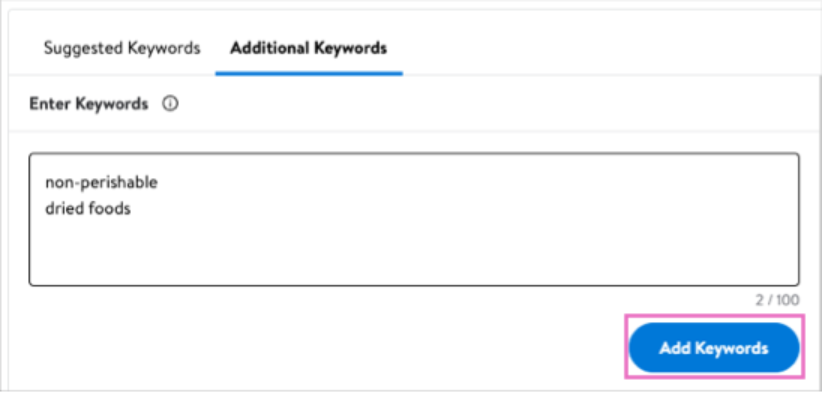
Use Additional Keywords to add your own keywords not listed under Suggested Keywords. Like items, keywords can be added using either a .csv template or the Enter Keywords text box.
Using the text box:
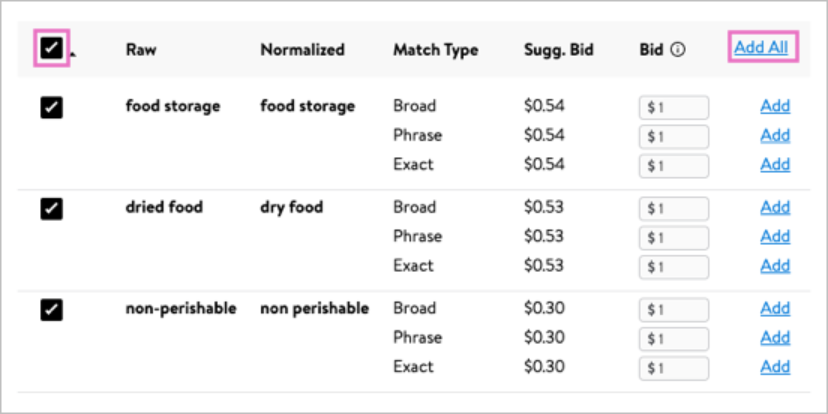
Using the .csv template:
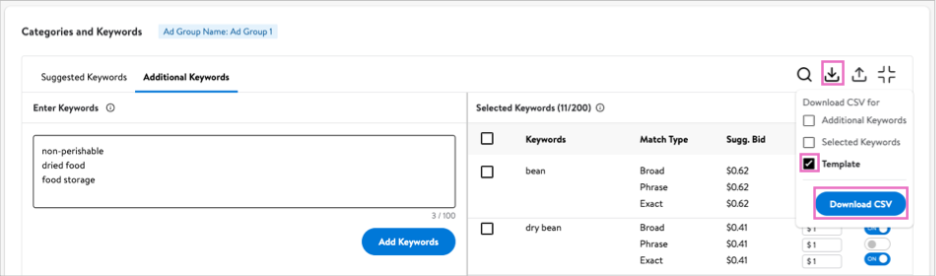
· Keyword should list one per row with at least one match type indicated using the bid and status columns.
· Match Type Bid should be at minimum $0.5. This can be adjusted after upload.
· Match Type Status should be either enabled or disabled.
· Upload the completed item set using the upload icon.
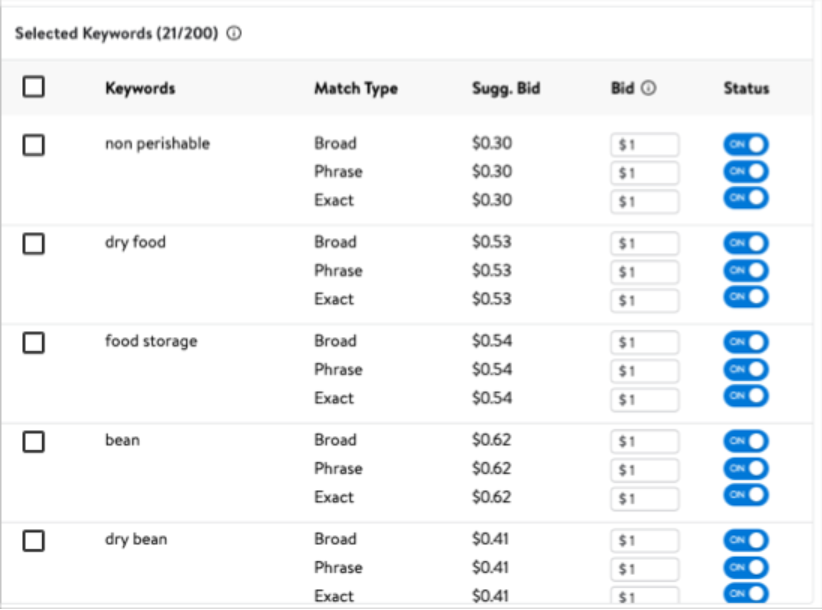
Note: Remember you are limited to 200 keywords.
Troubleshooting item IDs
This section lists the most common reasons you may not see an item in the Item List when you entered a valid item ID during the ad group creation process in the Walmart Connect Ad Center.
Updates to item details generally take 1–2 days to synchronize and appear across all Walmart systems. If you try to add an item to an ad group before two days have passed, you may encounter issues with the item's visibility in the Walmart Connect Ad Center.
The Selected Keywords section can be used to update bids and change keyword status. It allows you to:
Sponsored Brands is a manual campaign type, so bids are set at the keyword level with a minimum bid of $0.50 per match type.
1. Under the Selected Keywords section, review each bid.
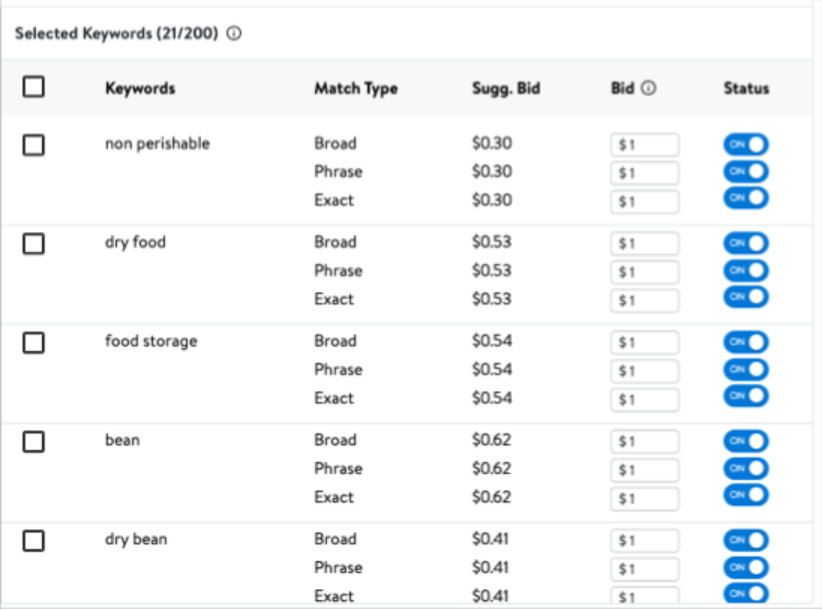
2. Bids can be updated individually at the match type level by clicking into the bid field
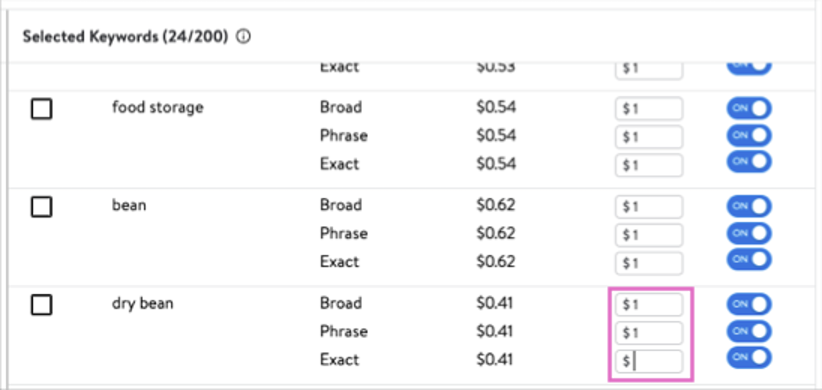
Tip: If this is your first Sponsored Brands campaign, we recommend staying with the suggested bid values to start. You can always come back and adjust these bids later.
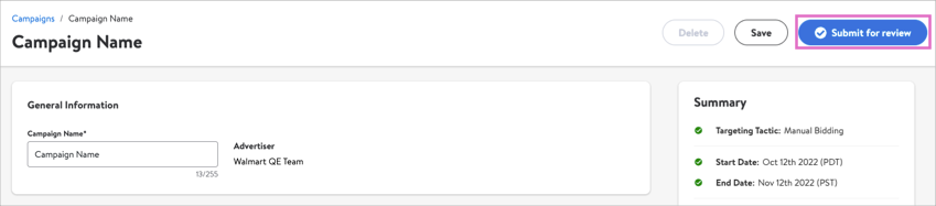
3. Click Save at the top right of the screen once you've finished adjusting your bids. This will ensure your new ad group with bids are saved and ready for review.
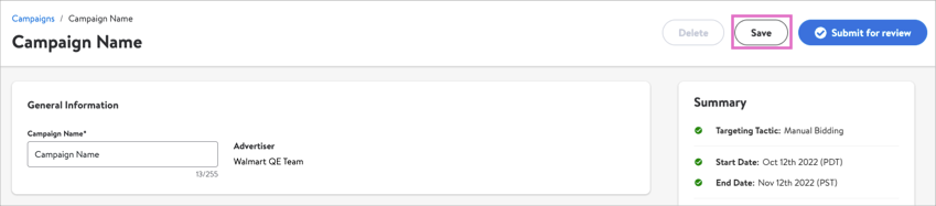
4. Click Submit for review at the top right of the screen to begin the review process.