Advertising Help Centre

Sponsored Products Guide

Showcase your product to millions of shoppers directly in their search results. This guide covers key topics for using our self-serve platform.

Step 5: Campaign submission and Management


Campaign submission and review process

Relevant to: Sponsored Brands

All Sponsored Brands campaigns must be submitted for approval by Walmart prior to launch. Additionally, reapproval is required in the following cases:

  • Adding or enabling keywords
  • Adding or enabling items
  • Modifying brand name, logo, headline, or click-through URL
    (Note: These changes also require the campaign to be paused)

Changes such as adjusting bids or disabling items or keywords do not require reapproval

Approvals can take up to 3 days to complete.
 

Approval for new campaigns

After submitting your campaign for review:

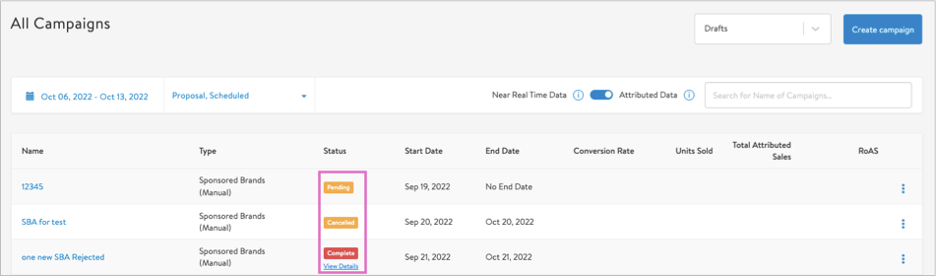
  1. Monitor your campaign's review status under the Status column on the Campaigns tab or next to the campaign name if you need to edit the campaign details. 
  • Pending means the campaign has been submitted for review and is waiting in the queue.
  • In progress means the campaign is being reviewed.
  • Complete means the campaign has been approved for launch.
  • Rejected means the campaign requires adjustments prior to launch. This also means the campaign will need to be reviewed again after suggested updates have been made.
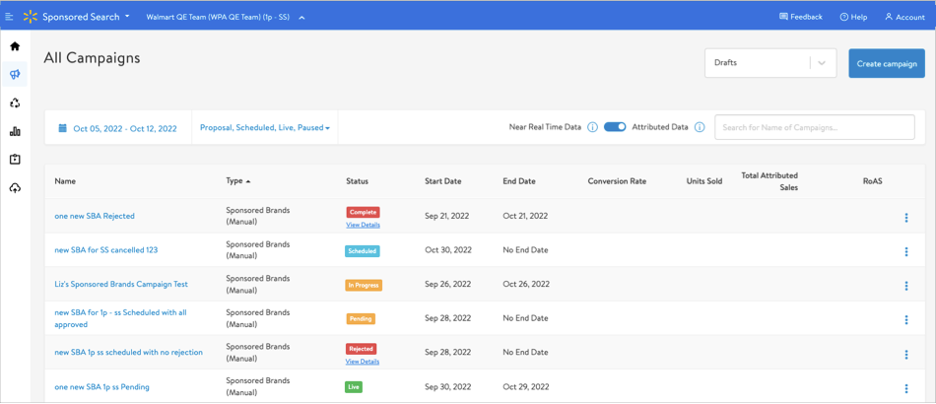
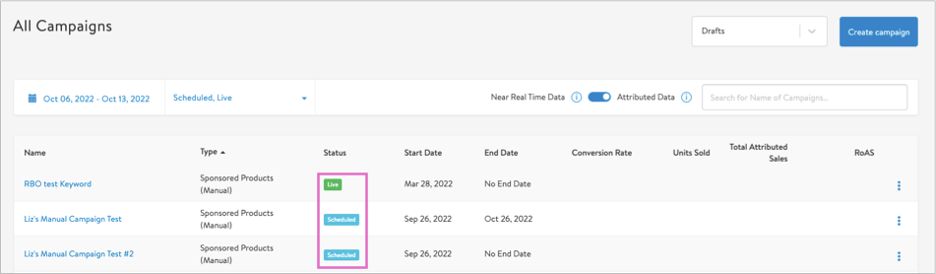
All Campaign


If approved:

2. The campaign status will automatically change to enabled then scheduled and finally to live (on the campaign start date) once the following criteria is met:

  1. Brand name, logo, headline and URL are all approved
  2. At least 2 items are approved
  3. At least 1 keyword is approved
All Campaign


If rejected:

Review the error messages under the campaign review status in the Summary section. You will also see a rejected symbol next to each item or keyword in their ad group sections.

If Rejected/Pending


  • Correct errors and resubmit for review. Repeat these steps until the campaign review status is complete.
  • The campaign status will automatically change to enabled, then scheduled and finally to live (on the campaign start date) once the following criteria is met:
    • Brand name, logo, headline and URL are all approve
    • At least 2 items are approved
    • At least 1 keyword is approved


Reapprovals

If your Sponsored Brands campaign is still in the pending or in progress stages, click the campaign name then Edit Campaign in the upper right to make changes to brand name, logo, headline, URL items and/or keywords. You will need to resubmit once you’ve completed your updates.

Changes to the brand, logo, headline and/or URL require you to first pause your Sponsored Brands campaign.

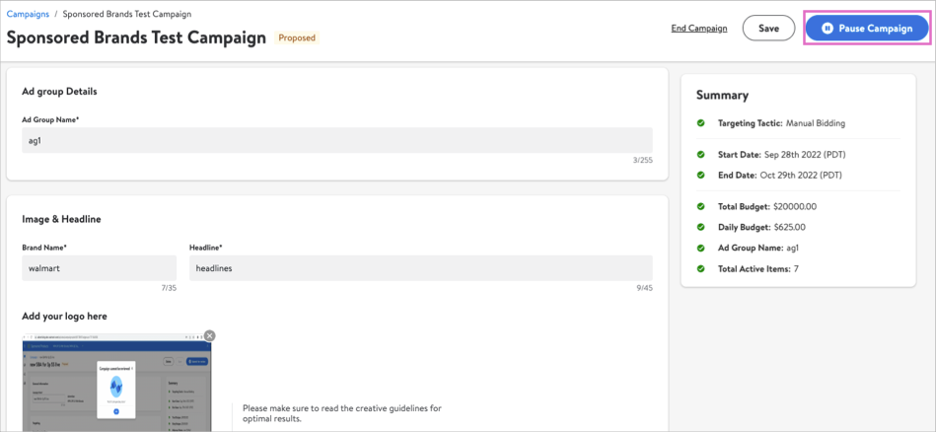
1. Click Pause campaign in the top right of the screen.

2. Make adjustments to the brand, logo, headline and/or URL fields as needed

Pause Campaign


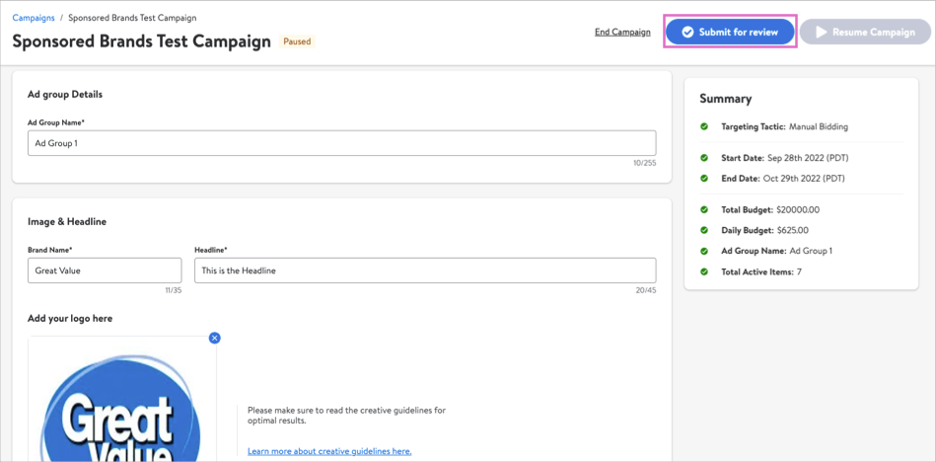
3. Click Submit for review to begin the review process.

4. Once review is complete, you can resubmit or resume your campaign.

Submit for review


Add or Enable Keywords 

Adding or enabling items and/or keywords does NOT require the campaign to be paused.

Important: You cannot delete items or keywords from an already live campaign, so if your campaign already has the maximum number of items (10) and/or keywords (200), you’ll need to create a new campaign.
 

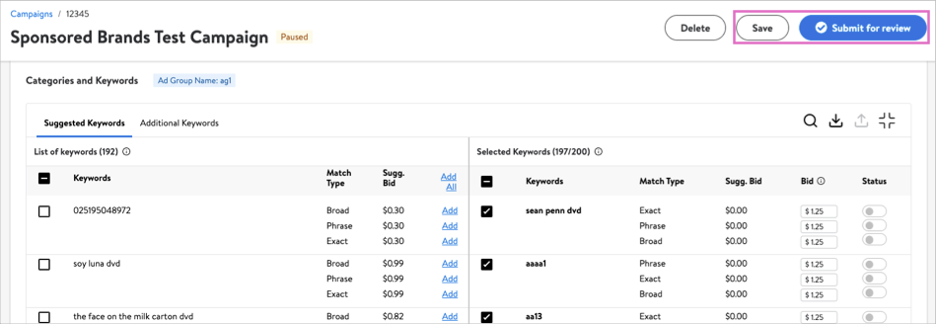
  1. Add the items and/or keywords you wish and set their bids, if applicable. Click Save at the top right of the screen.
  2. Click Submit for review to begin the review process.
  3. The campaign will be reviewed while in-flight.
Save and Submit for review


Note: Disabled items and keywords count toward your maximums.