Advertising Help Centre

Sponsored Search Guide

Showcase your product to millions of shoppers directly in their search results. This guide covers key topics for using our self-serve platform.

Step 2: Adding video, items & keywords

Relevant to: Sponsored Videos

An ad group is a collection of advertised items with similar keywords or attributes. They are required elements of all campaigns, regardless of targeting type. 


Ad groups can be updated during the campaign flight as part of the optimization process. Most changes to ad groups will require re-review; changing the video also requires pausing the campaign to be re-reviewed.

Note: Sponsored Videos supports only 1 ad group per campaign.
 

Add an Ad Group

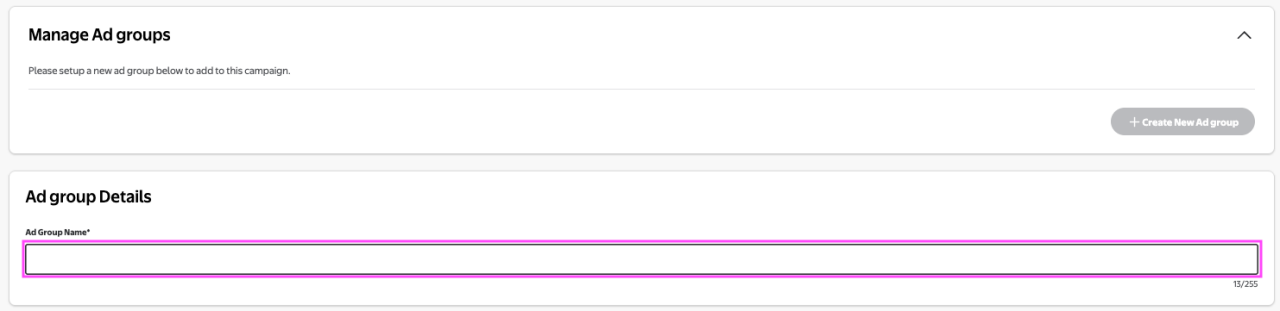
To create a new ad group to a campaign, enter an ad group name in the text box. 

Tip: Use a clear naming convention, that clearly signifies the content of the ad group. e.g., "Brand name- Household Sprays". 

To start an ad group, enter a name in the text box provided


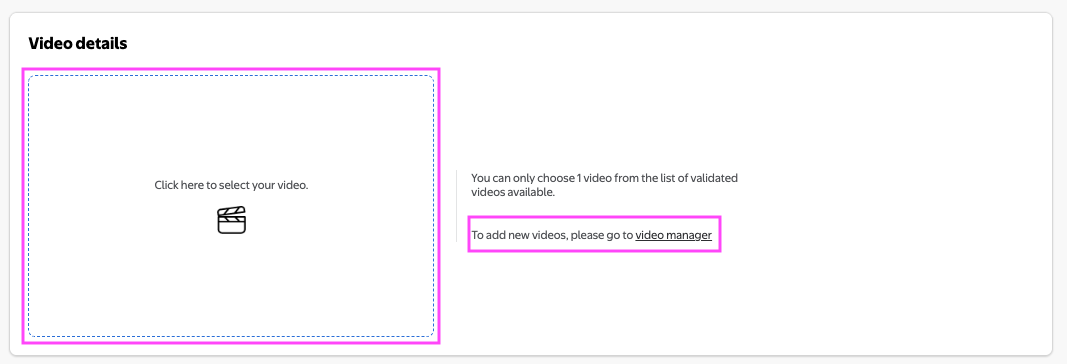
Add a Video

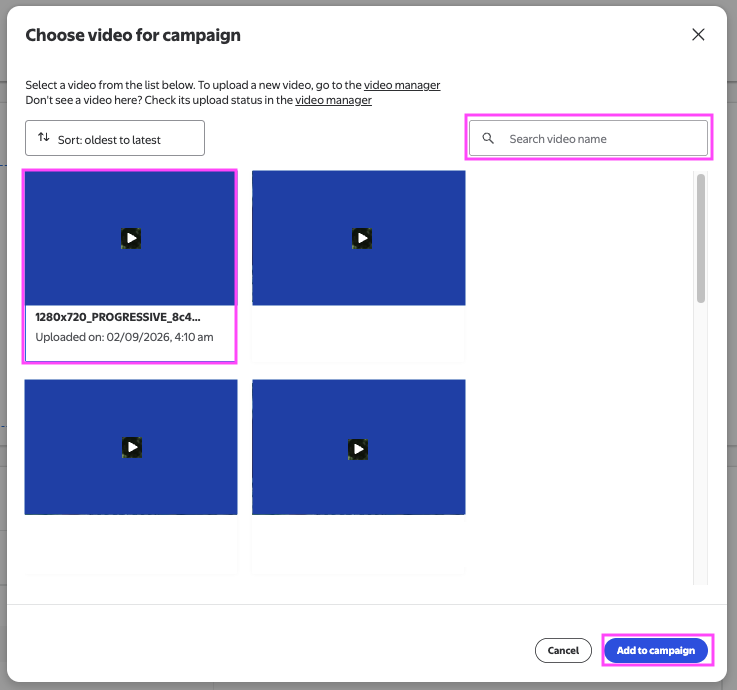
Assign your validated video to the ad group. Click in the box to select from the list of validated videos in Video Manager or search for a specific video name.


Enter your brand name and add a headline.

Note: There is a 1 video limit per campaign. Choose one that is relevant to all the items and keywords for that campaign. 

Select the video and click Add to campaign to add it to your ad group.

Upload Image & Headline


Add Items: Include 1-10 items (recommended: 2+ in case one goes out of stock). Add your bestsellers/top converters, or seasonal priorities and maure item pages are up to date. 

Add keywords: Manual targeting requires keywords. You can add up to 200 keywords per campaign/ad groupd. Minimum bid is $0.80 per match type.

How to add items:

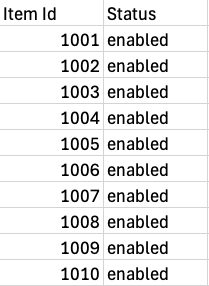
  • Upload via CSV using the template (base item ID only; set status to enabled or disabled). OR, 
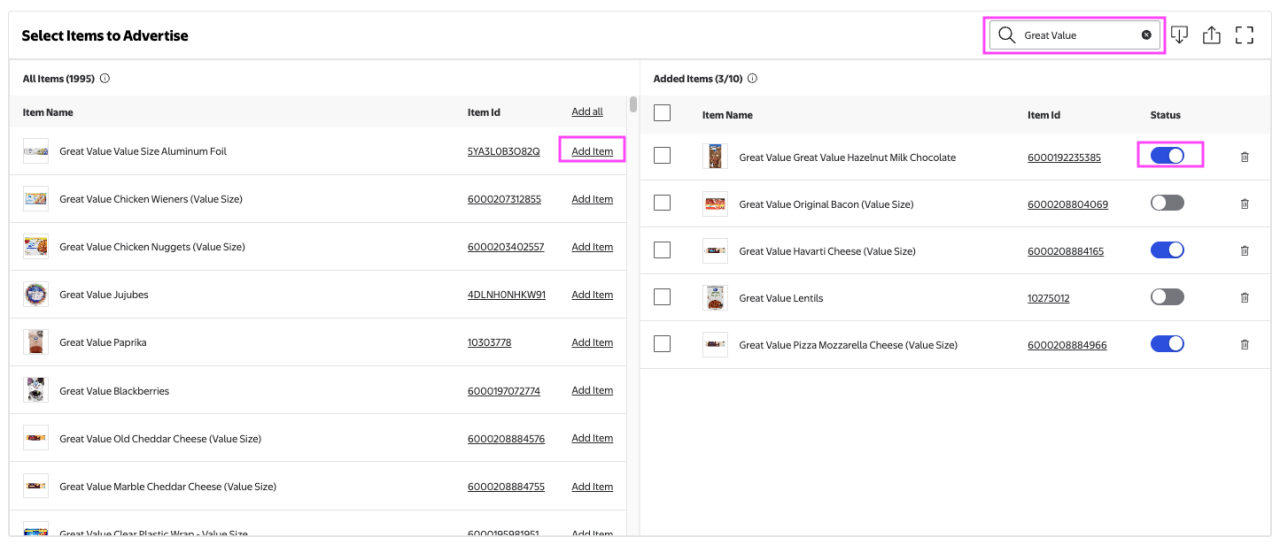
  • Search by item ID, product name, brand, or keyword, then click Add


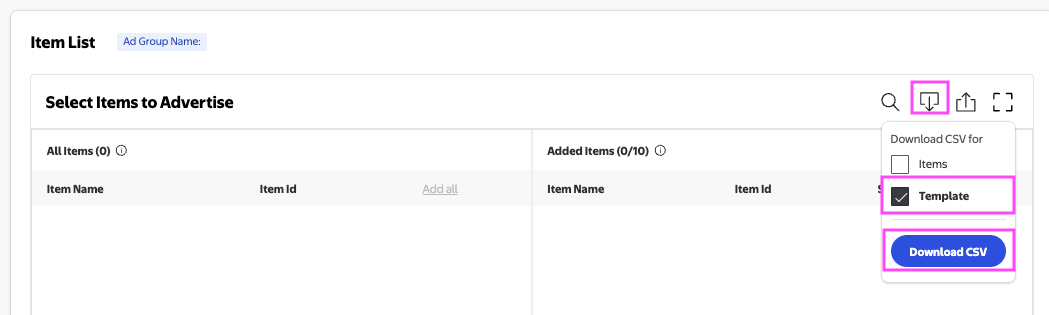
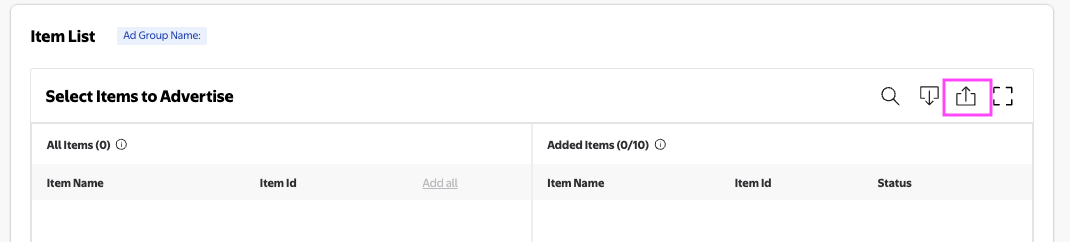
In the Item List section, add items to your ad group by uploading the provided .csv template or by using the search functionality next to Select Items to Advertise. 

If using the .csv template: 

  • Download the .csv template by clicking on the download icon.


Sponsored Brand Image


  • Fill out the required fields:
    • Item ID requires the base item ID. Variant IDs are not accepted at this time. 
    • Status should be either enabled or disabled.    
  • Upload the completed item set using the upload icon. 


Sponsored Brand Image


If using the search field:

  • Search by item ID, product name, brand, or keywords. 
  • Click Add to include items. 
  • Use the slider to enable/disable items (enabled by default). 
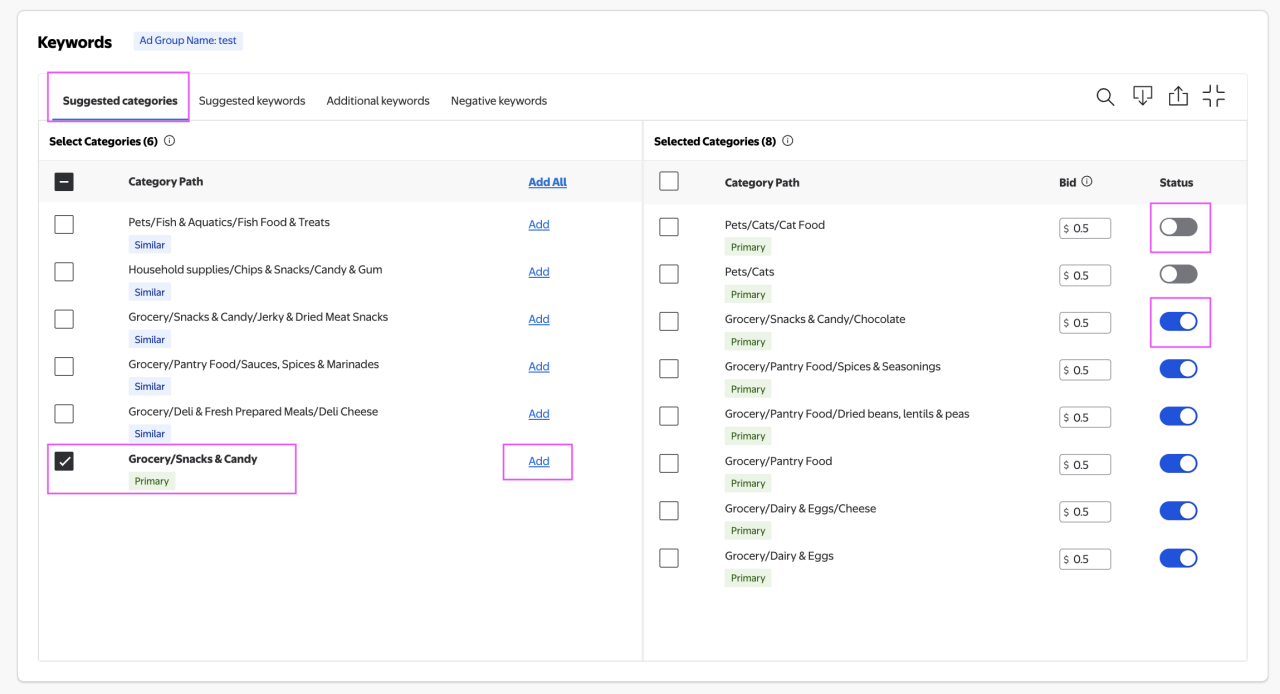
Taxonomy example


Important: Make you sure you have at least one item added but no more than ten. 

Add keywords

  • Select list of categories you want your ad to show up on and set bid
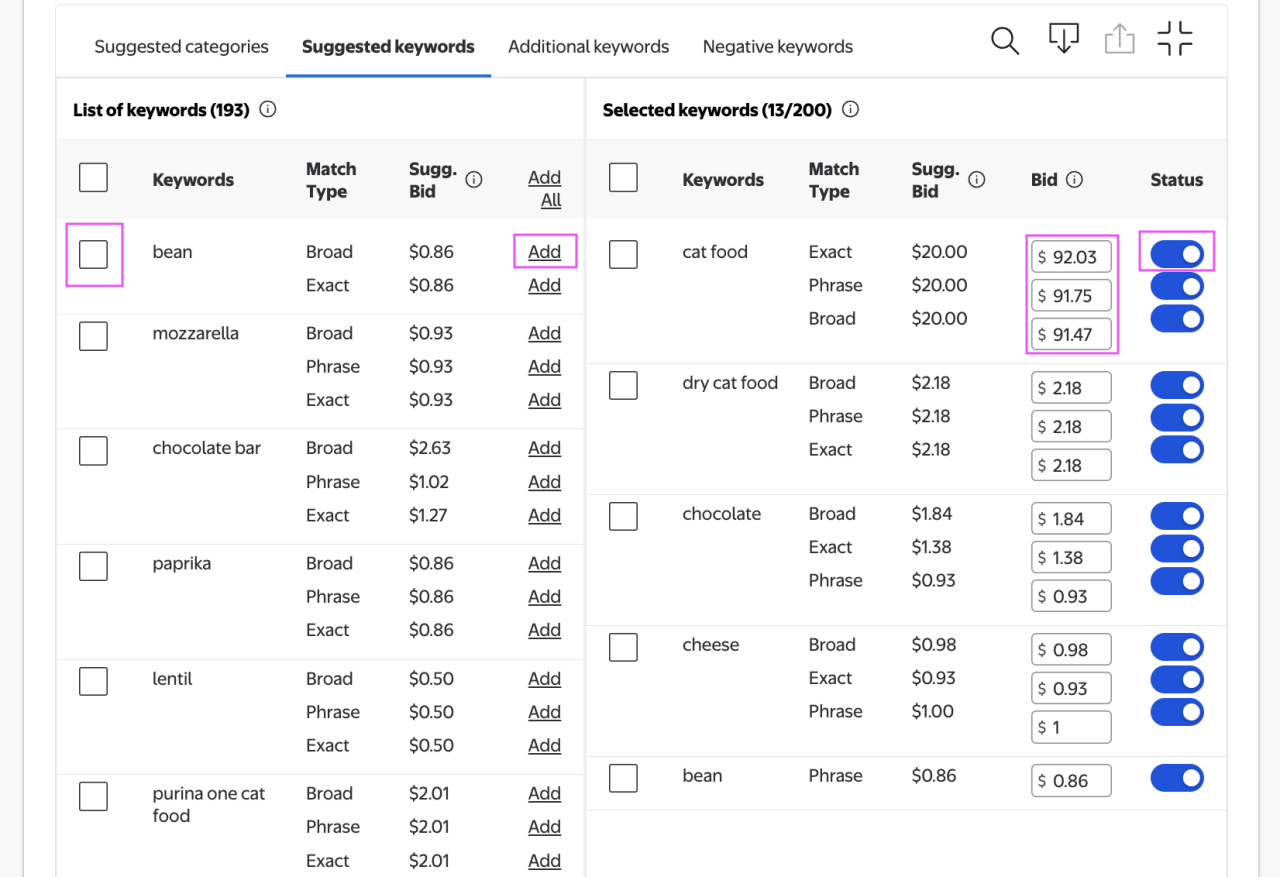
  • In Suggested Keywords, start with Suggested Keywords, add keywords by their individual match types, then add your own in Additional Keywords. Click Add
suggested keyword


  • Review Selected Keywords to enable/disable keywords and set bids by match type. 
  • In Additional Keywords, add custom keywords via text box or .csv upload. 
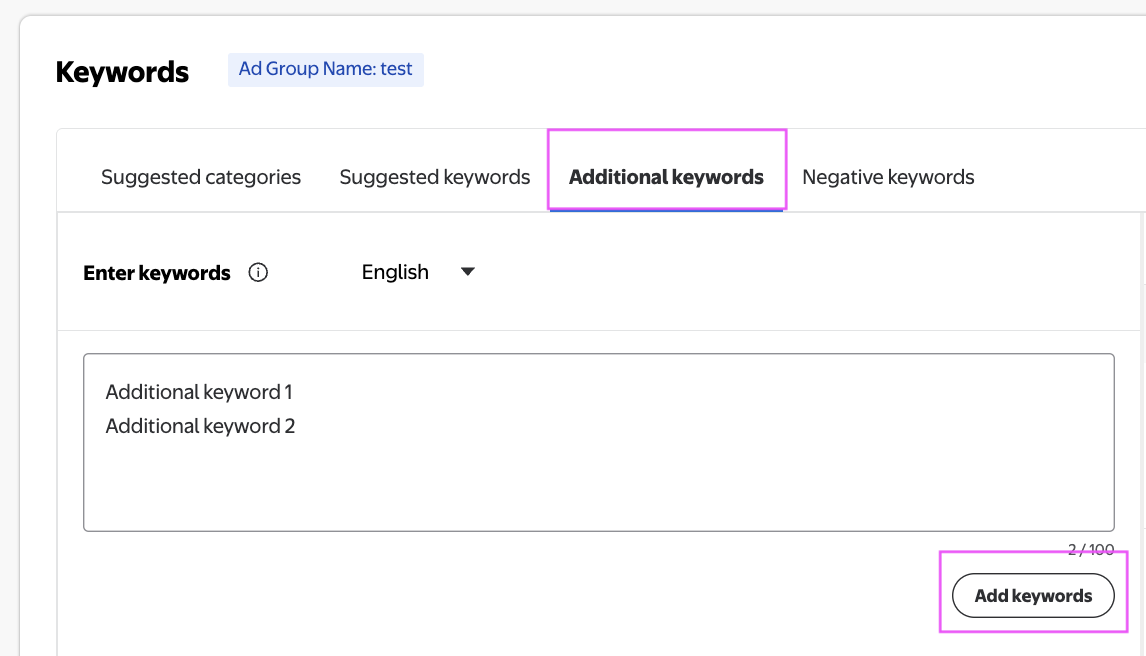
    • Text box: Enter one keyword per line (up to 100 at a time), then click Add keywords. 
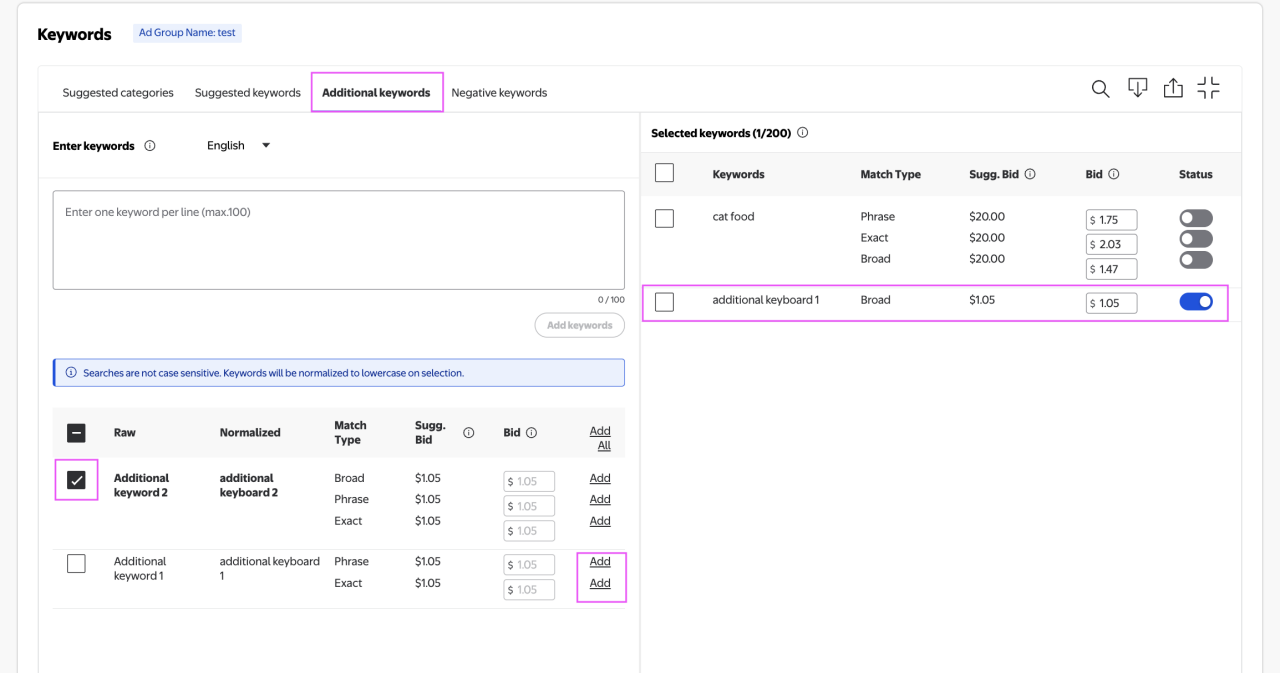
    • Select the checkbox(es) to the left of the additional keywords and click Add next to the match type or Add All
sug keyword
add kw


  • Using the .csv template
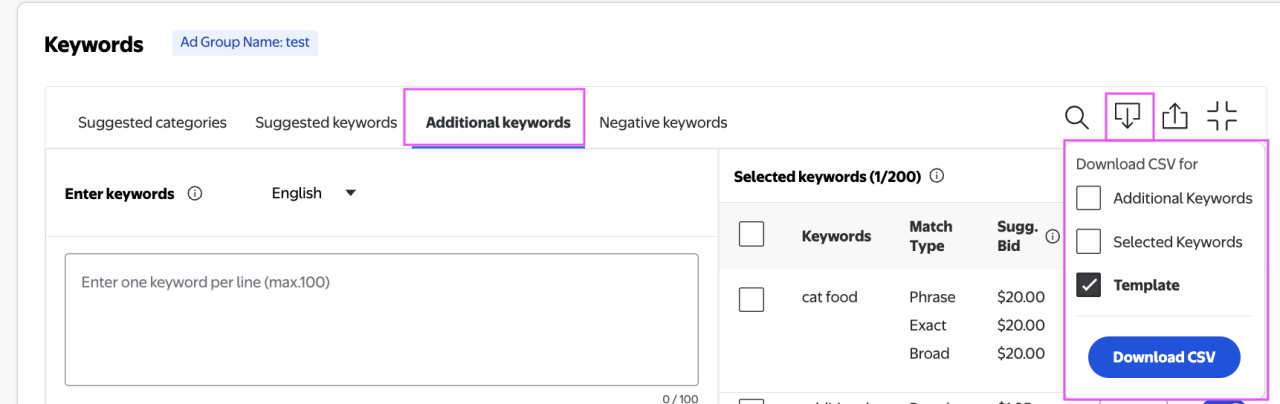
    • Download the template by clicking on the download icon and click Download CSV. Make sure only the Template checkbox is selected. 
upload temp


  • Fill in required fields:
    • Keyword should list one per row (up to 100) with at least one match type indicated using the bid and status columns. 
    • Match Type Bid should be at minimum $0.80. This can be adjusted after upload. 
    • Match Type Status should be either enabled or disabled. 
    • Upload completed item set using the upload icon. 
    • Confirm keywords have been added correctly using the same Selected Keywords area. This should now show both the keywords added from the Suggested Keywords and from Additional Keywords. 

Note: Remember you are limited to 200 keywords. 


Troubleshooting item IDs

This section lists the most common reasons you may not see an item in the Item List when you entered a valid item ID during the ad group creation process in the Walmart Connect Ad Center. 

  • You have made recent changes to your item listing such as updating the item headline, description or price. 
  • You are trying to add newly published items in your Seller or Supplier catalog to a campaign. 
  • If you have changes an item in a variant group from primary to variant or from variant to primary. (Note: You can't add variant items to Sponsored Brands or Sponsored Video campaigns. These campaign types can only include items that are set as primary variants in ad groups.)
  • If your item status is not Published, you cannot add it to a campaign. Ensure that your item is present in your Seller and/or Supplier catalog with a Published status. 
  • Verify that your item is in stock and winning the Buy Box. If it isn't, it can't be promoted in Sponsored Search. 

Updates to item details generally take 1-2 days to synchronize and appear across all of the Walmart systems. If you try to add an item to an ad group before two days have passed, you may encounter issues with the item's visibility in the Walmart Connect Ad Center.