Relevant to: Sponsored Videos
Showcase your product to millions of shoppers directly in their search results. This guide covers key topics for using our self-serve platform.
Relevant to: Sponsored Videos
Video manager is your central repository for all video assets, including video and closed captions files. Use it to upload, approve and manage videos and closed captions files for your Sponsored Videos campaigns.
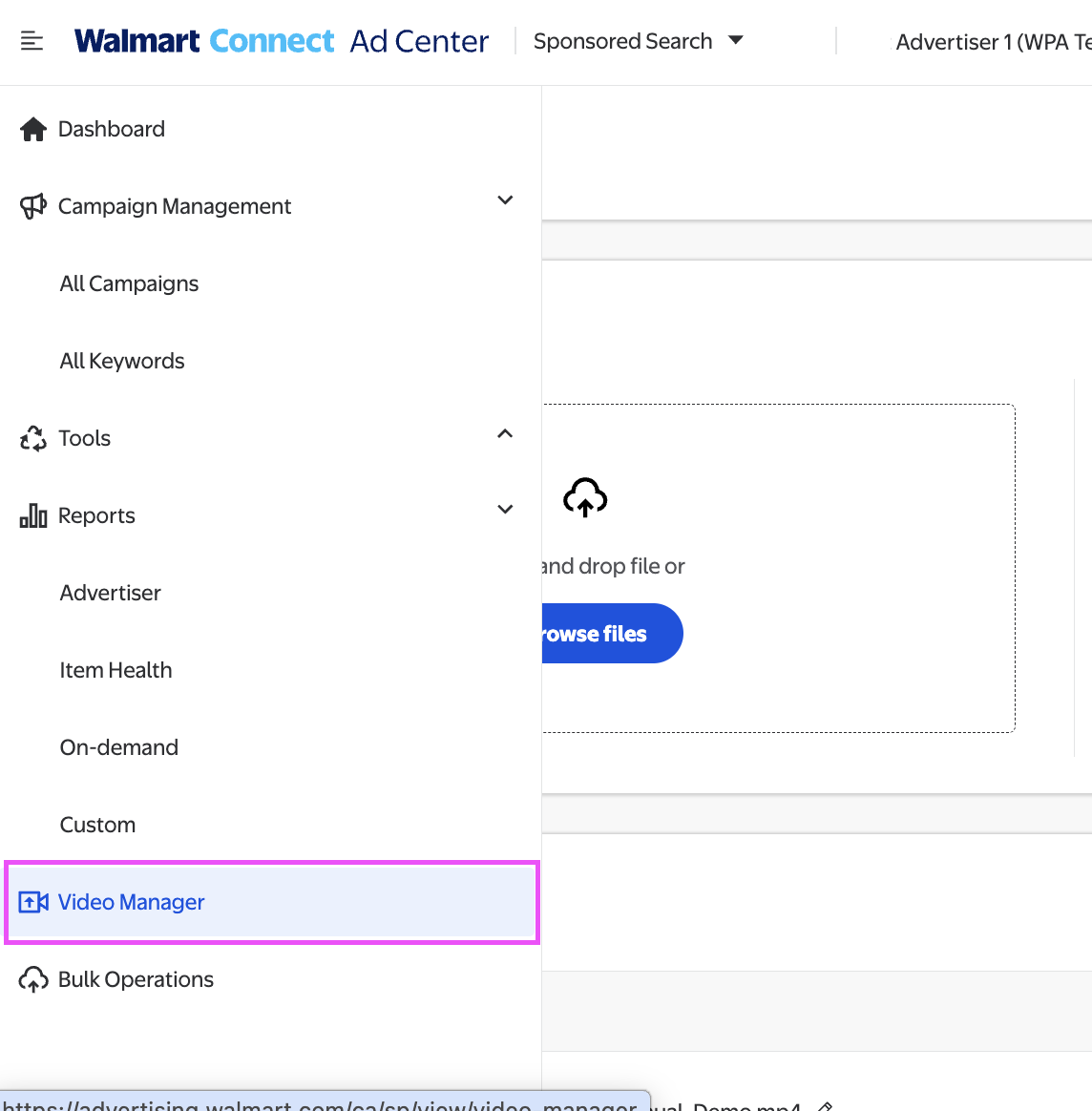
Open Video Manager by selecting it from the left-hand navigation panel.
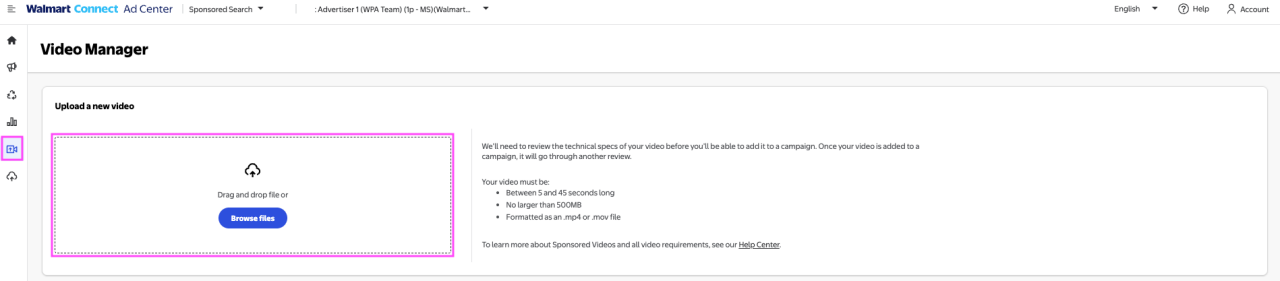
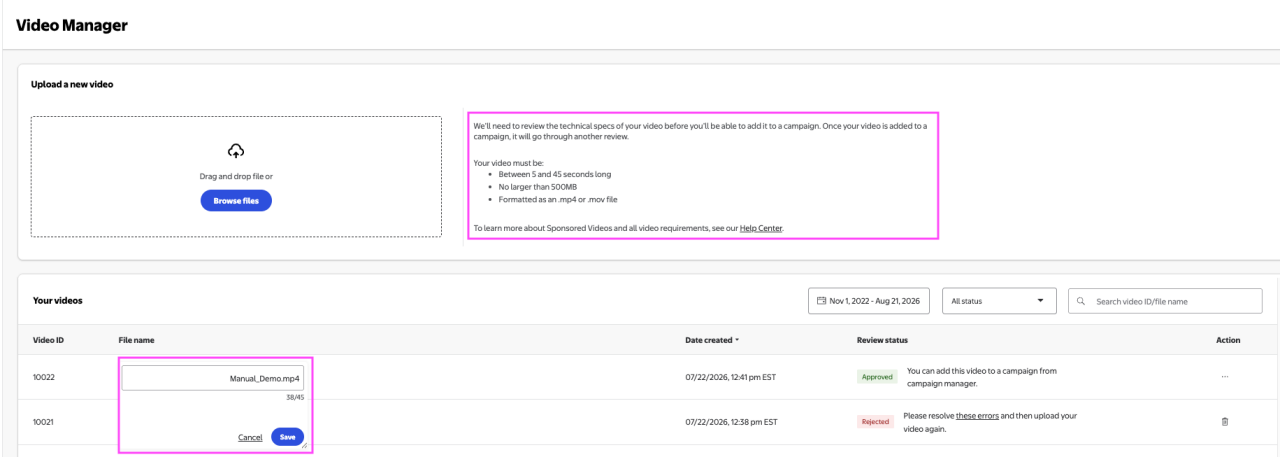
Start your video file upload by dragging and dropping the file or browsing for it. Maximum video file size is 500MB. Closed captions are optional unless the video file contains narration. Video files should be either MP4 or MOV file formats. Caption files should be VTT or SRT file format only. Videos can be a minimum of 5 seconds and a maximum of 45 seconds. Files can be added at any time and be renamed after uploading. File names can be up to 45 characters in length, with no special characters permitted. You can upload a maximum of 200 videos.
If the closed captions file is unavailable, you can proceed with the autogenerated captions feature during the video upload process, and the system will automatically generate a closed captions file for you based on the spoken words in the video file.
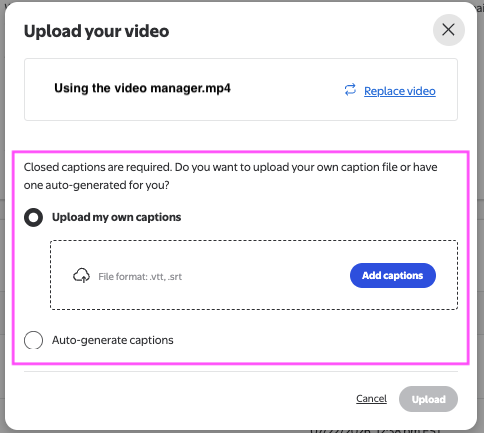
Note: The autogenerated closed captions may not be 100% accurate. Make sure to review and revise the file before using it in the campaign. Do not use embedded captions in the video.
Once your uploaded video has been approved in Video Manager, you have the option to download the autogenerated closed captions file. This file contains the closed captions that were automatically generated based on the spoken words in the video. You can edit the file if there are errors or if the captions aren’t complete. If you made changes, you can overwrite the existing autogenerated closed captions file by using the Upload new closed captions feature in the Video manager.
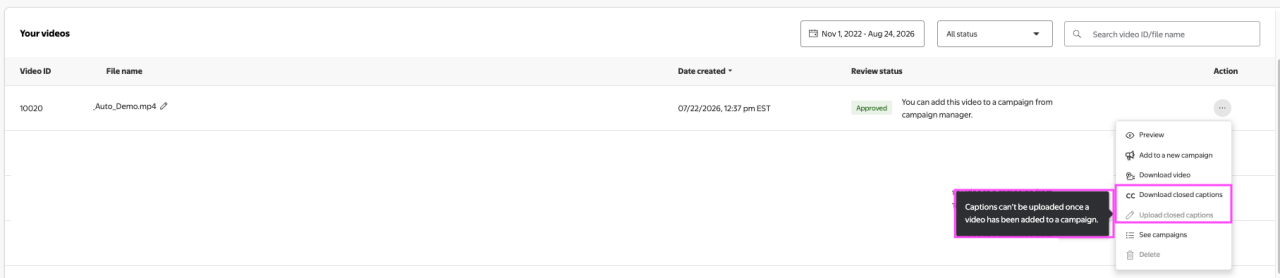
Note: If the video has been added to a campaign and you want to make changes to the closed captions file, you can’t replace the existing closed captions file. You must upload the video file again along with the revised closed captions file for the changes to apply.
For a complete list of video specifications, reference our Video specifications and guidelines.
Videos are reviewed once they are successfully uploaded. The video approval process is automated and can take up to 30 minutes. Video approval confirms file type, size, video dimensions, aspect ratio and length of the video file, but it does not equal approval for use in a campaign.
The Sponsored Videos campaign approval process starts after the video has been attached to a campaign and that campaign has been sent for ad review approval. Upload history lists all the videos you’ve uploaded or attempted to upload. Reference this list to track the status of your video. You can also search directly by file name.
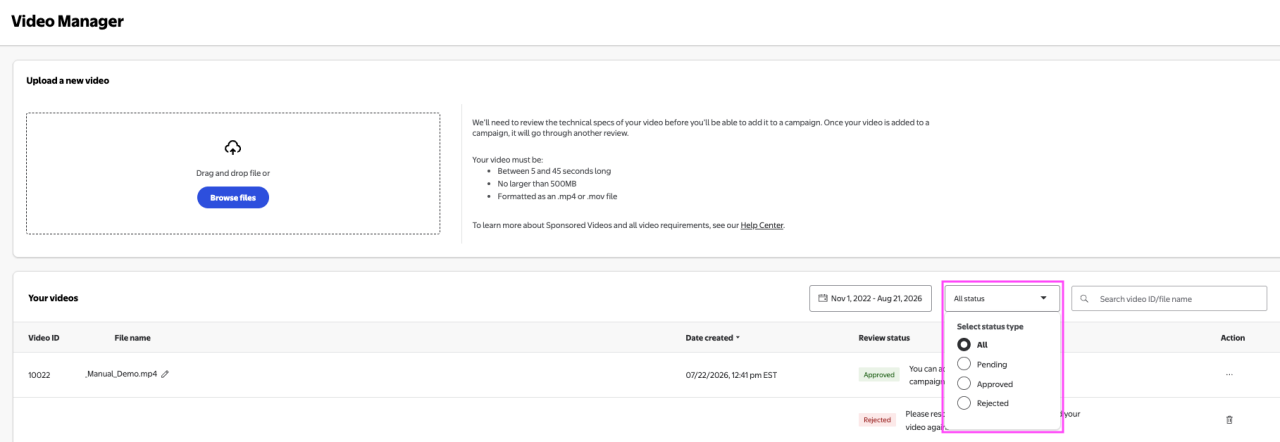
Video files will either be marked as Approved, which means the file can be attached to a campaign or Rejected, which means the file does not meet platform specifications. Pending means that the video is currently under review.
Navigate to Video Manager in the left-hand navigation panel.
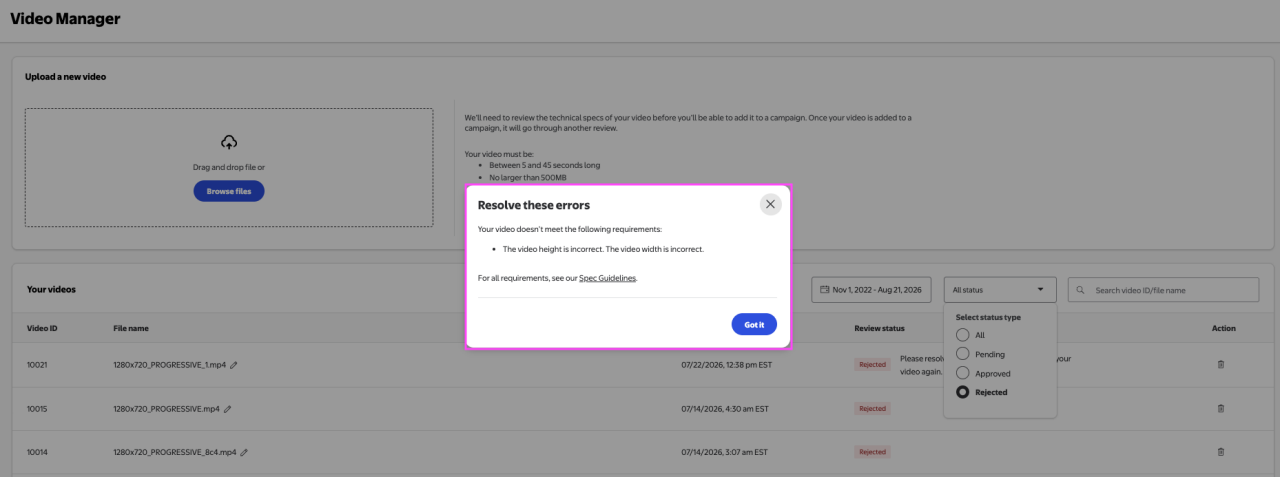
In Video Manager, filter for the desired date range. Select the dropdown on the right, which defaults to All status. Select Rejected to filter for the rejected videos. This filter allows you to see the rejected videos for the chosen date range.
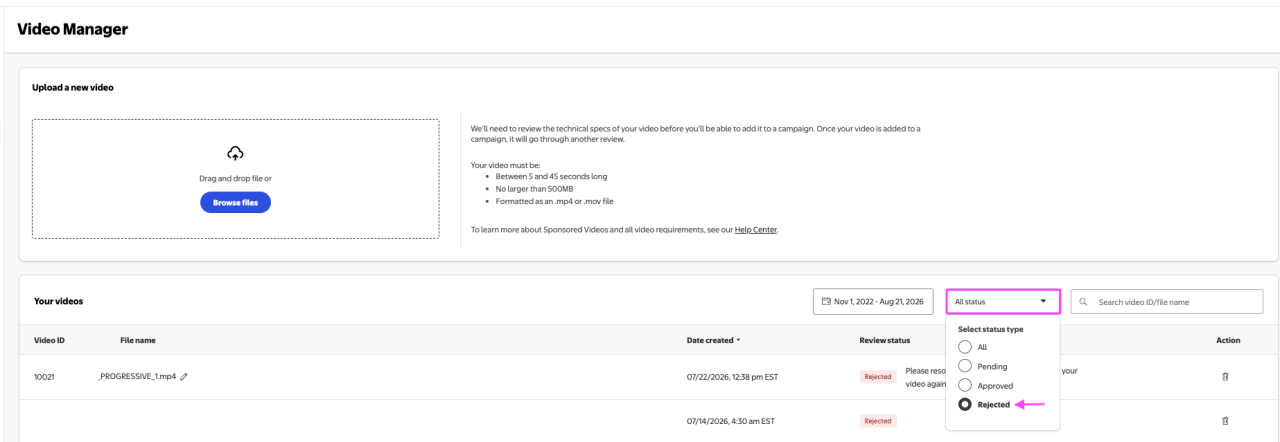
Select the resolve these errors link to view the rejection reason(s). The details of the issues appear in a popup window for you to review. Use this feedback to make changes to your video and then upload the new version(s) with the desired changes.