Advertising Help Centre

Sponsored Search Guide

Showcase your product to millions of shoppers directly in their search results. This guide covers key topics for using our self-serve platform.

Levels of Account Access

This article provides an overview of Levels of Account Access including Admin management and users of an account.

Admin Management

The Admin Management section provides admin-level users an overview, plus the ability to: 

  • Add or delete all users, API partners and agencies that have access to the account. 
  • Edit the access levels of all users, API partners and agencies on their account. 

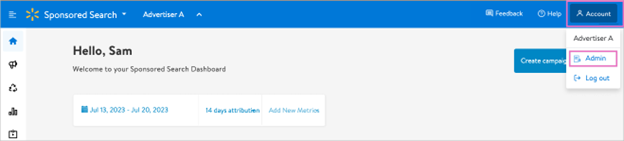
Accessing Admin Management

If you have Admin-level access, you can access Admin Management by clicking the person icon (👤) labeled Account at the top right corner and selecting Admin.
Login screen for the Walmart Connect Ad Center


Note: If you do not have access to this section, please reach out to the Admin on your account. If there are no Admins on your account or you are unsure who the Admins are, please contact us at Info_WMC_CA@walmart.com


Adding a user to your account

To add a user to your account, account admins will follow this process:       

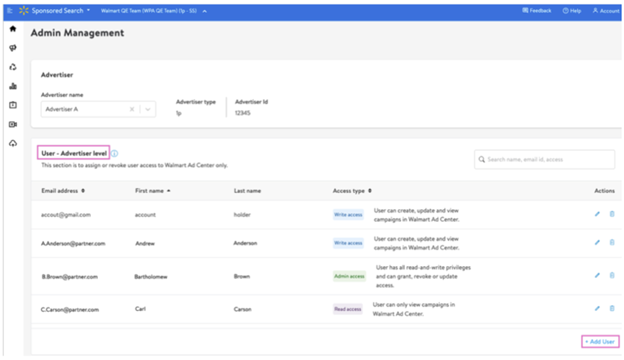
  • Navigate to the User - Advertiser Level section on the Admin page. 
  • Click + Add User at the bottom of the section. 

Login screen for the Walmart Connect Ad Center

Enter the new user's email address, first and last name. The sustem will verify the email address provided. 

Login screen for the Walmart Connect Ad Center

Select the level of access you wish to prodive to the user:admin, write or read from the Access type dropdown


Login screen for the Walmart Connect Ad Center

Click Add user.


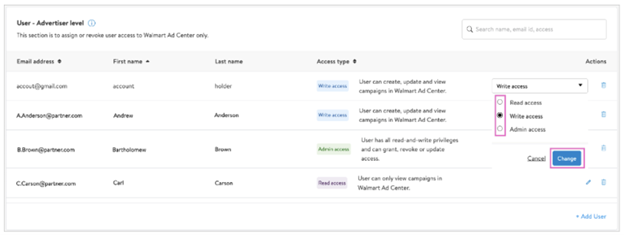
Editing a user's access level

To edit a user's access level, account admins will follow this process:       

  • Navigate to the User - Advertiser Level section on the Admin page. 
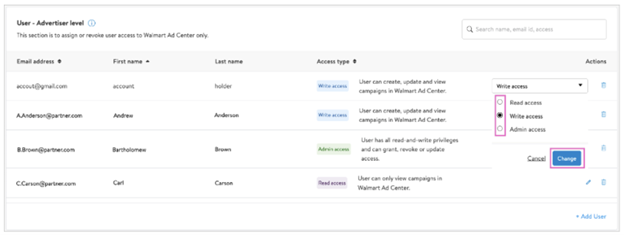
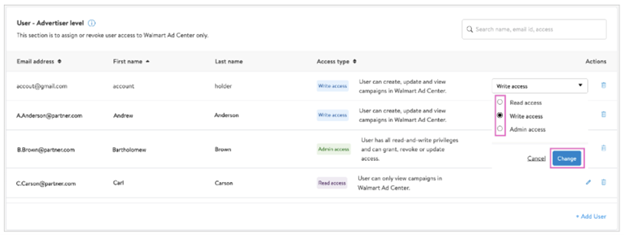
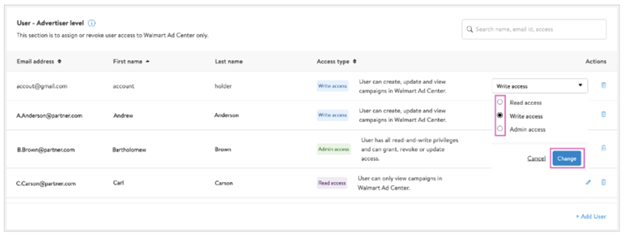
  • Click the pencil icon (✏️) next to the user you wish to edit. 
  • Select an access level from the dropdown.
  • Click Change to save your changes.

Login screen for the Walmart Connect Ad Center


Removing a user

To remove a user from your account, account admins will follow this process:       

  • Navigate to the User - Advertiser Level section on the Admin page. 
  • Click the delete icon next to the user you wish to remove. 


Login screen for the Walmart Connect Ad Center


  • Click Got it to confirm and delete the user. 

Login screen for the Walmart Connect Ad Center


Note: when you remove a user, they will only be removed from that particular account. If the user has access to any other advertiser accounts, they will maintain access to those accounts.


Users

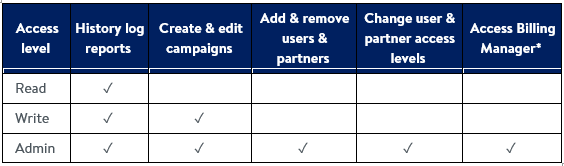
A user is an individual who can access the Walmart Connect Ad Center with their email address (this is the same email address use to register on Walmart.ca or Seller Center). You can add anyone you would like as a user, including individuals from the Walmart Connect Partner Network. Within Walmart Connect Ad Center Sponsored Search platform, there are three levels of access users can have: 

Login screen for the Walmart Connect Ad Center


You are limited to 20 admins and 100 read/write users per account.

*Note: All Marketplace Seller admin users can access Billing Manager, where they can review, add, and edit payment details. 


API Partners

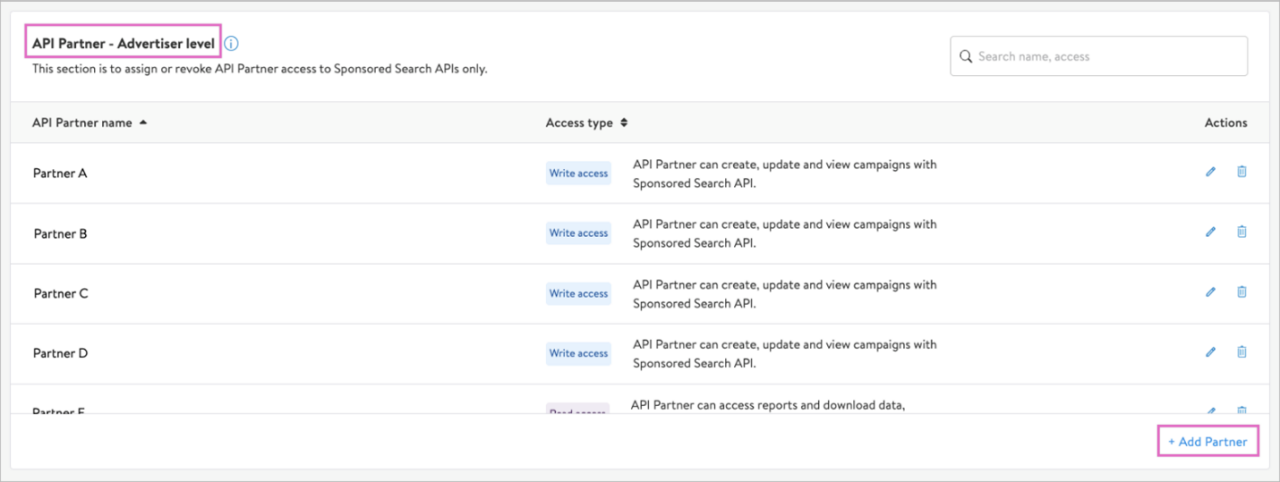
An API Partner is a platform or agency who accesses Walmart Connect Ad Center via the Sponsored Search APIs. You can add up to ten API Partners to your advertising account. Any API Partner with write access to your account can view and edit every campaign within that account. Within the Walmart Connect Ad Center Sponsored Search platform, there are two levels of access that API Partners can have:   

Login screen for the Walmart Connect Ad Center


Adding an API Partner to your account

To grant an API Partner access to your account via Sponsored Search API, account admins will follow this process: 

  • Navigate to the API Partner - Advertiser Level section on the Admin page.
  • Click + Add Partner at the bottom of the section.

Login screen for the Walmart Connect Ad Center


  • In the API Partner name dropdown, scroll and select the API Partner by their name.  
  • Select the level of access you wish to provide to the API Partner: Read, access, write access. 
  • Click Add partner. The API Partner can now access your advertising account via the Sponsored Search APIs. 

Login screen for the Walmart Connect Ad Center


*Note: If you cannot find your API Partner's name, contact our Advertiser Help team at Infor_WMC_CA@walmart.com.


Editing an API Partner's access level

To edit an API Partner's access level, an account admin should follow this process: 

  • Navigate to the API Partner - Advertiser Level section on the Admin page.
  • Click the pencil icon next to the API Partner you wish to edit.
  • Select the new access level from the dropdown. 
  • Click Change to save your changes. 


Removing an API Partner

To remove an API Partner from your account, an account admin should follow this process: 

  • Navigate to the API Partner - Advertiser Level section on the Admin page.
  • Click the delet icon next to the API Partner you wish to remove.
  • Click Got it to confirm and delete the partner. 


Note: When you remove an API Partner, they will only be removed from that particular account. If the API Partner has access to any other advertiser accounts, they will maintain access to those accounts. Additionally, when revoking API Partner access, ensure you also remove any associated users from the User - Advertiser Level section on the Admin page.