The information in this article is only applicable to Onsite Display reporting.
Clicking on a campaign opens more campaign-level report options that you can access from the report dropdown to the top right of the overview:
Reach customers when they’re ready to buy and drive impact across the purchase funnel.
The information in this article is only applicable to Onsite Display reporting.
Clicking on a campaign opens more campaign-level report options that you can access from the report dropdown to the top right of the overview:
Note: Display campaigns must meet certain requirements to be eligible for sales lift measurement, but eligibility does not guarantee that sales lift measurement will be provided in your end-of-campaign reporting.
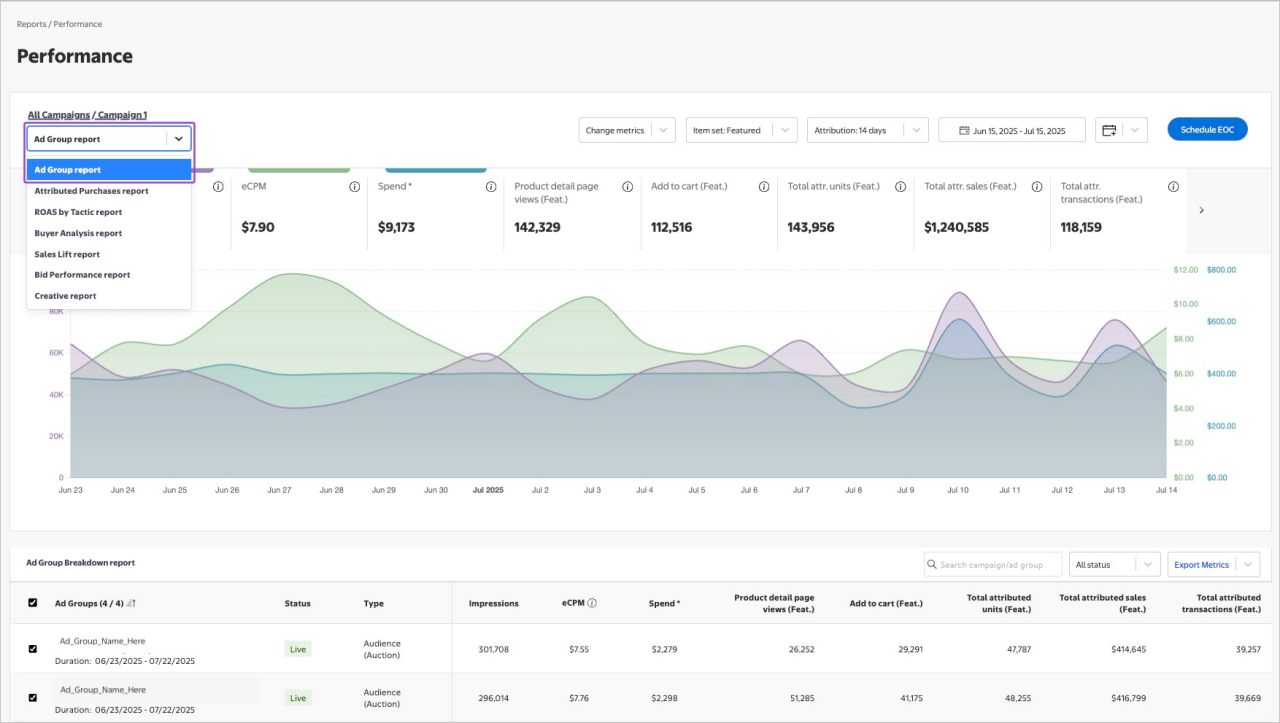
The Ad Group report is the default report when you open campaign-level reporting. It shows ad group level performance within the campaign and features a line graph like the one found on the all campaigns performance page.
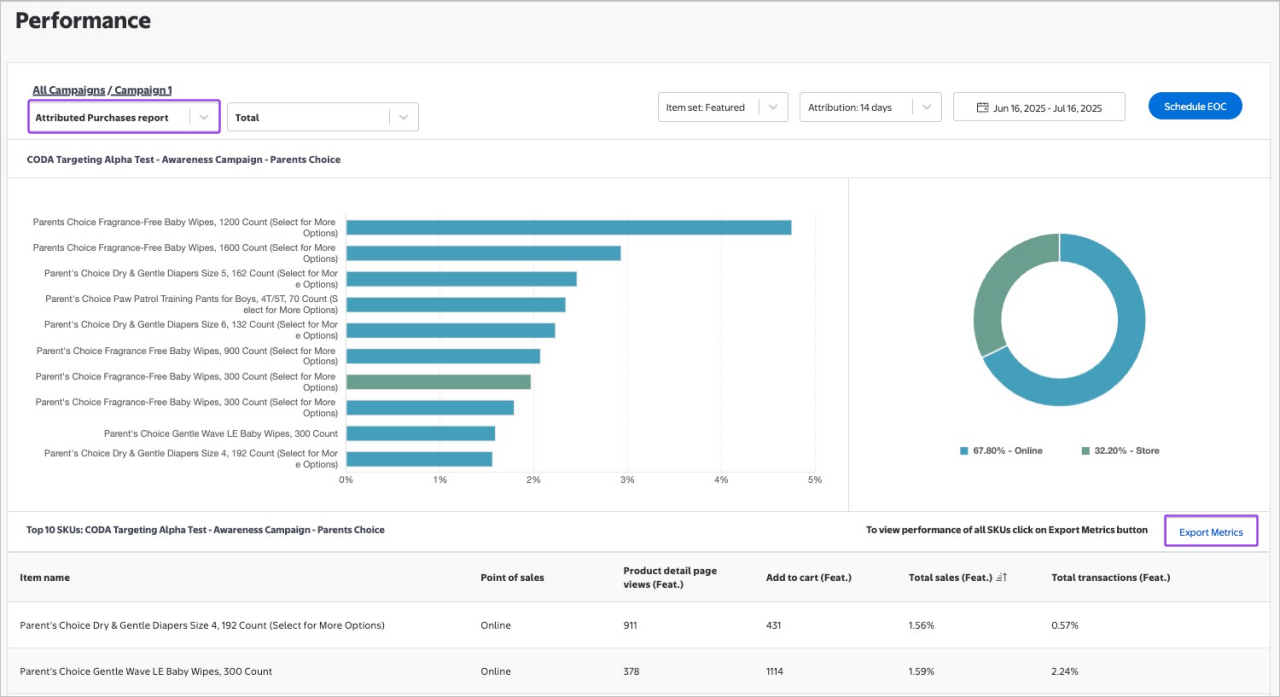
The Attributed Purchases report for Onsite Display campaigns can help you gain more visibility into ad group-level performance insights, which you can use to optimize in-flight and plan for future campaigns.
With this report, you can view performance metrics for the top 700 items by sales channel at the campaign level and the top 10 items by sales channel at the ad group level, with a variety of consideration, purchase and new buyer metrics.
Dimensions:
Metrics:
To access, select Attributed Purchases report from the dropdown menu. Please note, this report cannot be downloaded at this time.
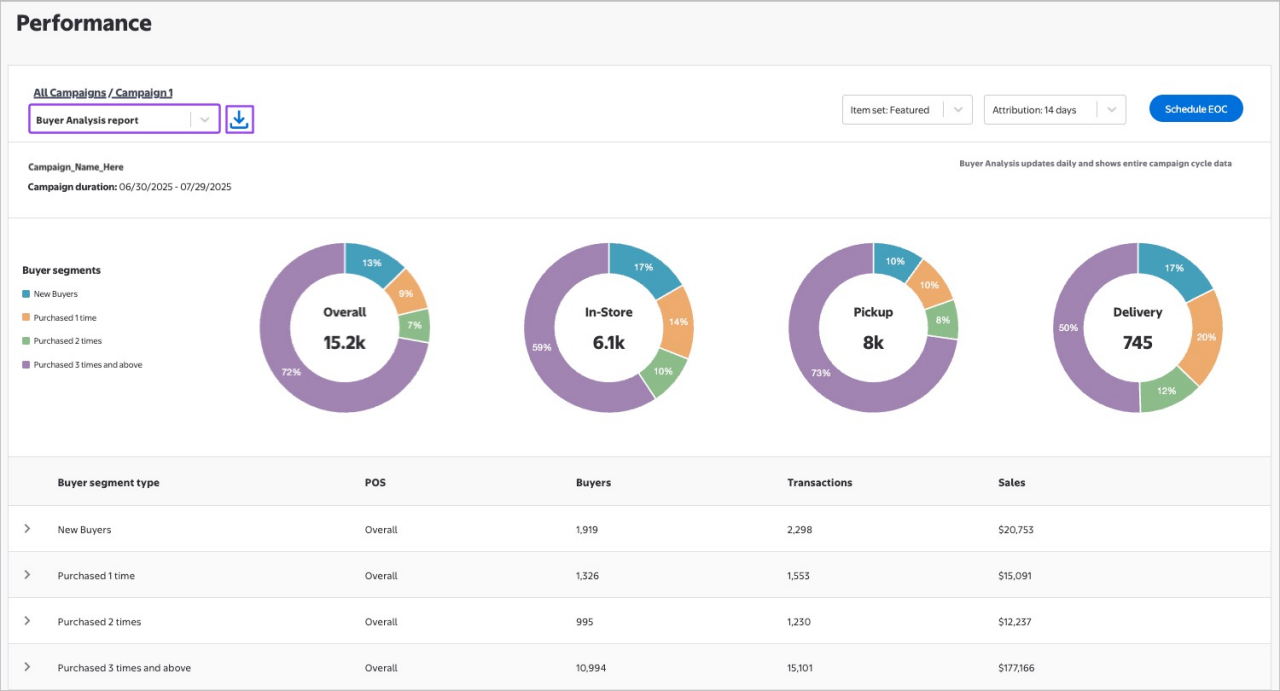
The Buyer Analysis report provides a high-level breakdown of purchase frequency. Customers who are exposed to your Display campaign and make a purchase are counted as either new buyers, purchased 1 time, purchased 2 times or purchased multiple times in the last 12 months. These metrics are made available at three different points of sale: in-store, pickup and delivery or view all three combined by selecting overall.
The report includes purchase data from campaign start through the current date and it is comprehensive of both online and in-store purchases.
To access, select Buyer Analysis report from the report dropdown. Please note, this report cannot be downloaded at this time.
Buyer analysis is based off the purchase of products within the item sets selected for the campaign. Metrics are viewable in the campaign performance dashboard 48 hours after campaign start.
New Buyers are customers who were exposed to a campaign display ad and have purchased one or more of the campaign’s measured items from Walmart (online or in-store) within the 14-day or 30-day attribution window and have not purchased those items in the past 12 months at Walmart.
Returning buyers are customers who were exposed to a campaign Display ad, have purchased one or more of the campaign’s measured items from Walmart (online or in-store) within the 14-day or 30-day attribution window and have purchased one or more of the campaign’s measured items in the past 12 months at Walmart. They will be sorted as either purchased 1 time, purchased 2 times, purchased 3 or more times depending on their purchase frequency.
Transactions, sales and buyer-related metrics are available for all buyer types. Transactions measures the number of transactions completed by those buyers on one or more of the measured items within the attribution window. Sales measures the spend attributed to those buyers on one or more of the measured items within the attribution window.
Buyer analysis is available at the tactic and ad group level. This allows advertisers to see which tactics and ad groups are driving trial and/or retention, allowing them to optimize their Display media campaigns in near-real time.
The Bid Performance report provides a set of historical data to help you understand and optimize your Display Auction bid performance. The report is available 24-48 hours after the launch of your campaign or ad group and is refreshed daily.
Bid Performance reports are a useful tool for optimizing your Display Auction campaigns. They can provide insight into the overall health of your bidding strategy by exposing key metrics concerning your bid performance in our auction, including:
For example, if your campaign has a low win rate, you might consider adjusting your bids to be more competitive. Knowing these key metrics can empower you to optimize toward campaign goals.
Access your Bid Performance report from the Campaign Performance dashboard
On the Campaign Performance dashboard, select the campaign you’d like to analyze.
In the top left corner, use the dropdown to select Bid Performance report from the available options. This will open the Bid Performance report for the selected campaign.
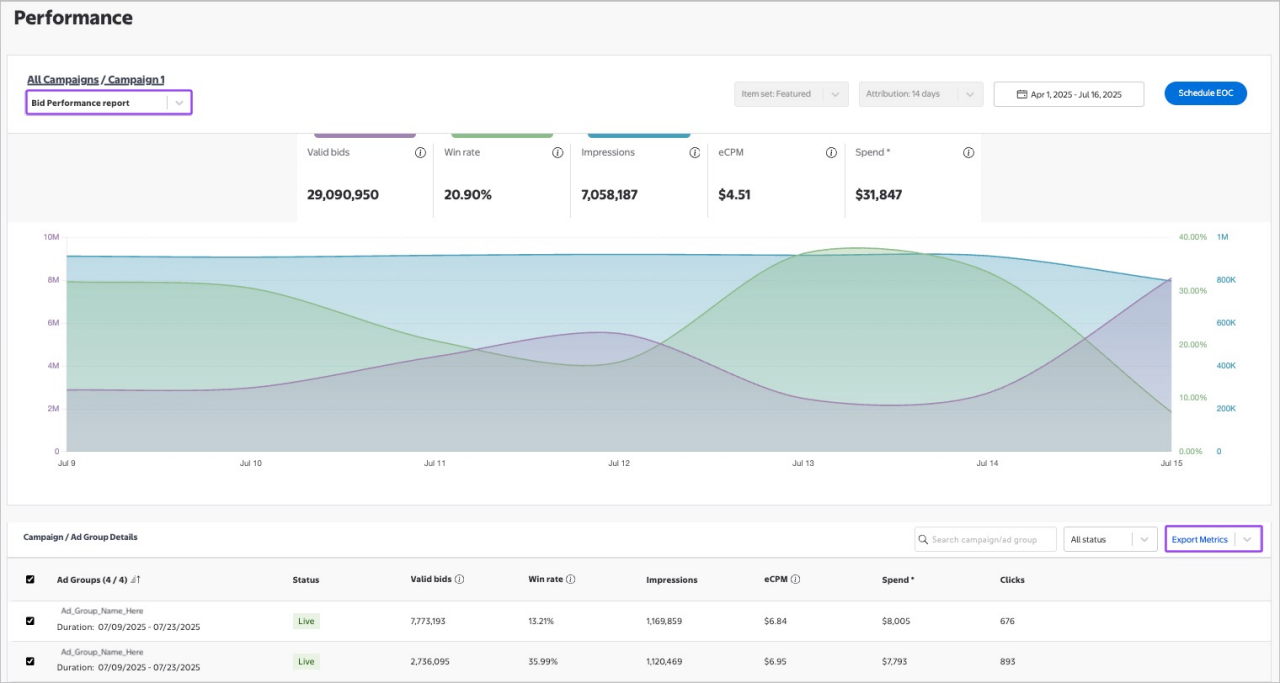
The information shown is for demo purposes only. Any data shown is mock data and is not actionable.
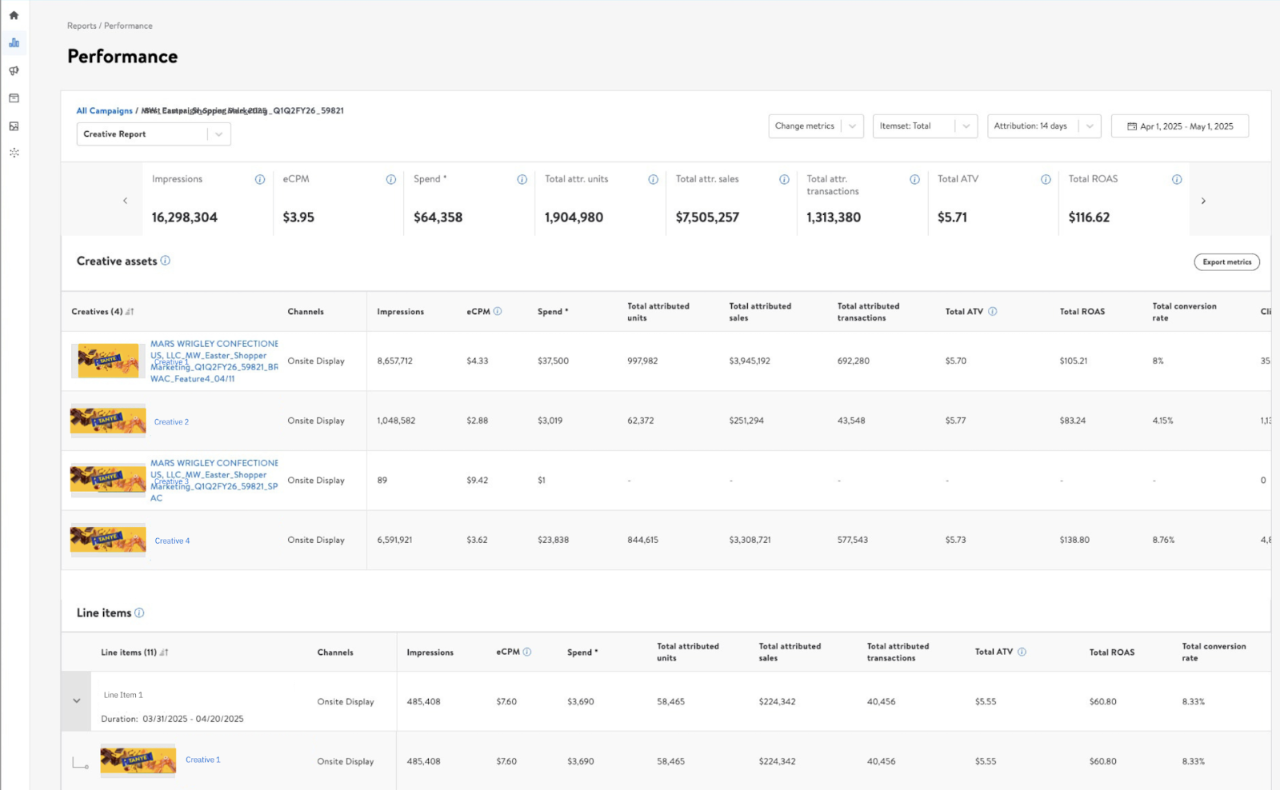
The Creative report provides you with in-flight performance reporting for Display ad creatives, giving you faster insights so you can more quickly optimize your campaign performance.
View the performance for your entire campaign or for individual ad groups, customize the date range for report, and identify which user on your team uploaded the creative to the campaign. To view, select a specific campaign from the campaign list and then select Creative report from the report dropdown.
The following conversion metrics are broken out and available by sales channel (store, Pickup, Delivery, and total):
The following awareness and consideration metrics are also available: