



The Creative Hub is where you upload the required assets for each ad creative.
Note: You can build ad creatives before or after setting up campaign scheduling, targeting and budget.
Reach customers when they’re ready to buy and drive impact across the purchase funnel.
The Creative Hub is where you upload the required assets for each ad creative.
Note: You can build ad creatives before or after setting up campaign scheduling, targeting and budget.
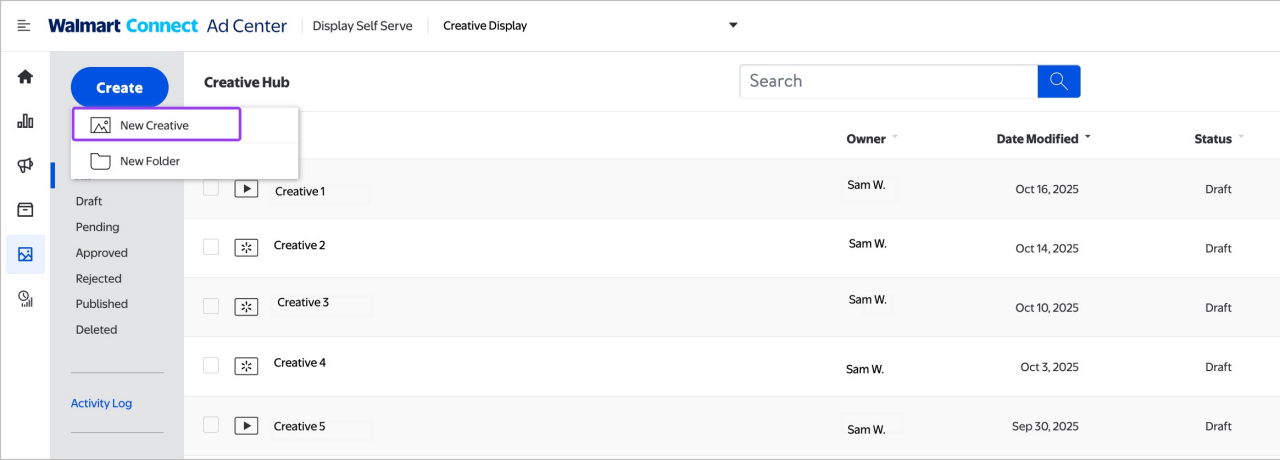
Navigate to the Creative Hub from the left-side navigation. Select Create, then New Creative.
Enter a name for the creative asset in the text box, then select Next.
Select the ad template. The template option lists the assets required for each ad.
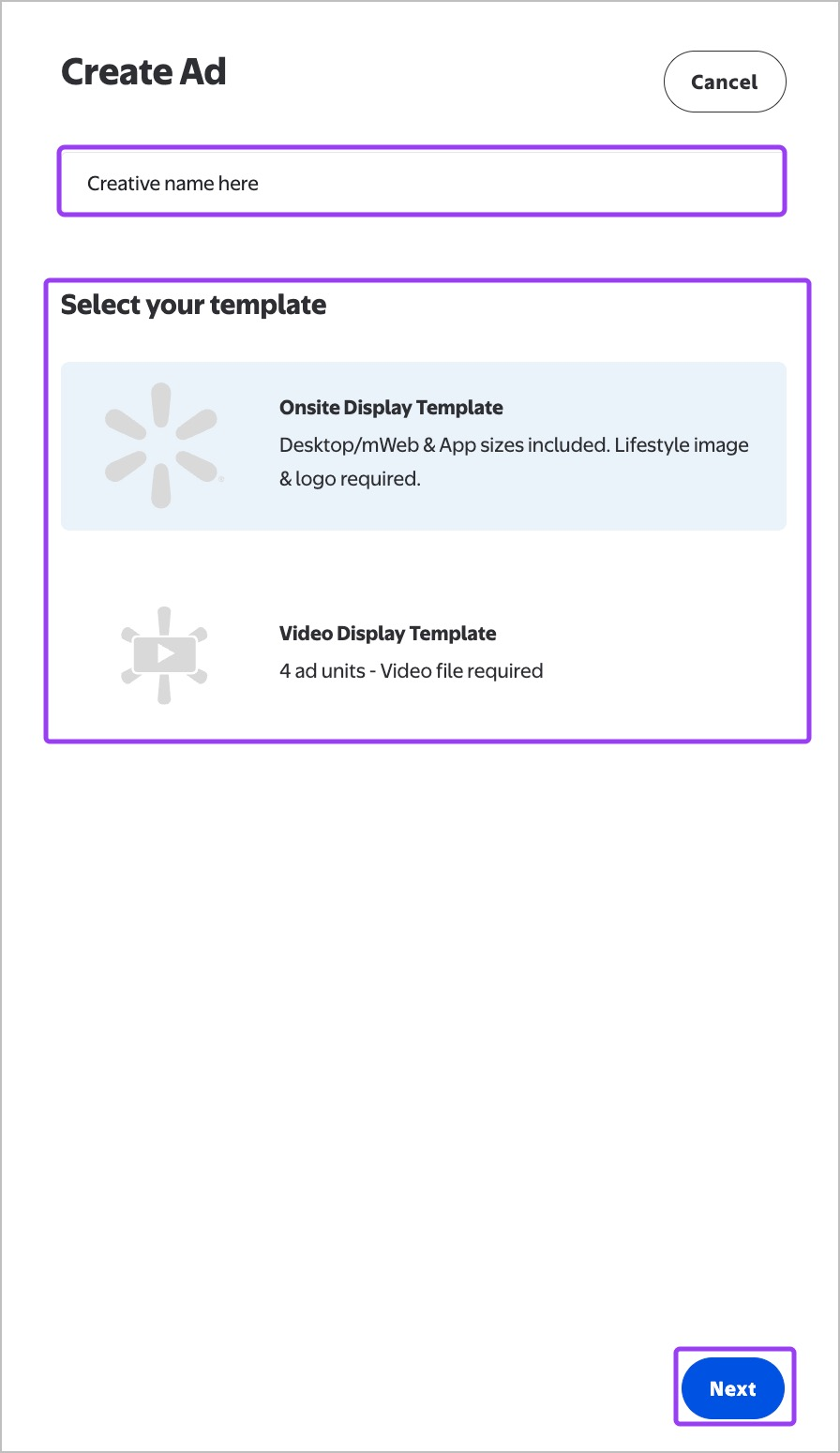
The Onsite Display ad template includes 3 ad units, each with unique device sizes:
The Asset Panel is where you’ll upload the required assets for each ad creative. The Creative Hub will automatically add the assets to the appropriate ad units, which will appear in the staging area to the right.
Note: Creative Hub auto-saves your work and allows you to undo and redo changes as needed.
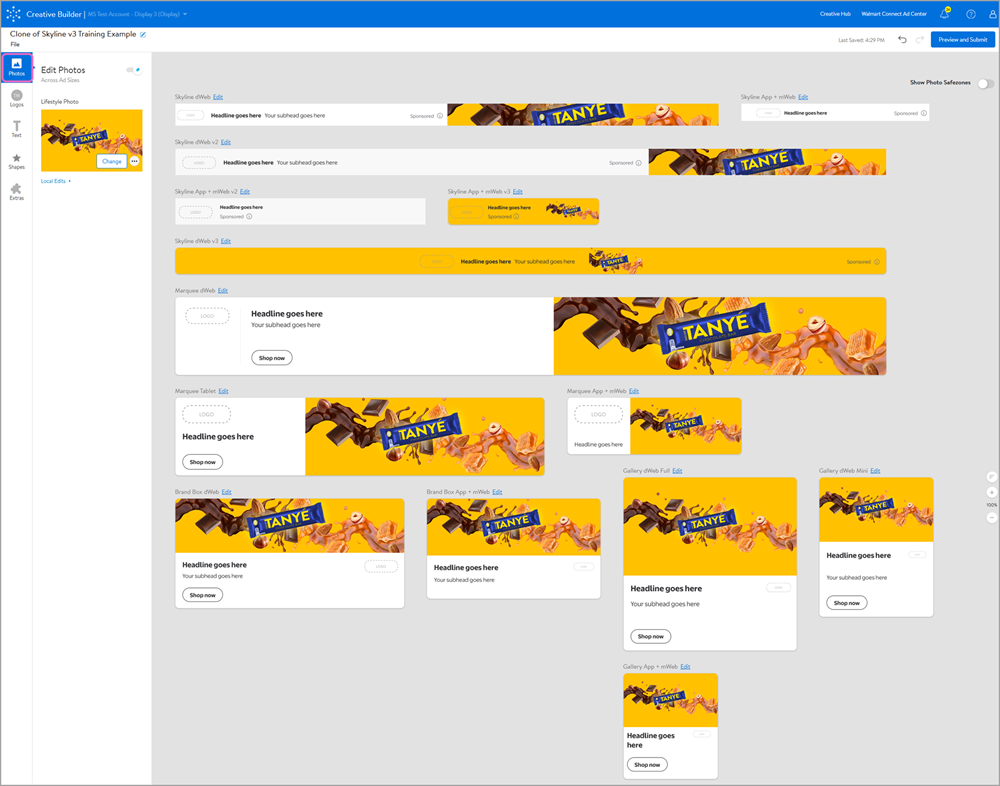
Note: Please refer to creative guidelines for maximum file sizes. Photos may be edited to fit each ad unit. Photos must adhere to Walmart brand guidelines.
Select the Logos icon.
Upload your brand logo. The logo will appear in the staging area.
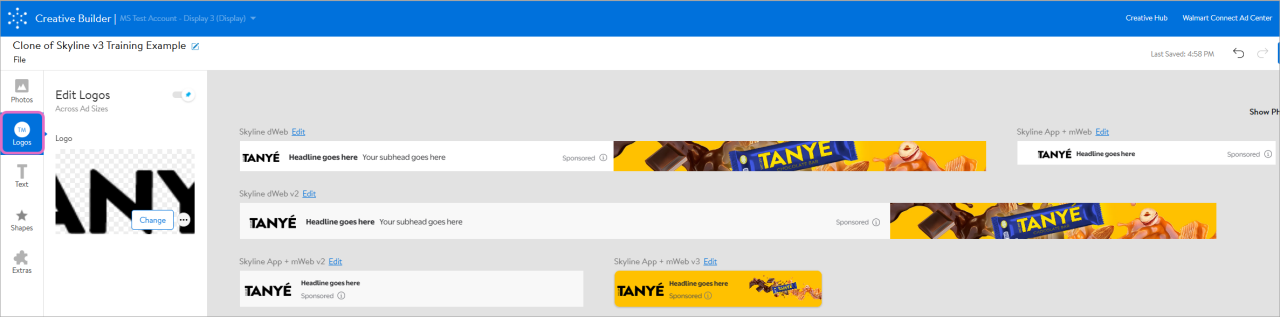
Note: Logo file size must not exceed 50KB, be a PNG file and have a transparent background.
Select the Text icon.
Select Edit next to each ad unit to enter desired ad copy. The copy will appear on the ads in staging.
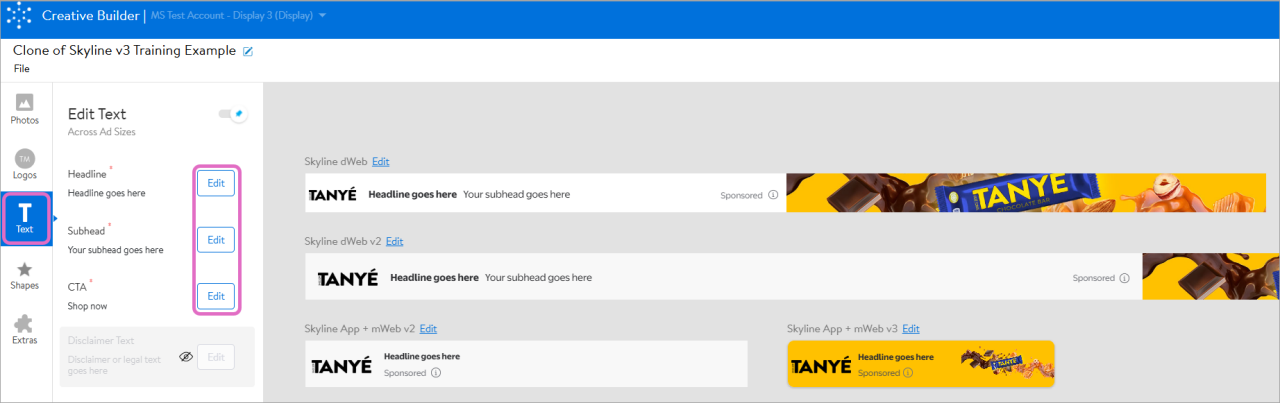
Selecting Change or Edit in the preview panel will apply updates to all ad units. For more information on Local Edit vs. Global Edit, review the Creative management guide.
Note: A red asterisk indicates required copy.
Once you have uploaded your image and text, you can submit your ad creative for review.