Advertising Help Centre

Onsite Display Guide

Reach customers when they’re ready to buy and drive impact across the purchase funnel.

Access management

This article provides an overview of access management, including user roles.

Access management provides super admin, org admin and account admin users visibility into the organization hierarchy in Walmart Connect Ad Center. In access management, admins can:

  • Add or delete all users and agencies that have access to the account
  • Edit the access levels of all users and agencies on their account

If you are an admin at the account or org level, you can view access management by clicking the person icon labeled Account at the top right corner and selecting Manage profile and account. Depending on your access, you‘ll be able to see roles at or below your admin access.

Manage profile and account


Note: If you do not have access to this section and you think you should, please reach out to the super admin, org admin or account admin. If you are unsure who your admins are, please open a case with Advertising Help.

Adding a user to your account   

To add a user to your account:

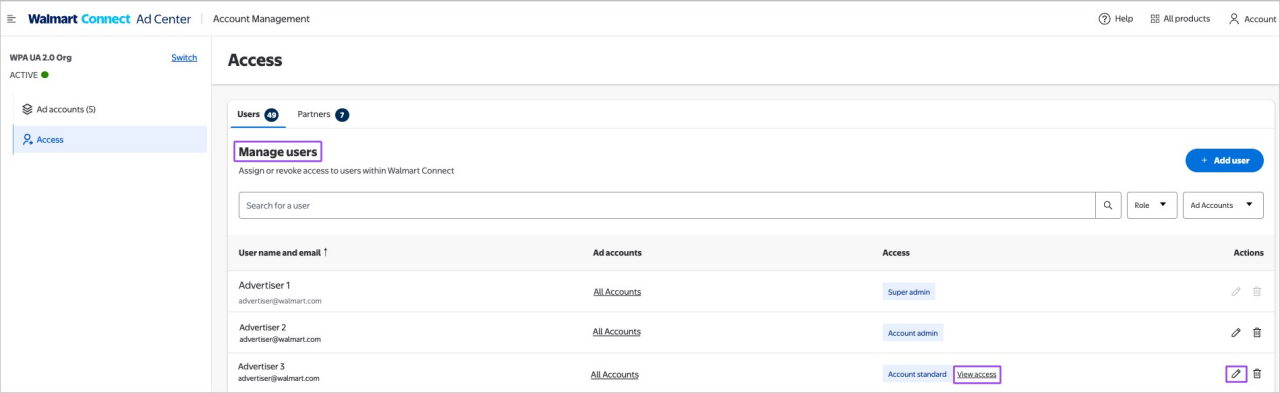
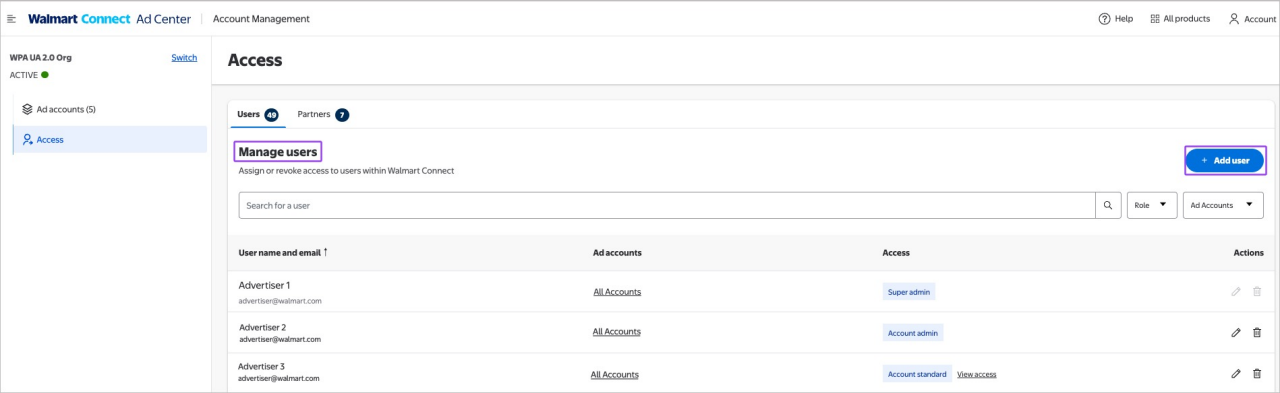
  • Navigate to the Manage users section on the Access page.
  • Click +Add User at the top of the page.
Add user function


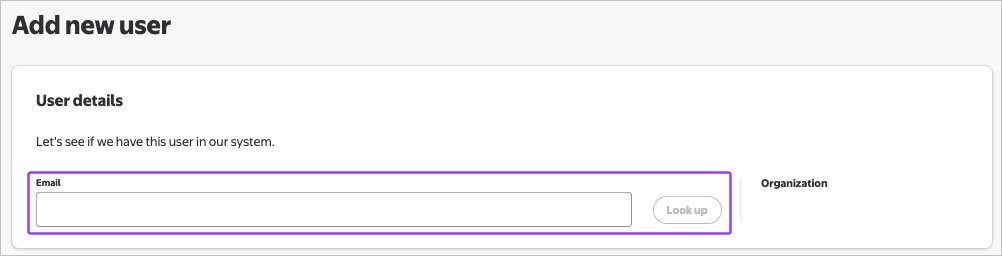
  • Enter the new user’s email address. The system will verify the email address provided.
Add user function


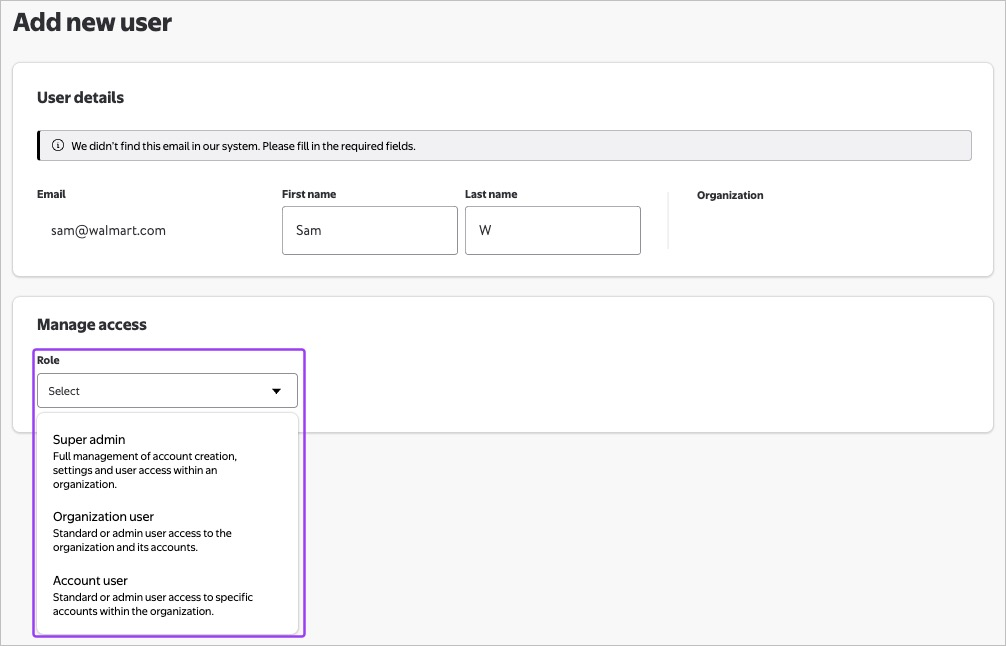
  • Select the level of access you wish to provide to the user: Super admin, organization user, or account user from the Role dropdown.
Add user function


  • Click Add user.
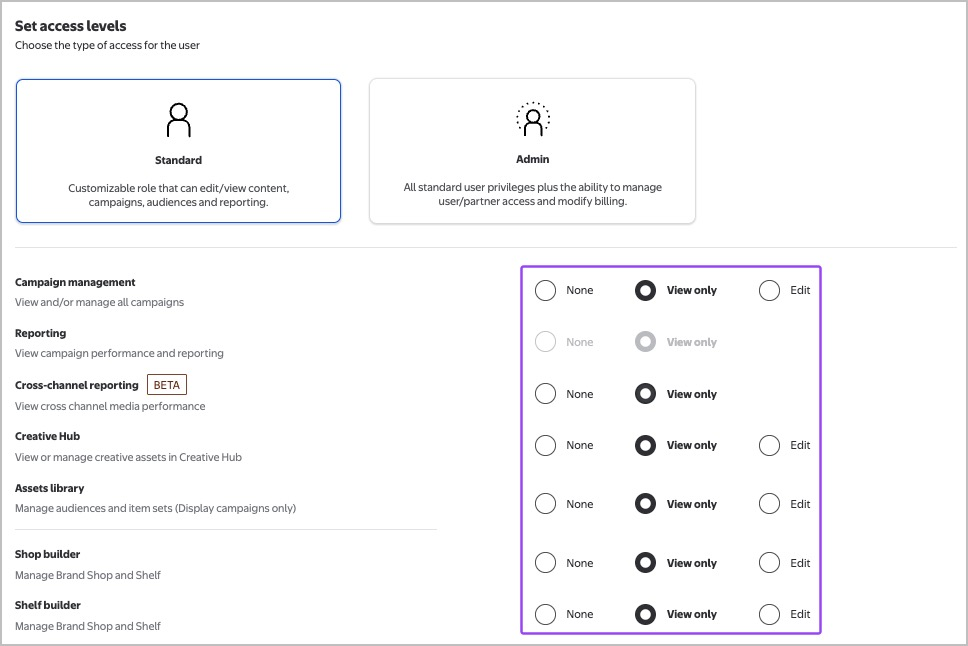
  • Set access levels for each individual account or across multiple accounts. You can give admin access or select specific view/edit access for standard users across each component (such as reporting, Creative Hub, billing etc.).
Setting user roles


  • You can set access at the org or account level.

Note: We suggest that the super admin, org admin and org standard roles should only be given to admins who are internal employees. If an advertiser wants to provide super admin, org admin and org standard roles to an agency or Tech Partner user, they should only consider doing this, if and only when their agency or partner manages their billing, new account creation and is aware of their entire catalog. However, if an advertiser chooses to grant an Agency or Tech Partner access to one of these roles, this admin can then view and access all campaign and/or billing data across the org.

Your permissions level will impact the options that you can view. For example, only super admins will see super admin as an option.

Note: When adding a user to your account, they will receive an email notification with login instructions.

For more information on user roles and permissions, see the Levels of account access guide.


Editing a user’s access level  

To edit a user’s access level:

  • Navigate to the Manage users section on the Access page.
  • Click the pencil icon or View access next to the user you wish to edit.

Note: You cannot edit or delete your own access.

Editing user access
 

Removing a user

To remove a user from your account or organization:

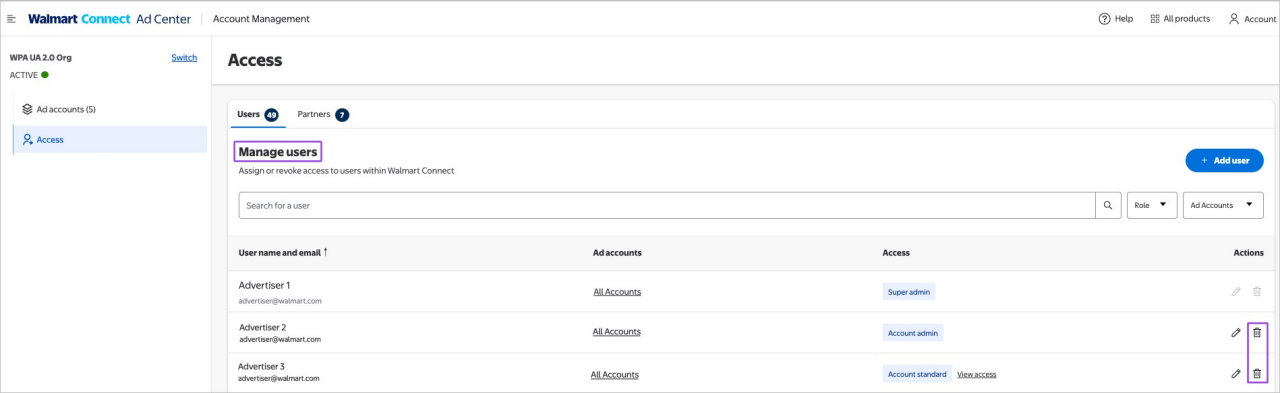
  • Navigate to the Manage users section on the Access page.
  • Click the delete icon next to the user you wish to remove.
Deleting user access


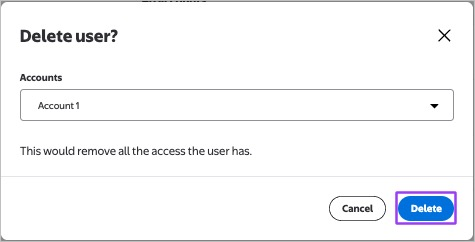
  • Select the accounts for which you'd like to revoke access and select Save
  • Select Delete to confirm and delete the user.
Deleting user access
 

Note: When you remove a user, they will only be removed from the accounts that you select. If the user has access to any other advertiser accounts, they will maintain access to those accounts.