Advertising Help Centre

Onsite Display Guide

Reach customers when they’re ready to buy and drive impact across the purchase funnel.

Viewing campaign reports

DISCLAIMER: The information in this article is only applicable to Onsite Display reporting. 

Walmart Connect Ad Center Display Performance Dashboards include cost metrics that may not accurately reflect actual billed amounts. This is due to a variety of reasons, including minor fluctuations in impressions served, as well as a lag time in refresh rates for store measured transactions. 

To view metrics for your campaigns and ad groups, select Reports from the left-side navigation, then select Onsite Display.
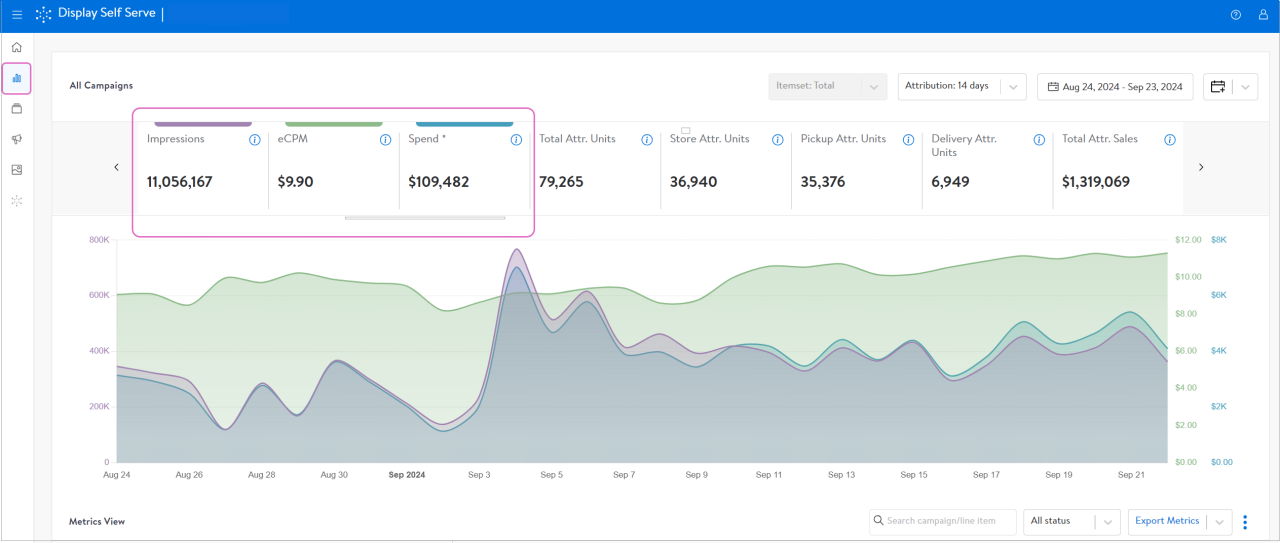
Select the performance icon


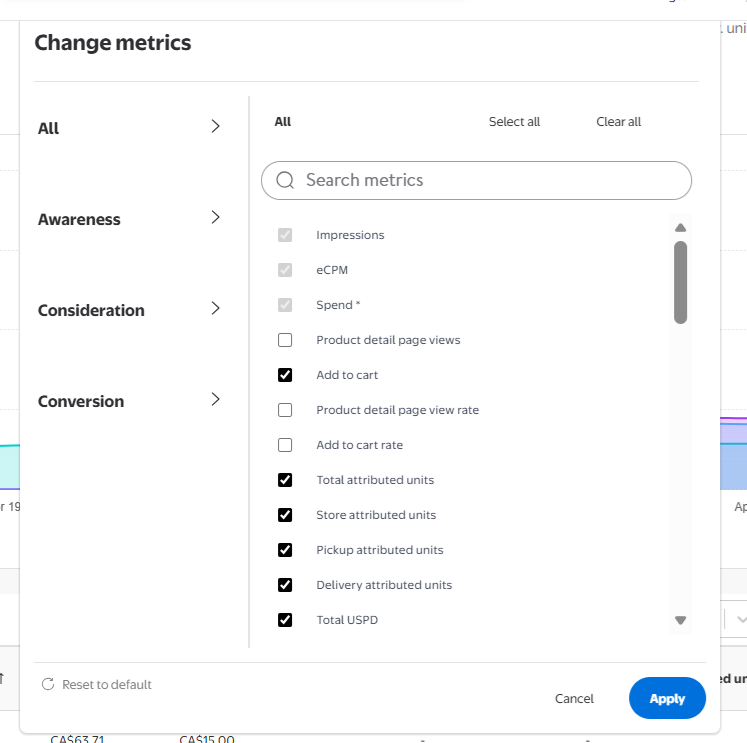
Above the graph, the metrics selection pane allows you to choose which metrics are displayed. Use the arrow at the right of the selection pane labelled Change metrics to view the entire list of metrics. You'll be presented with a drop-down to select the metrics you want to see, select or remove them from this drop down. 

By default, the graph will include all campaigns that were live during the selected time frame, unless you have selected individual campaigns from the Metrics view below. 

Metrics report

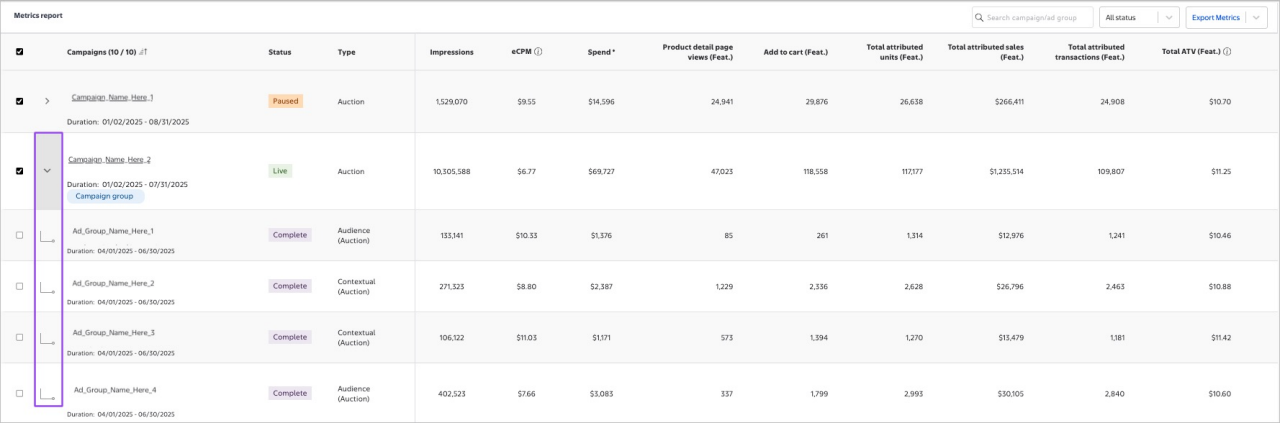
In the Metrics report, click on the campaign name to drill-down into the performance for that campaign. Use the expansion arrow to view ad group performance at a glance. List defaults to five campaigns but can be adjusted to show up to 30 campaigns at a time.

Drop down to see metrics report by ad group


Searching and filtering in Metrics report

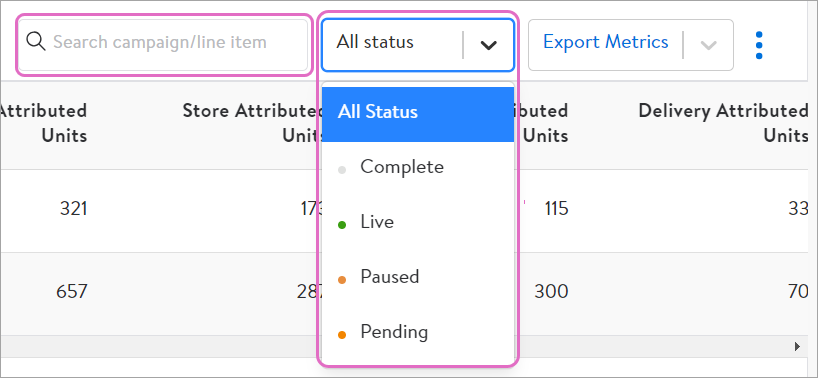
Use the search in the top right to find a specific campaign or ad group. The table will display all campaigns or ad groups with your search term in their name.

Use the status filter to find campaigns in a specific status: complete, live, paused or pending. 

Filtering by different statuses


Customize the metrics you see by clicking the Change metrics dropdown above the graph, and then select or de-selecting the metrics you want to see.

Selecting custom metrics to show


Exporting performance data

Click the Export Metrics dropdown on the right of the status filter to export daily.

From there, choose either Export Daily or Export Aggregate to download a report with your selected metrics at the campaign level at either daily or aggregate granularity.

Comparing campaign and ad group performance

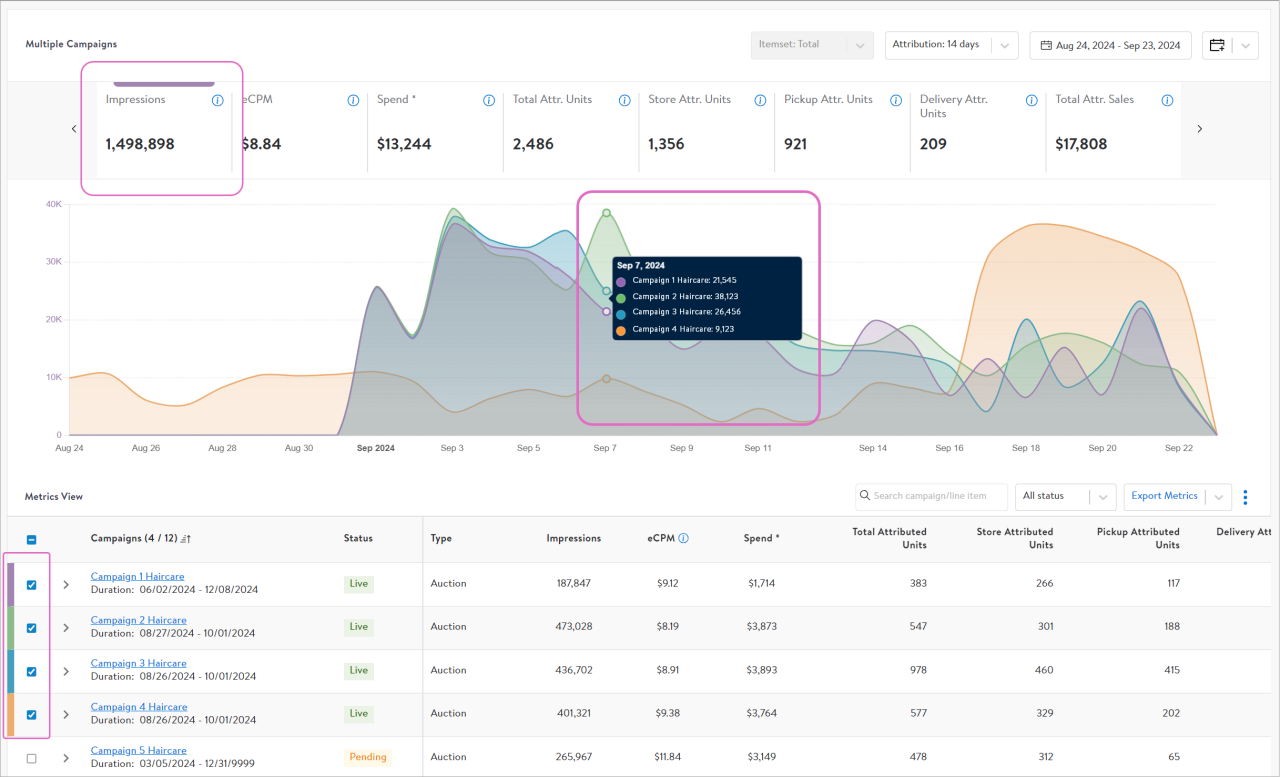
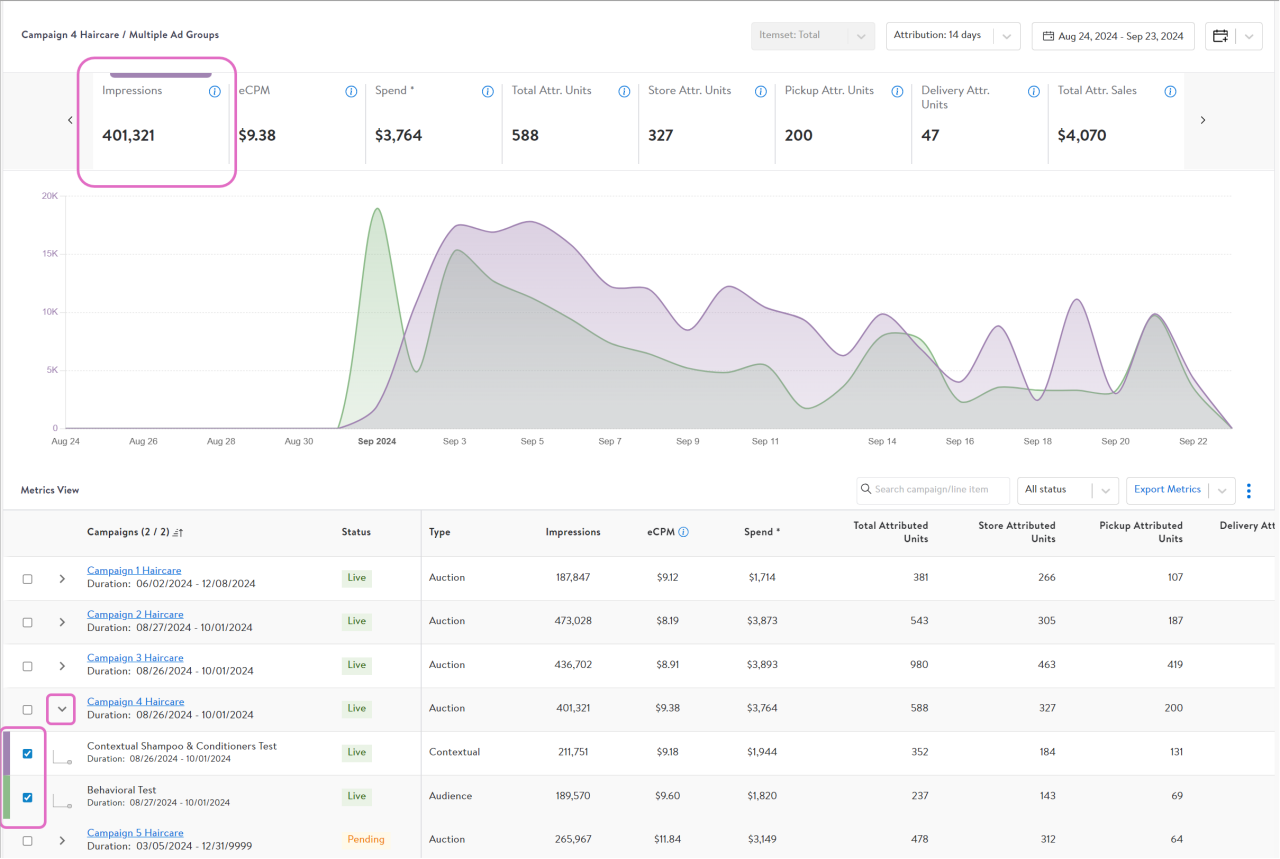
The Metrics view shows performance data for campaigns in-flight during the specified date range. You can compare metrics in the line graph for up to five campaigns. Select the campaigns you want to compare using the checkboxes, then choose metrics to view in the graph using the metrics selection pane.

The line graph is limited to one metric when multiple campaigns are selected. Hover over the lines on the graph to see values for the selected metric for that day. You can click on subsequent dimensions above the graph to toggle the graph view between these metrics, depending on what you want to visualize at a glance.

Comparing multiple campaigns in the graph view


Note: The selected campaigns are colored-coded in the list for you to easily identify which is which. 

You can compare ad group performance for a single campaign on the line graph as well. Click the arrow next to the campaign to expand. Use the checkboxes next to the ad groups to select the ones you want to display in the line graph. Like with campaigns, you are limited to five ad groups within the same campaign at a time and one metric selection. 

Comparing multiple ad groups in the graph view


Note: You cannot compare ad groups across campaigns. 

Missing data

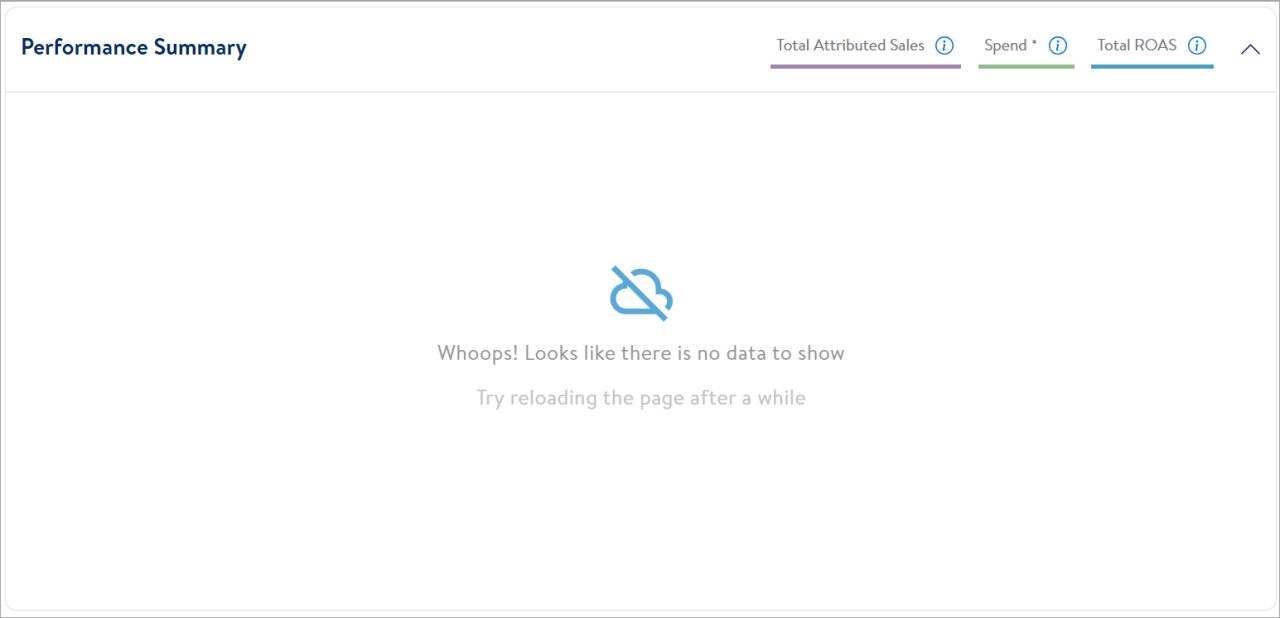
Because the Dashboard tab shows campaign performance in close to real time, sometimes data may be incomplete.

A missing-data message does not necessarily mean the campaign is underperforming. It may mean that the attribution window is incomplete, a portion of the campaign is not being displayed or the data has not yet fully processed.

Missing data


Some things to consider:

  • Campaign data takes approximately 36 hours to refresh and populate.
  • Campaign data does not fully accrue until the attribution window has closed. After the measured impressions have been served, Walmart customers have a certain number of days to make an online or in-store purchase of an item included in the campaign’s featured or halo item set. Attribution windows for Display campaigns are 14- or 30-day.

Please use Contact Support to report any reporting problems or issues.