Advertising Help Centre

Onsite Display Guide

Reach customers when they’re ready to buy and drive impact across the purchase funnel.

Keyword targeting

This guide explains how to set it up, manage match types and ensure your keywords meet Walmart Connect's requirements. 

Keyword targeting allows you to show ads on search pages based on specific keywords that customers use.  

Setting up keyword targeting

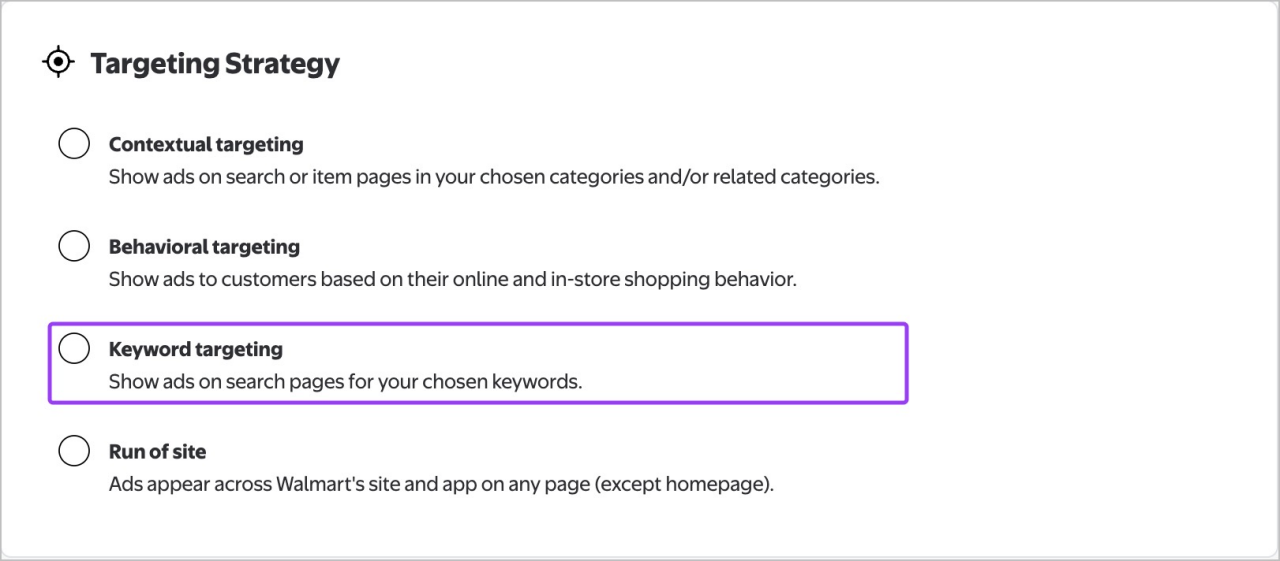
Under the Targeting Strategy section, select Keyword targeting.

Selecting keyword targeting


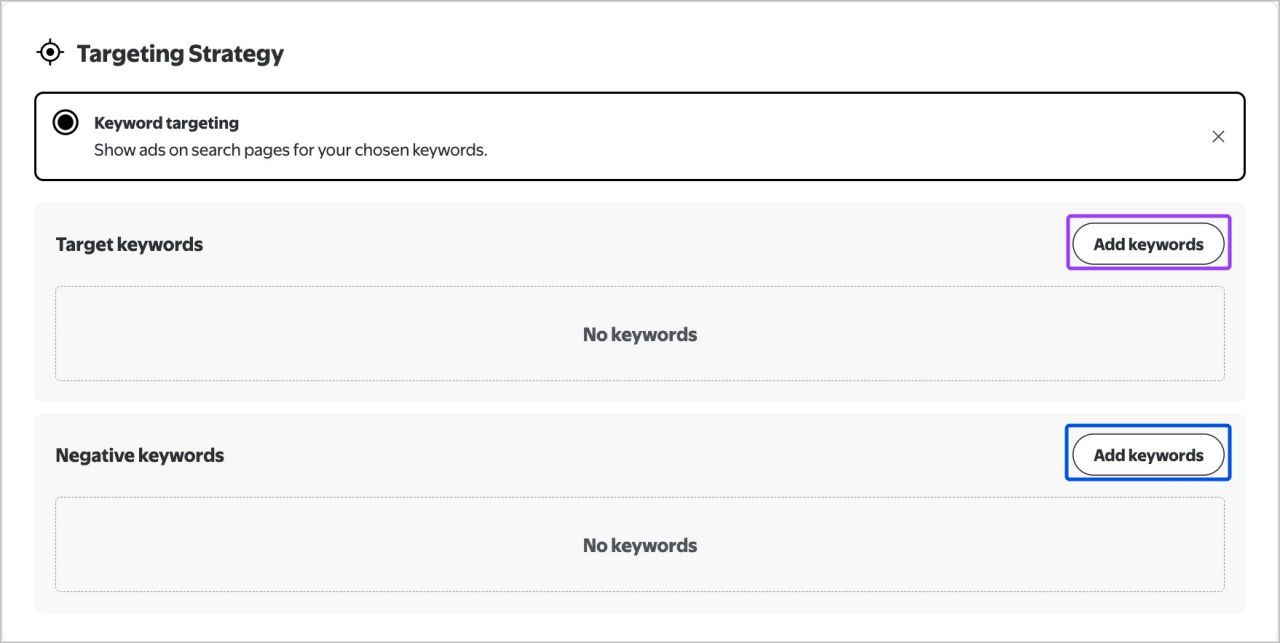
Select Add keywords to open the keyword input panel. You can add keywords (required) and negative keywords (optional).

Note: Adding competitors brand name keywords (conquesting) is not currently permitted.

Adding keywords


Adding keywords

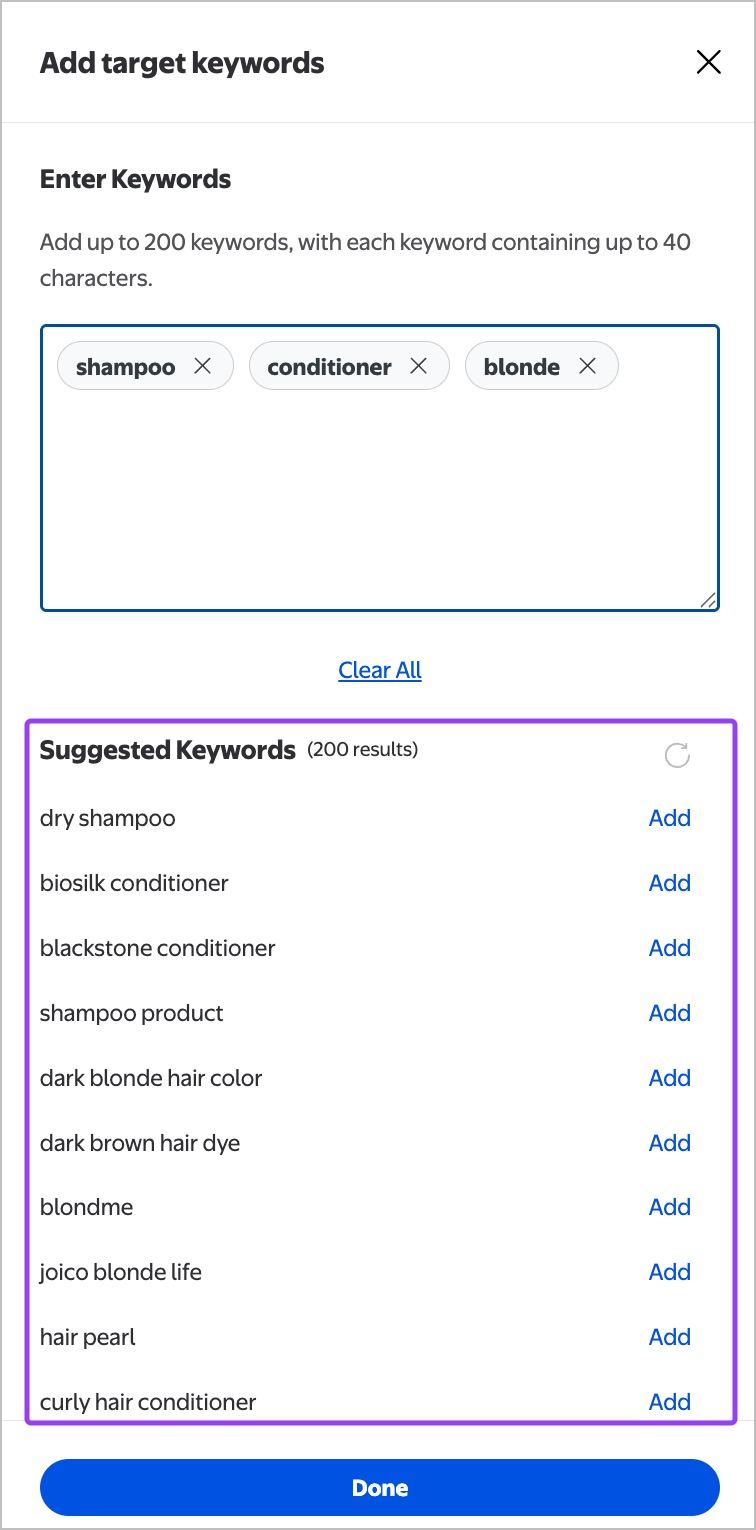
Type your keywords into the entry box. Select Add keywords to confirm. Keywords are automatically validated by the platform. Use the trash icon to remove any keyword after finalizing the selection. 

Adding keywords to your campaign


Match types

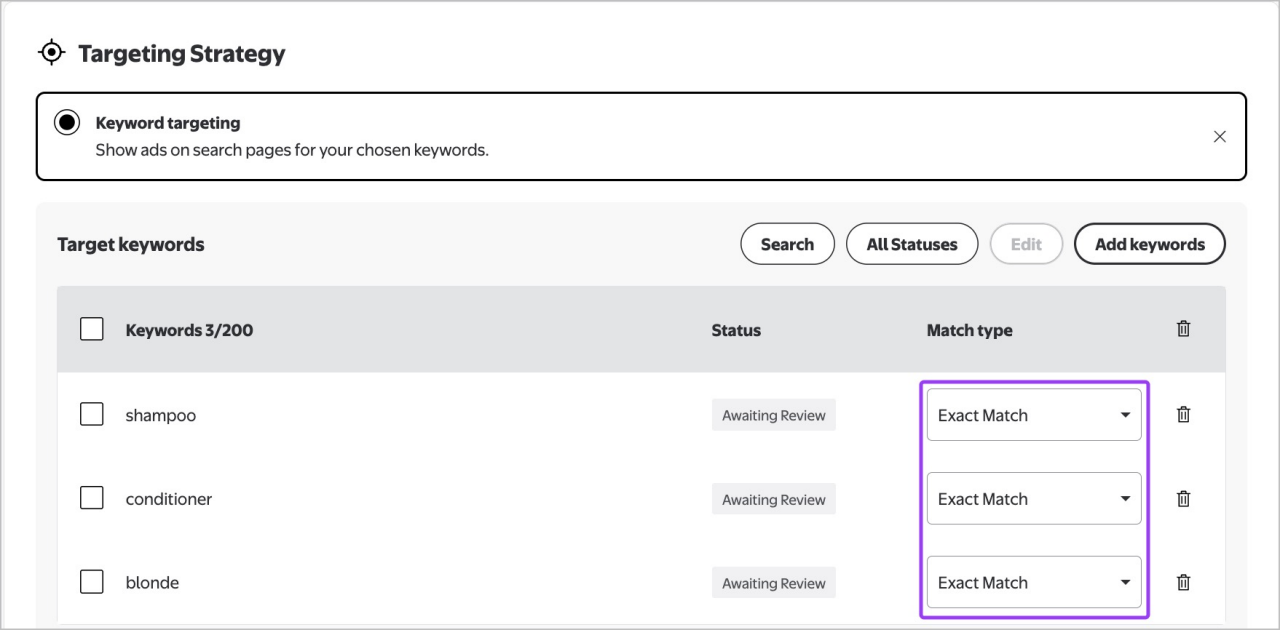
Once your keywords are validated, select a match type for each keyword. 

Exact-match (default): Matches only the exact phrase typed by a customer 

  • Example: Soda-pop matches only soda-pop, not soda pop 

Broad-match: Matches search queries that include or relate to the keyword

  • Example: Soda matches soda, soda maker, Soda Pop

Note: Match types are not case-sensitive.

Selecting match type


Negative keywords  

Negative keywords exclude terms you don’t want to target. For example, use soda maker as a negative keyword to avoid showing ads to customers searching for soda-making machines. 
 

Branded and non-branded keywords

You may include both branded and non-branded keywords within the same keyword entry set. However, competitive brand names are not permitted at this time.

Keyword validation 

Walmart Connect will automatically reject invalid keywords. Rejected terms appear in a validation message at the top of the screen and can be copied for review. 

Examples of invalid keywords:

  • Duplicate keywords  
  • Keywords with special characters including (", ’, =, !, +, #, *, ~, ;, ^, (, ), <, >, [, ].")
  • Keywords used in other ad groups within the same campaign

Keyword review process

All keywords go through manual review for relevance and sensitivity. After review, keywords are assigned one of the following statuses: 

  • Approved
  • Rejected
  • Pending Review

The review takes up to 3 business days. You’ll receive an email notification once review is complete. Status updates are also visible in the platform.  
 
Once approved, the ad group will activate if it has a scheduled start date, allocated budget and approved creative. You can also edit your budget, start date and other inputs after the keywords are ready.