



The Asset Library is your central hub for managing the two key assets used to build and activate campaigns: audiences and item sets.
Table of contents
Reach customers when they’re ready to buy and drive impact across the purchase funnel.
The Asset Library is your central hub for managing the two key assets used to build and activate campaigns: audiences and item sets.
Table of contents
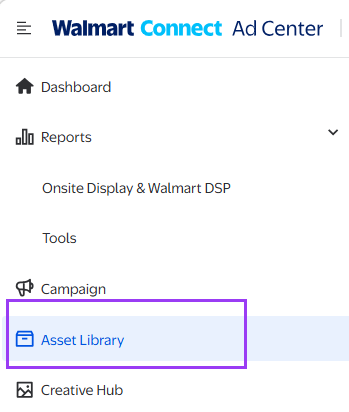
From the left-hand navigation in Walmart Connect Ad Center, select Asset Library.
You’ll see two main tabs: Audiences and Item sets.
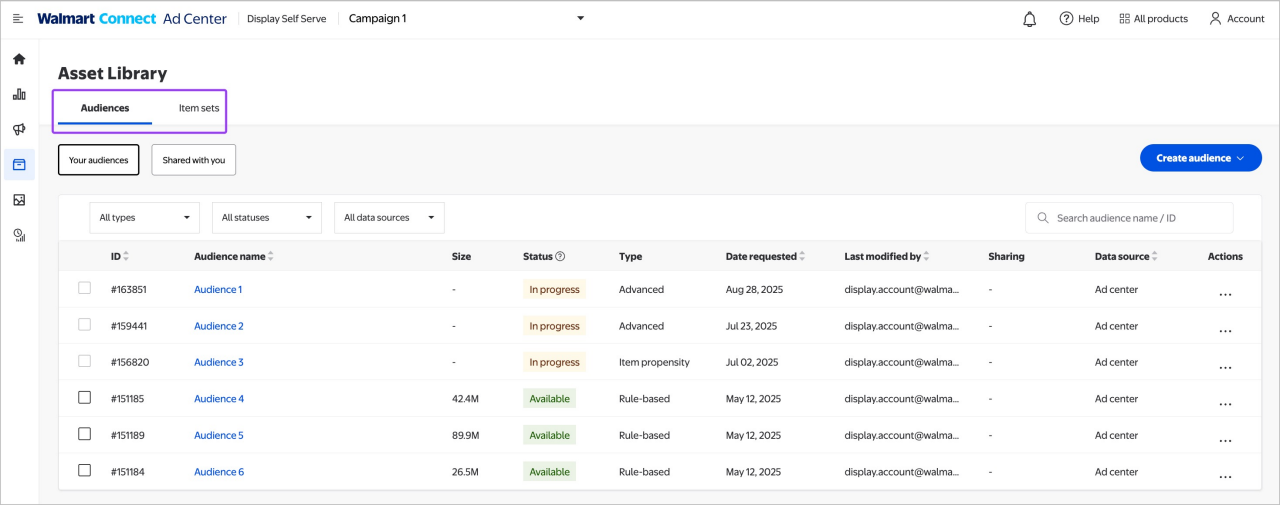
The Audiences tab displays all custom audiences built or shared within your account. Each audience entry includes:
To create a new audience, select the Create audience button in the upper right-hand corner.
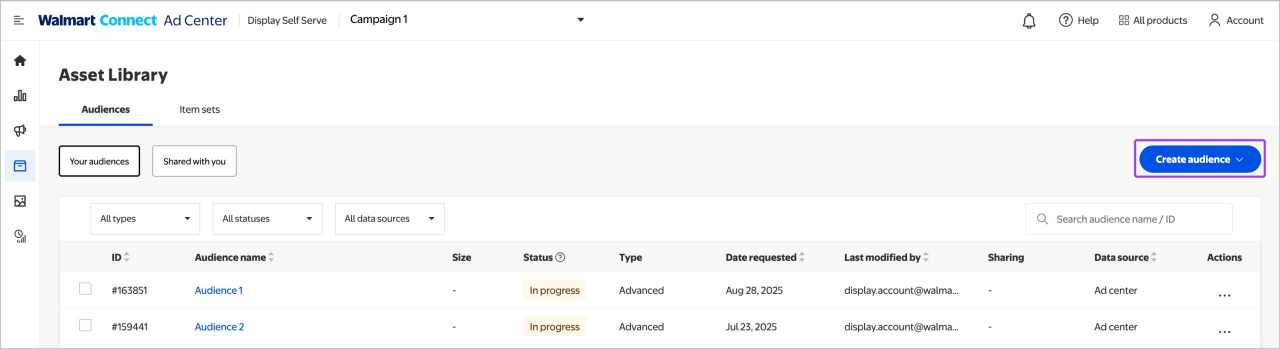
Choose the audience type and follow the steps outlined in the audience creation guides:
Click an audience name to preview its criteria, description, size and last update date. You can also click the Intelligence tab to learn more about the audience makeup.
To change general details or criteria, select Details, then Edit.
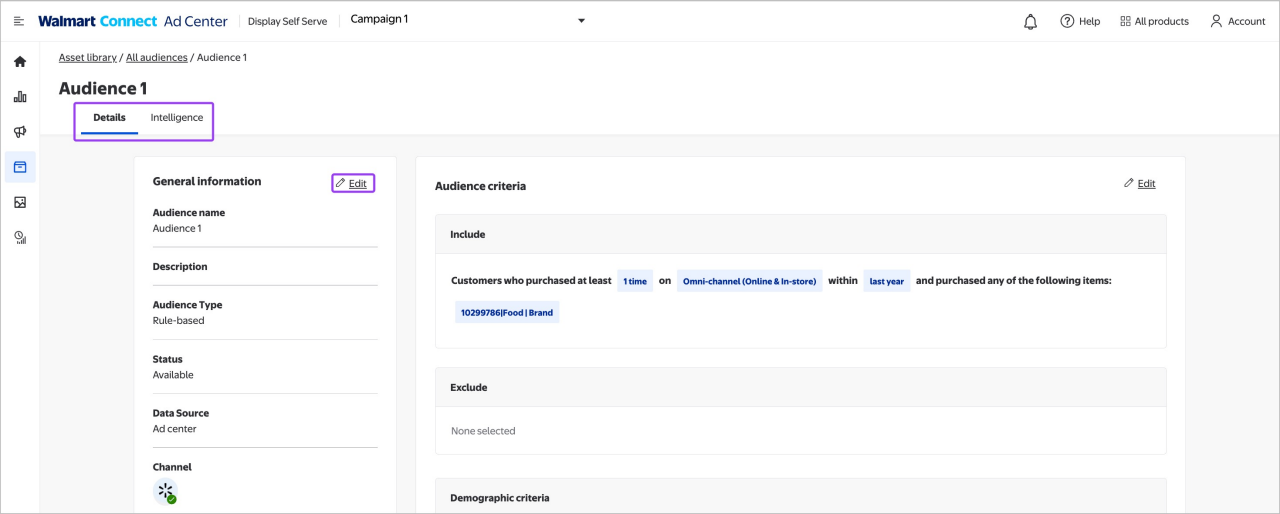
Note: Editing the audience’s criteria (not just the name) will trigger a rebuild. This process takes 2 business days.
Once you finish creating or editing an audience, it appears on the Audiences tab with a status:
Archived audiences stop refreshing automatically. Archiving occurs if an audience hasn’t been used in any active Walmart Connect Ad Center or Walmart DSP campaign for 40 days.
Restoring archived audiences
To restore an archived audience, click the ellipsis (...) in the Actions column. Select Reactivate. Status will change to In Progress, then to Available once reactivated.
Keep in mind that reactivation can take up to 10 calendar days to complete.
Note: Reactivate only restores archived audiences; it does not refresh active ones.
Refresh rates
Audiences with an Available status are auto-refreshed on a regular cadence:
Audience sharing
The Audience tab contains:
To share an audience, click the ellipsis (...) on the far-right end of the audience line under the Actions column. Select Share audience.
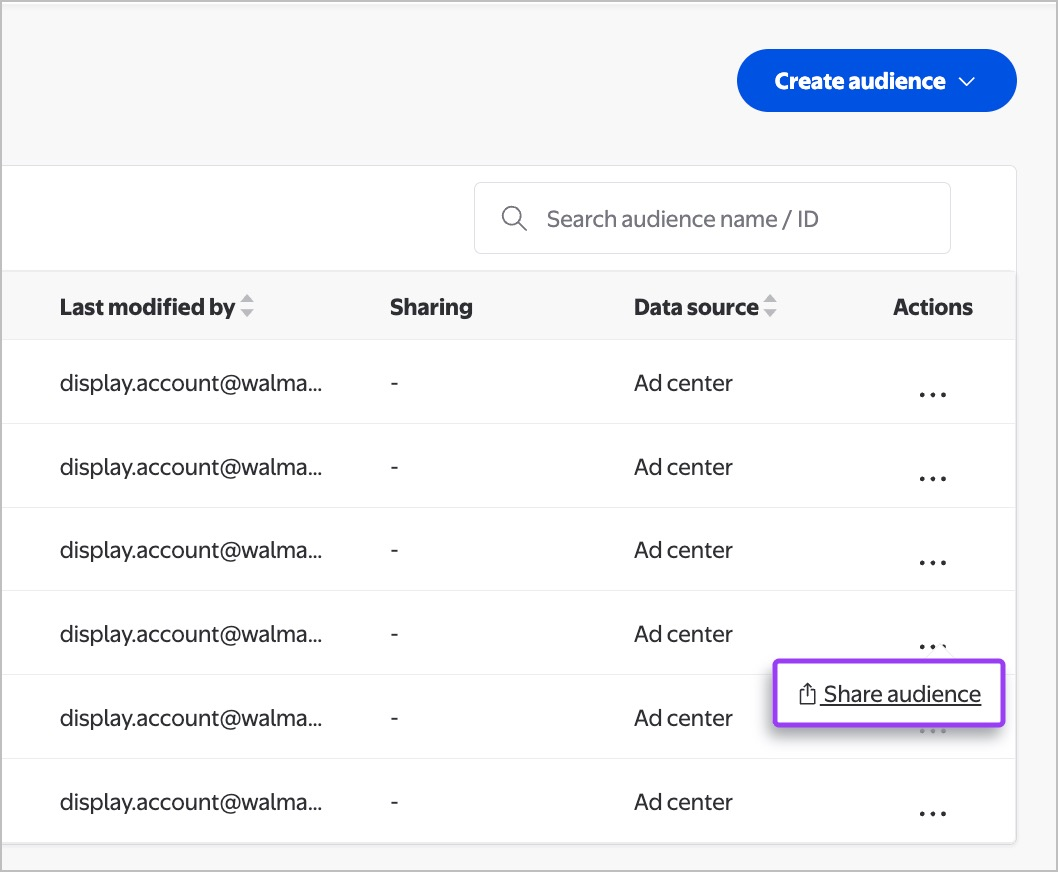
In the popup, select Share audience to confirm and the audience will be shared with all connected accounts.
Important: Sharing an audience that includes an item set will automatically share the item set.
*Advertiser accounts are linked to an organization or partner upon onboarding.
The Item sets tab lists all item sets in your account. Each item set displays:
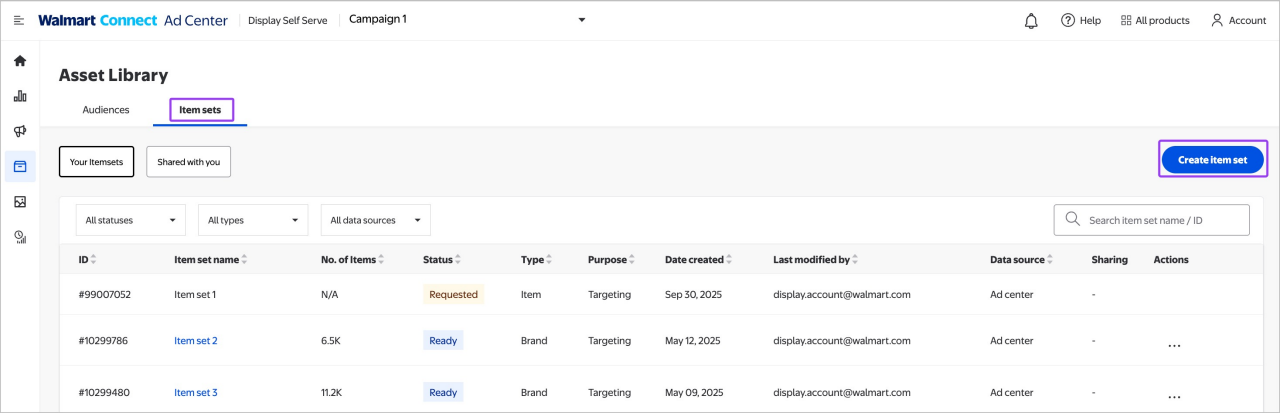
Item sets can be used for two purposes:
Follow the steps outlined in the Item sets for custom audiences guide to create a targeting item set.
Follow the steps outlined in the Measurement item sets guide to create a measurement item set.
To edit an item set, select the item set name to access the item set editor.
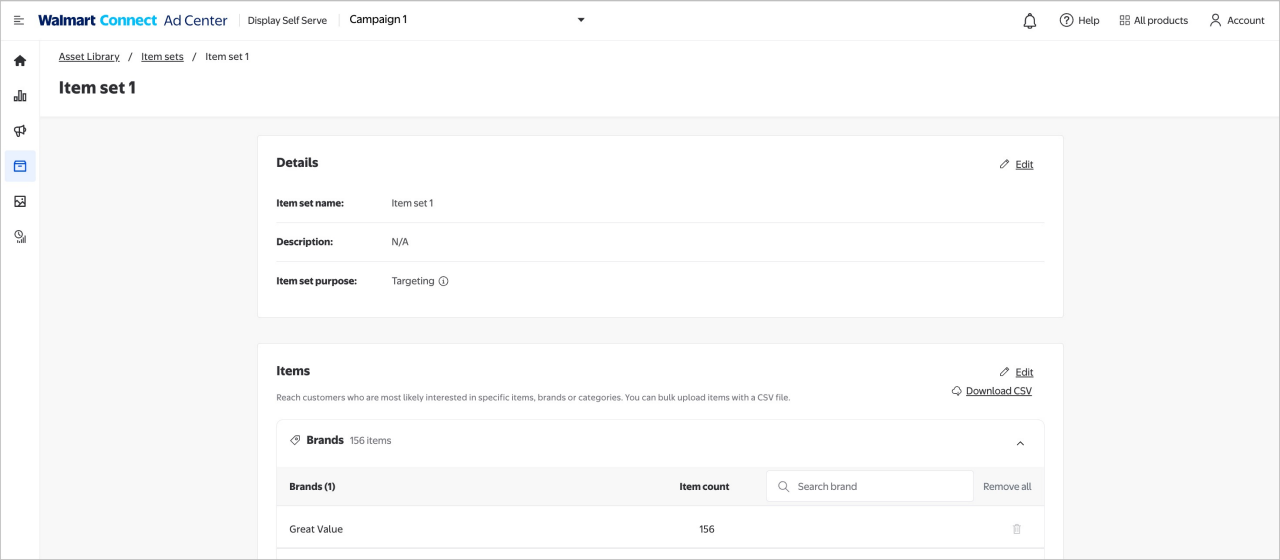
Once you finish creating or editing an item set, it appears on the Item sets tab with a status: