



This guide provides step-by-step instructions on building your first campaign. For information on how to create an ad group, review the Creating banner ad groups guide.
Table of contents:
Reach customers when they’re ready to buy and drive impact across the purchase funnel.
This guide provides step-by-step instructions on building your first campaign. For information on how to create an ad group, review the Creating banner ad groups guide.
Table of contents:
Starting a new campaign
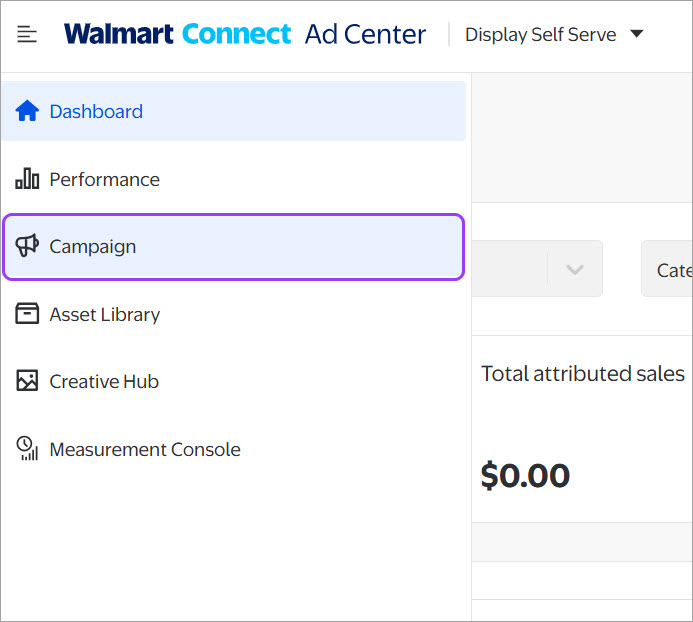
From your Display dashboard in Walmart Connect Ad Center, select Campaign from the left-side navigation. This takes you to the All Campaigns page where you can manage, update and track your campaigns.
Select Create campaign in the upper-right screen to start your new campaign, then select Auction.
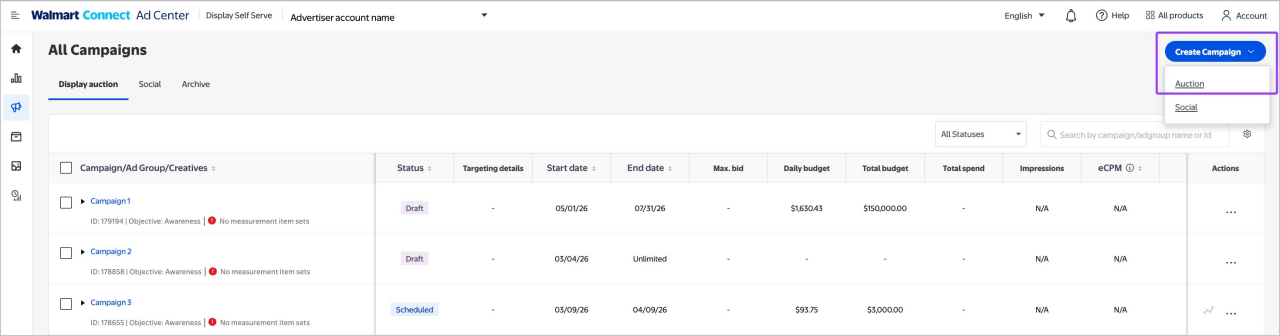
Campaigns act as a shell or container for ad groups, which house your specific targeting selections and bids.
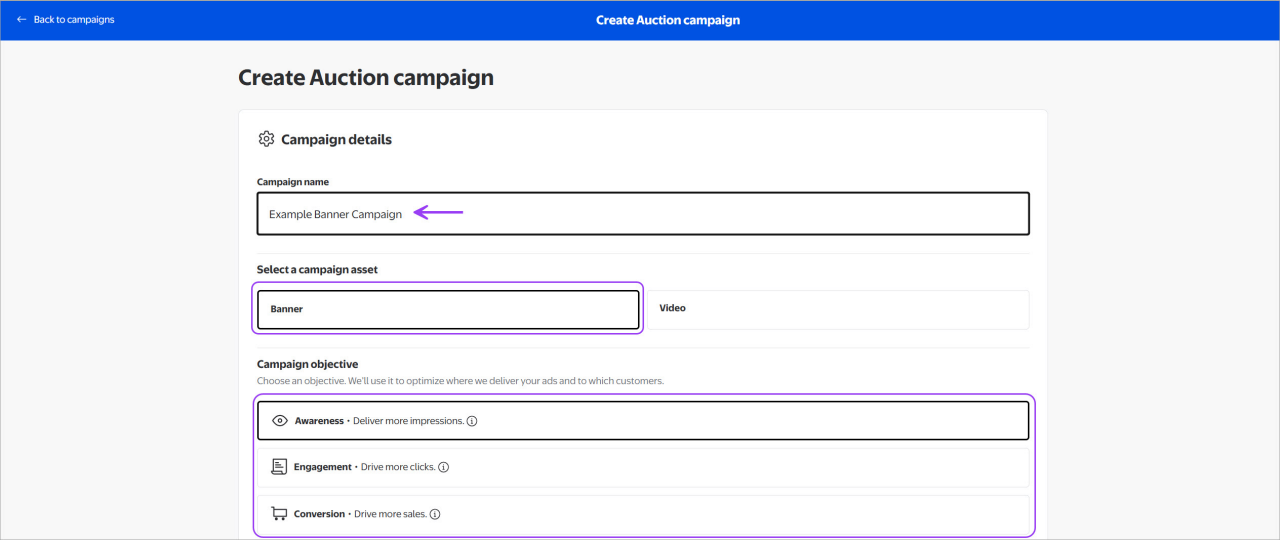
Enter your campaign’s name in the Campaign name field. We recommend having an established naming convention to make it easier to manage multiple campaigns.
Choose your campaign’s objective. Campaign Objective Optimization uses AI to give you a choice of two optimization modes to establish KPIs and strategic needs during campaign setup, reducing the need to optimize in-flight. Choose between:
If you choose not to set a campaign objective, Awareness will be selected for you by default. You cannot change your selected objective once the campaign is live (includes paused campaigns).
Depending on the objective you set, there is a learning period of approximately one week where you should avoid making manual optimizations to your campaign and ad groups. Adjusting budgets, flight dates, bid and targeting selections can restart the learning period.
Campaign dates, times and budgets can be set at the campaign or ad group level. If you want to set individually at the ad group level, check the box next to set for each ad group instead. Select Save to move to the next step.
Campaign-level budgeting, times and flight dates are shared across the ad groups in the campaign. Setting budget, times and flight dates at the campaign level enables the platform to make decisions on where to place more or less budget on your behalf. Coupled with Campaign Objective Optimization, the platform can optimize budgets across ad groups on your behalf, aligned to your campaign objective. This means that high-performing ad groups get more budget allocation and poor-performing ad groups get less, while ensuring campaign budget fulfillment remains on pace.
On day one of flight, the platform divides the budget equally amongst the ad groups (total budget / number of ad groups), then as the campaign progresses the platform will reallocate from lower pacing and performing to higher pacing and performing to maintain overall campaign delivery and objective performance.
If you want to set at the campaign-level budgeting, enter your flight dates, times and budget, then choose your delivery speed. Campaigns are set to run indefinitely by default.
Note: If you don’t set an end date, you can only set a daily budget. Total budgets are only available for campaigns with an end date.
Use the time dropdown menu to choose custom future start and end times for your campaigns.
Note: If you don’t select custom future start and end times, then standard serving time applies for start and end time (start at 00:00:00 hours and end at 23:59:59).
All start and end times are shown in Eastern Time (EST). Time of day selection is slotted by the hour. End time during the last day must always be ≥ 12:00 noon (EST), otherwise you will receive an error.
Select Add end date to enter an end date.
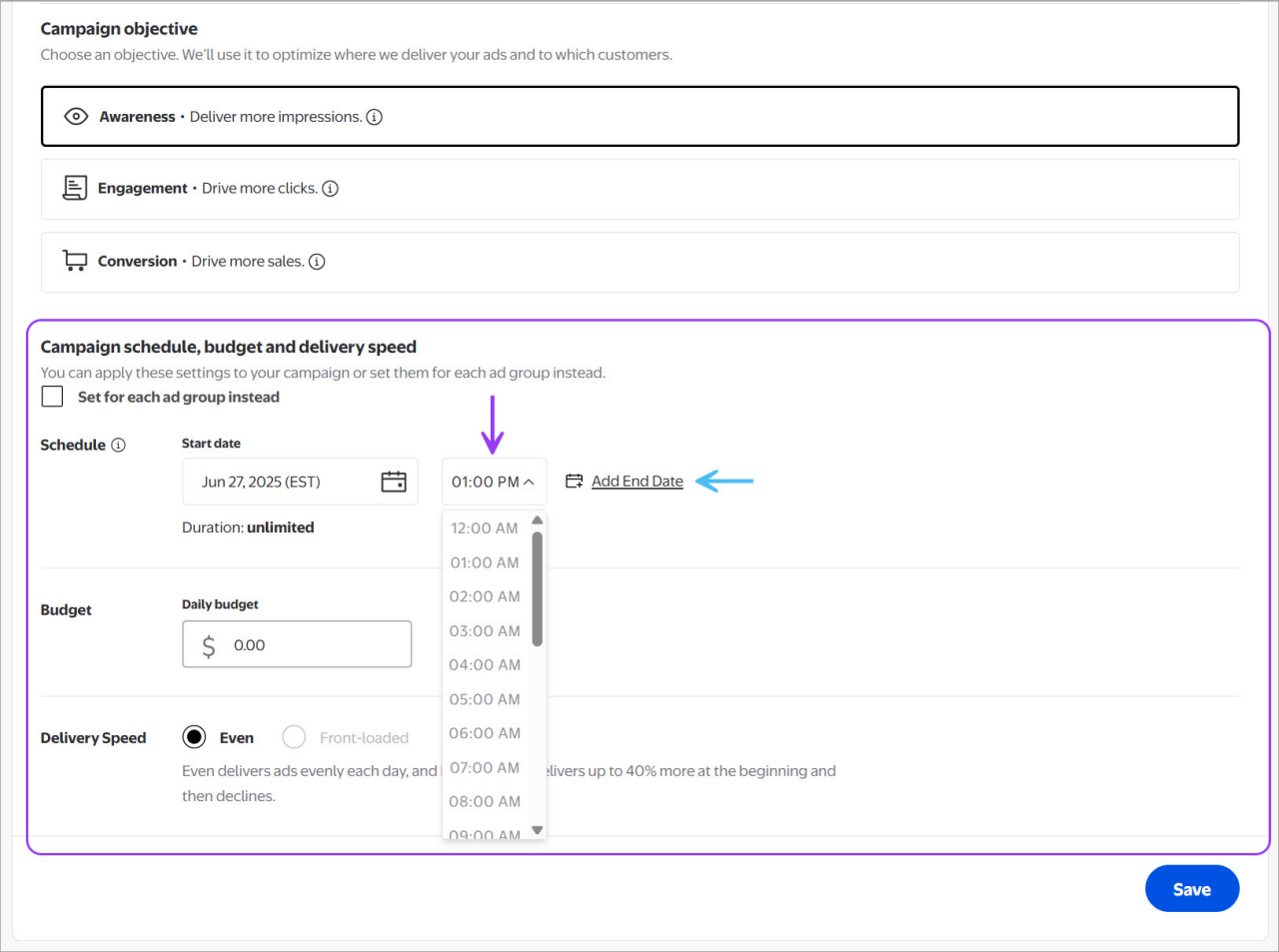
Dates, times and budgets set at the campaign level will cascade to all ad groups under the campaign. This means ad groups will run for the full length of the campaign and the budget will be shared. If you are setting at the campaign level, make sure you have inclusive dates that encompass all your planned ad groups and enough budgets to cover them. Campaign level budgeting enables the platform to make budgeting allocations to ad groups on your behalf. On day one of flight, the platform divides the budget equally amongst the ad groups (total budget / number of ad groups), then as the campaign progresses the platform will reallocate from lower pacing to higher pacing to maintain overall campaign pacing.
Delivery speed selection can only be made when total budget is chosen. When selecting your delivery speed, you have the option of even or front-loading.
Note: Once you select the level you want to set dates and budgets at (campaign or ad group), you cannot change it after adding an ad group to the campaign.
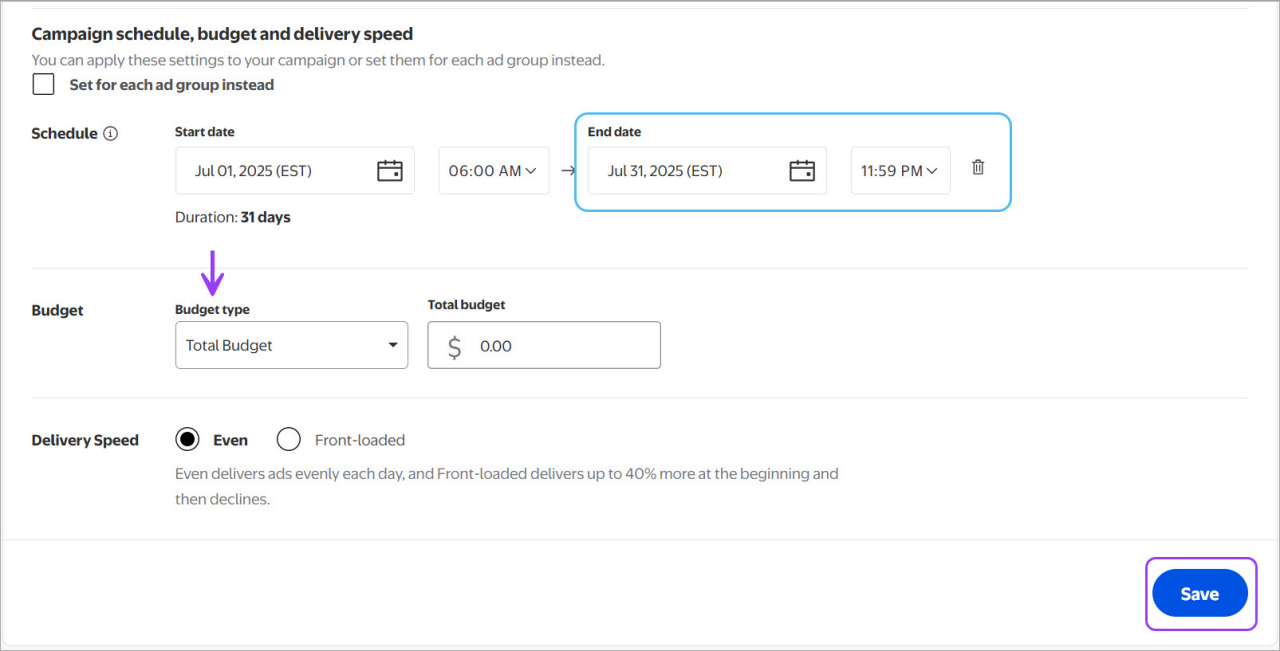
Select Save. At this point, you can exit the campaign creation page to save your setup as a draft. Selecting save also opens the ad group and measurement sections. You can choose to set up your ad groups (formerly line items) before or after you set up your measurement. If you are still figuring out which targeting tactics you want to use to support your campaign’s objectives, feel free to skip that section and move directly to measurement. If you are ready to set up your ad groups, visit the Creating banner ad groups guide.
Note: Campaigns require at least one ad group to launch.
Measure your campaign
Measure your campaign is where you assign item sets to measure the performance of featured and halo items in your campaign.
To assign a measurement item set, you can build a new item set by selecting individual items from your catalog. Or, you can select an existing measurement item set from another campaign.
As a best practice, the featured measurement item set should include items specifically advertised in your campaign's creative and messaging. Variations of the items featured in the creative and messaging should also be included. The halo measurement item set should include items beyond those specifically advertised in the Display campaign's creative, that are part of the same categories(s) and/or brand(s) as the featured items.
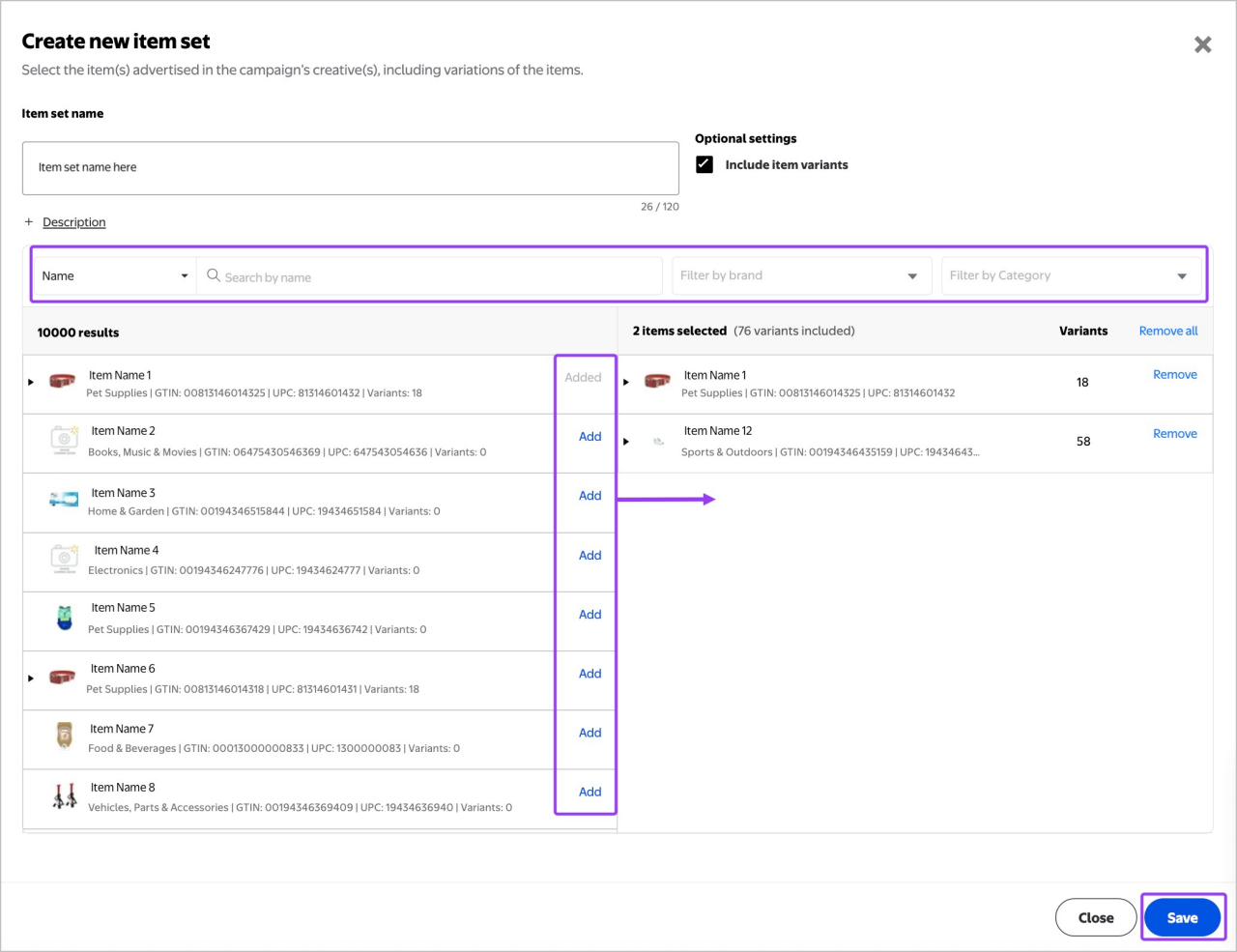
When creating a new item set, item variants will automatically be included when a primary item is added to the item set. Deselect the Include item variants checkbox to include only your selected items without their variants.
To learn more about measurement item sets, visit the Measurement item sets guide.
Select how you’d like to add items to measure in your campaign.
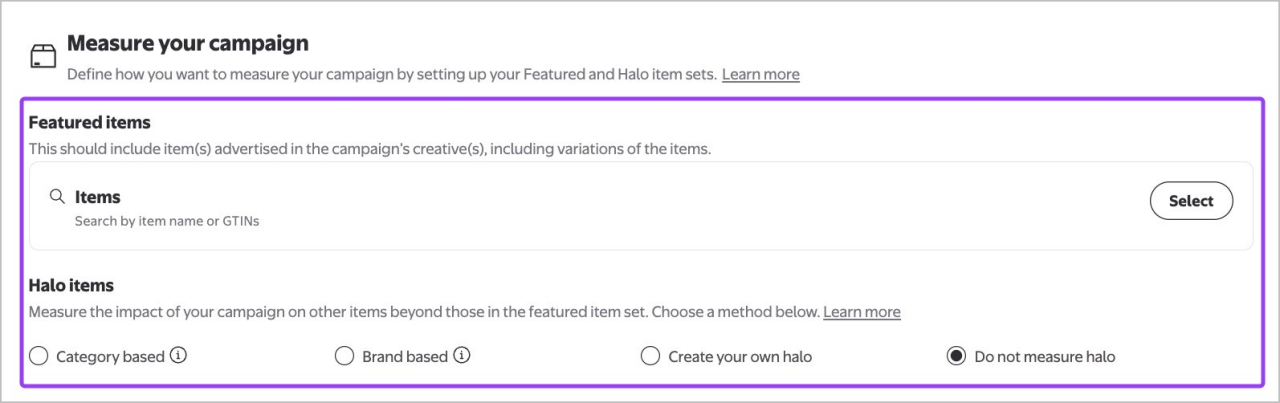
When building a featured item set, you have two options:
Create new item set
To add specific items to your item set, search for an item by name using the search box provided. Select Add next to the items you’d like included. You can refine the list of items by filtering by brand or category.
If you have over 1,000 unique items, you may notice latency when loading search results. We recommend creating your item set in Asset Library, if issues arise.
To bulk-add a list of items to your item set, select GTIN. Copy and paste a list of GTINs into the provided field, each on a new line. Select Add GTINs for the items to be added to your item set. Select Save.
Note: The total number of items in your item set are updated in real time. An accurate count of all items in the item set, including variations, will be displayed, showing a count of the items selected as well as the total count of the variants included, based on those selections. A column in the item selector shows the number of variants included for each selected item.
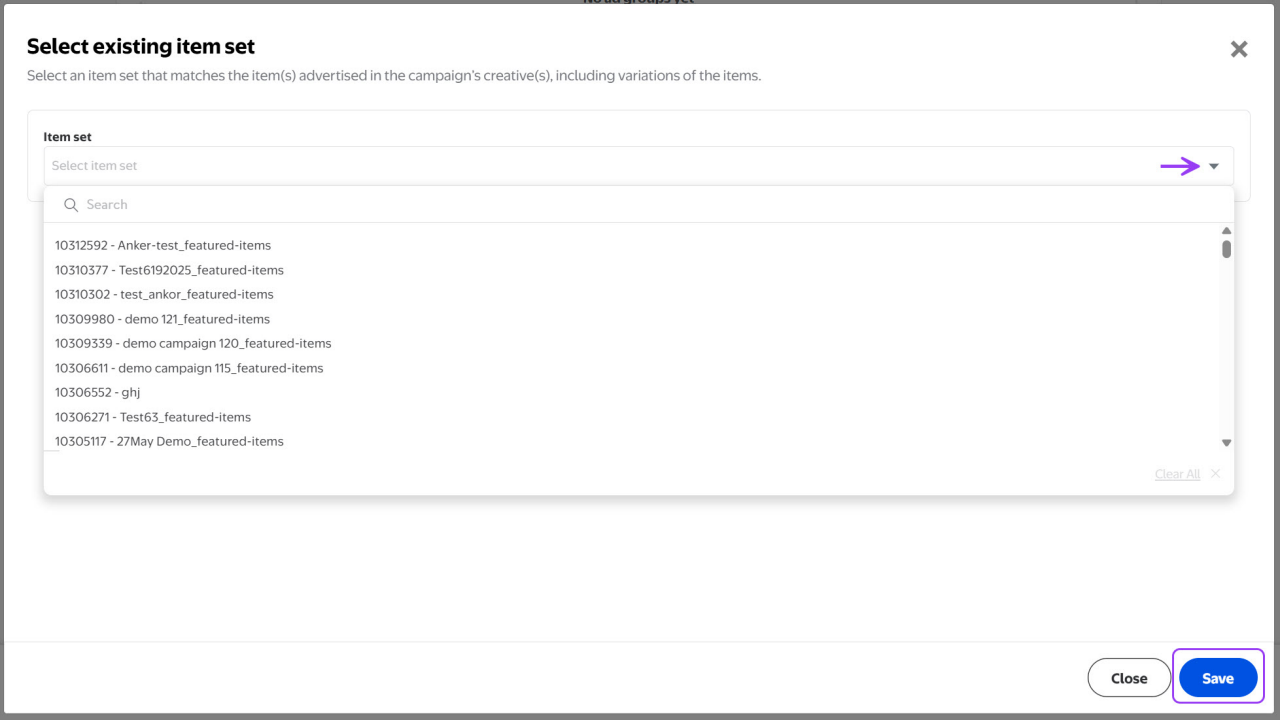
Select existing item set
Select from a list of pre-built featured measurement item sets from the Asset Library. You can choose one item set from the dropdown list.
When selecting a halo item set, you have some additional options. You can choose to take advantage of automation, allowing our system to generate the halo item set for you with one additional option:
You may also opt out of using a halo item set for measurement entirely.
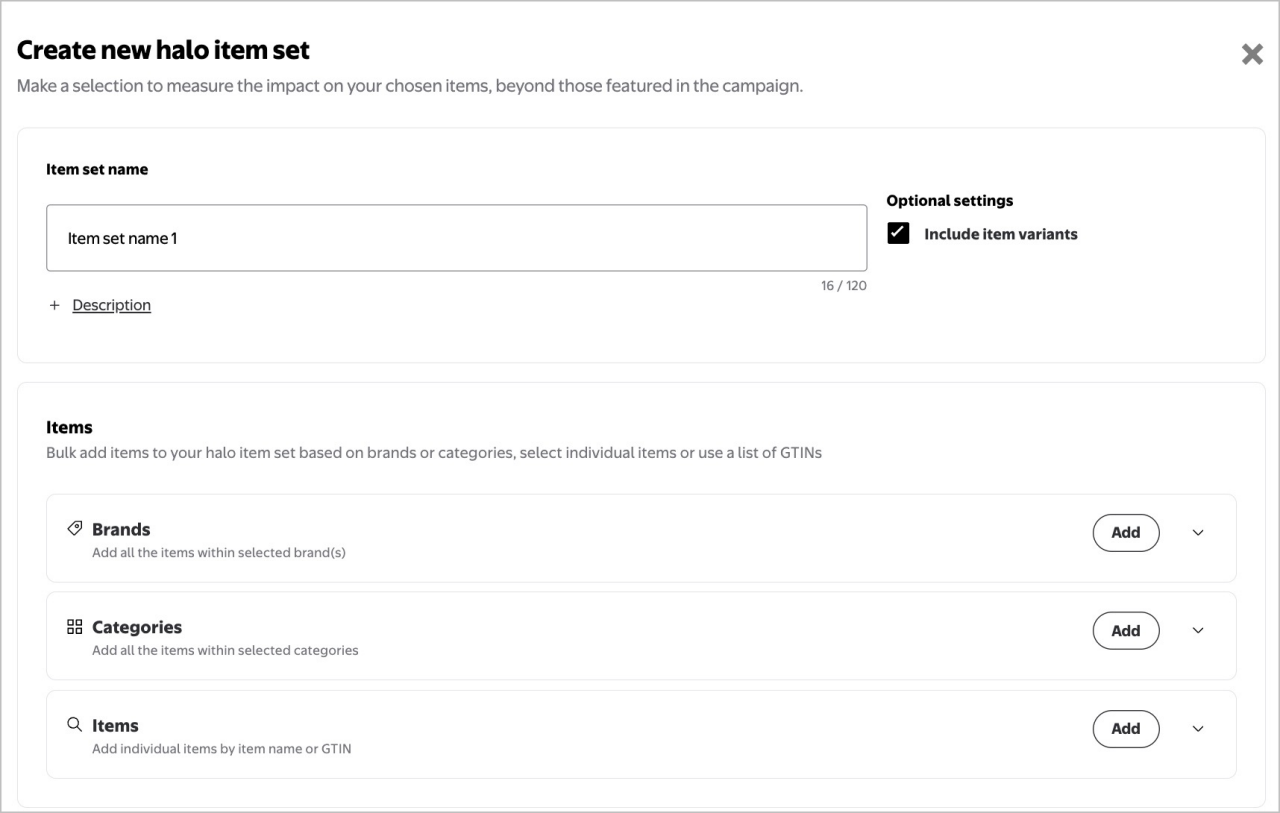
Important: When an item set with over 5,000 items is created, it may take up to two hours to fully process. During the processing time, any updates made to the item set will not save.
Confirm your campaign details, ad groups and measurement item sets. Select Save to complete your campaign creation. Campaigns with at least one fully set up ad group will automatically change from Draft to Scheduled.
Note: You need to make sure that your measurement item set is assigned to your campaign prior to launch and is not changed during or after launch as it could impact the platform’s ability to optimize to that objective.
Managing ad creatives at the campaign level
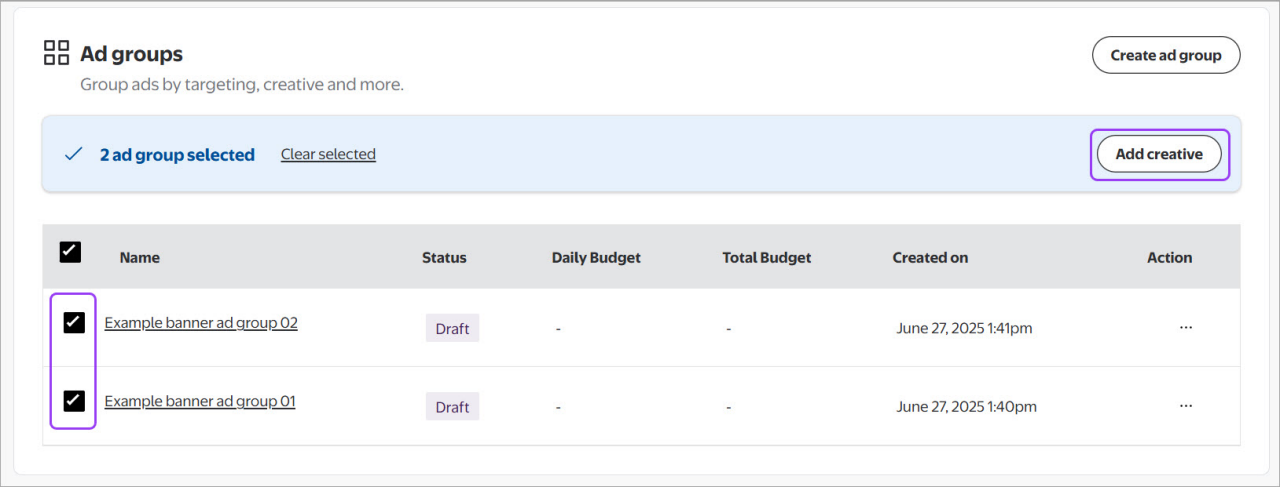
Once you've added one or more ad groups to your campaign, you can add multiple ad creatives (up to five) to multiple ad groups simultaneously within the same campaign. Use the checkboxes to select ad groups, then select Add creative.
In the popup, use the checkboxes to select multiple (up to five) ad creatives, then select Save.
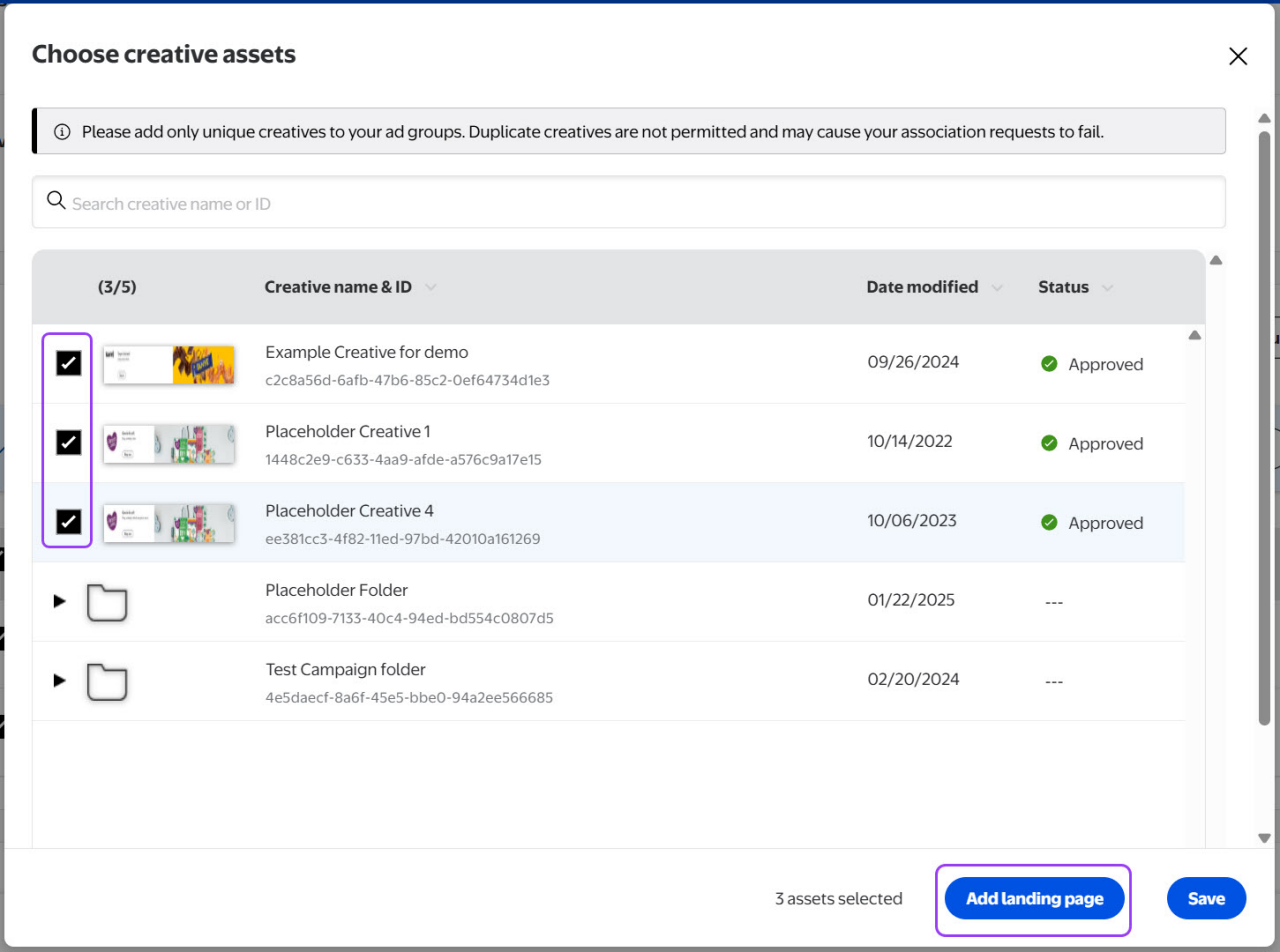
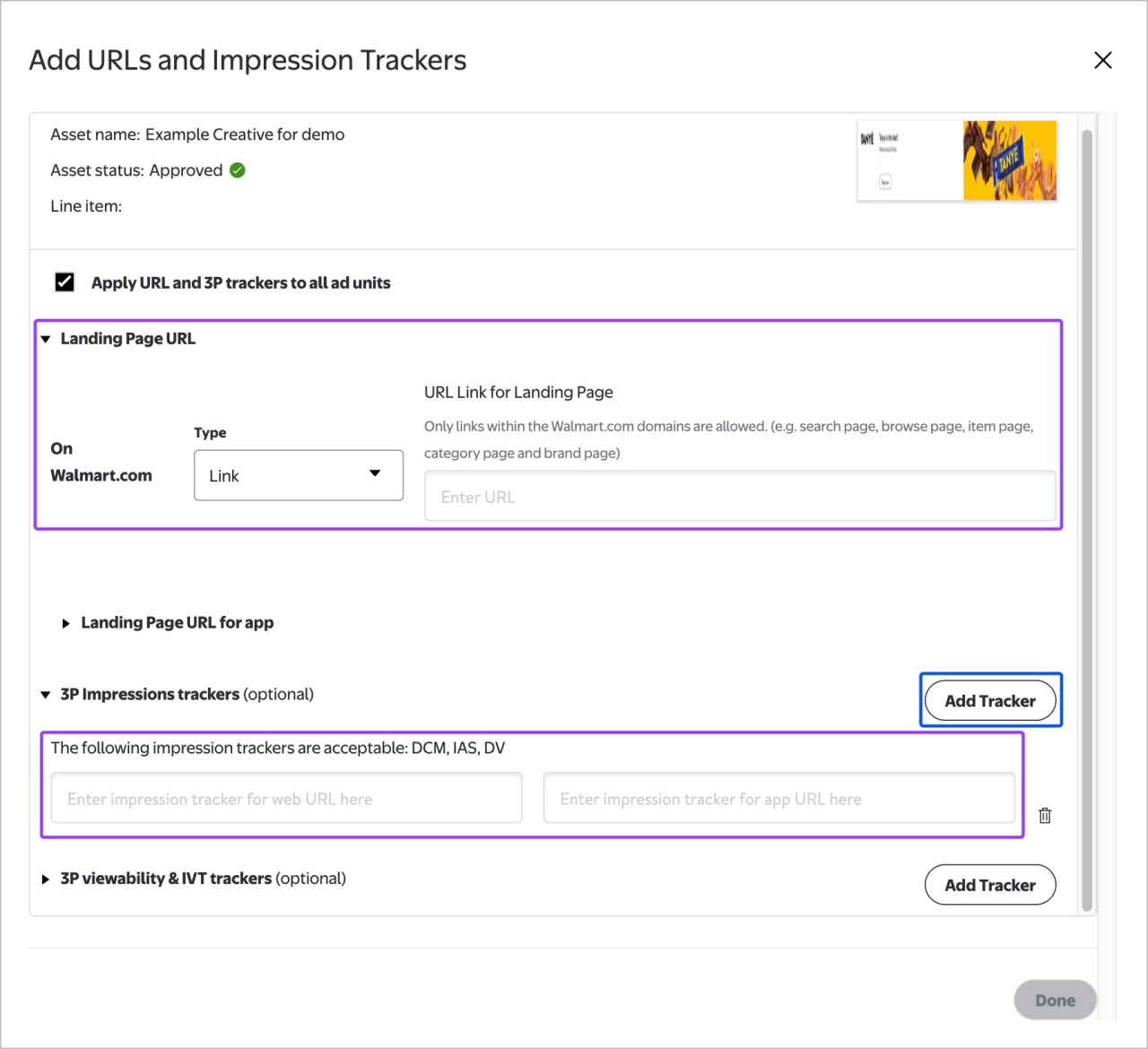
Select Add landing page to add URL links for Walmart site and app. Only links within Walmart.ca domains are allowed (e.g. search page, browse page, item page, category page and brand page).
Select Add Tracker to add third-party trackers (the following impression trackers are acceptable: DCM, IAS, DV, and the following viewability trackers are acceptable: IAS, DV) and then select Save.
Onsite Display campaigns using a URL link for landing page have two separate fields to input third-party click tracker URL links, one for web and another for in-app tracking purposes. Campaigns can include both web and app clicks reported in 3P DCM click tracking reports.
Note: URLs and trackers will apply to all selected ad creatives. Verify that your tracker has the following path /ddm/trackclk for the click tracking to work accurately. |
|
|
Confirm your campaign details, ad groups and measurement item set. Select Save to complete your campaign creation. Campaigns with at least one fully set up ad group will automatically change from Draft to Scheduled.