



In the Campaign page, you can quickly activate pre-built Walmart audiences or add in your available custom audiences. These ready-to-use segments include brand, category, persona and demographic audiences.
Advertising Help Centre
Onsite Display Guide
Reach customers when they’re ready to buy and drive impact across the purchase funnel.
Pre-built behavioral audiences
Brand
Brand audiences are based on purchase behavior with your brand. These audiences are only available to advertisers or suppliers who own the brand.
Example: Advertiser A (owner of brands X, Y, Z) will not have access to brand audiences owned by Advertiser B.
Available brand tactics
Brand audience activation (in Asset Library)
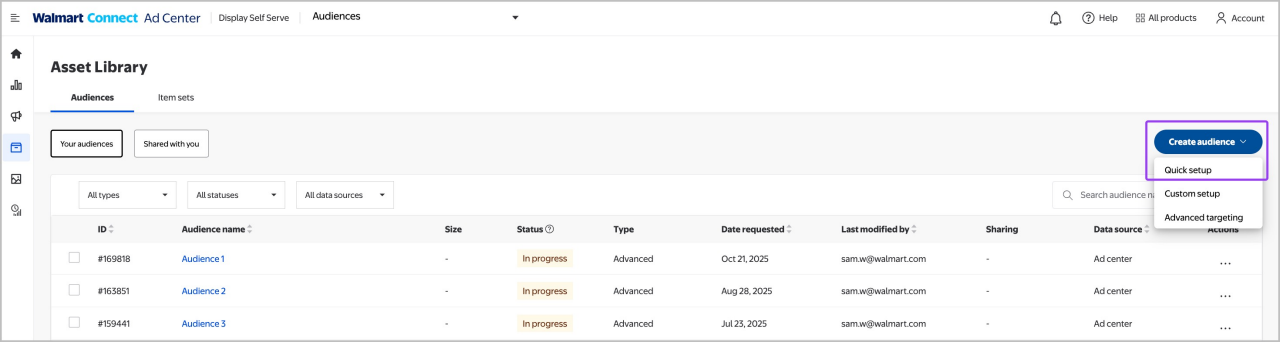
If you have recently been onboarded to Walmart Onsite Display or have added new brands to your account, navigate to the Asset Library, select Create audience and then Quick setup. Upon first setup, these audiences will take 2 business days to create.
Choose the brands* and tactics you want (Recent or Lapsed) and select Request.
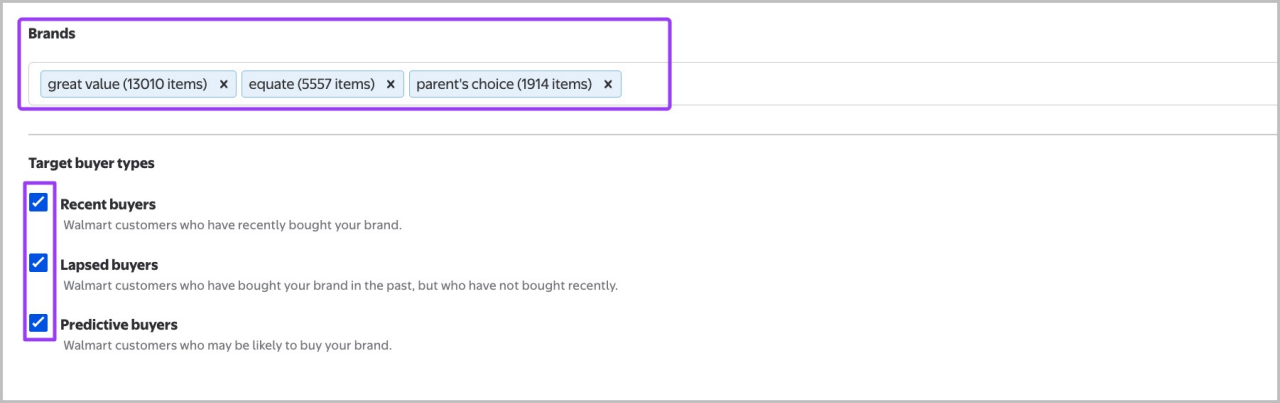
Note: For initial setup, these audiences take 2 business days to be ready for selection in ad group setup.
*If one or more of your brands do not populate, please file a support ticket and include example item IDs or GTINs for the missing brands.
Brand ad group setup
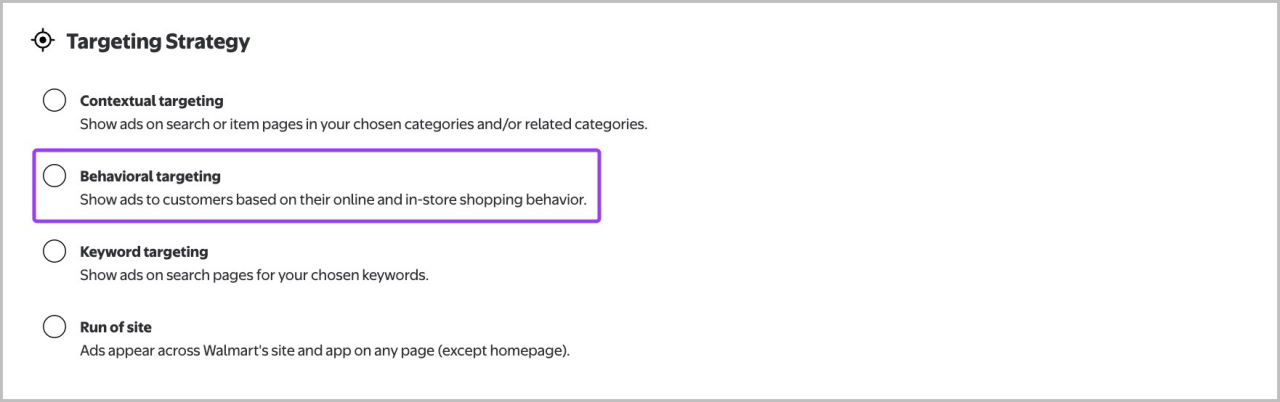
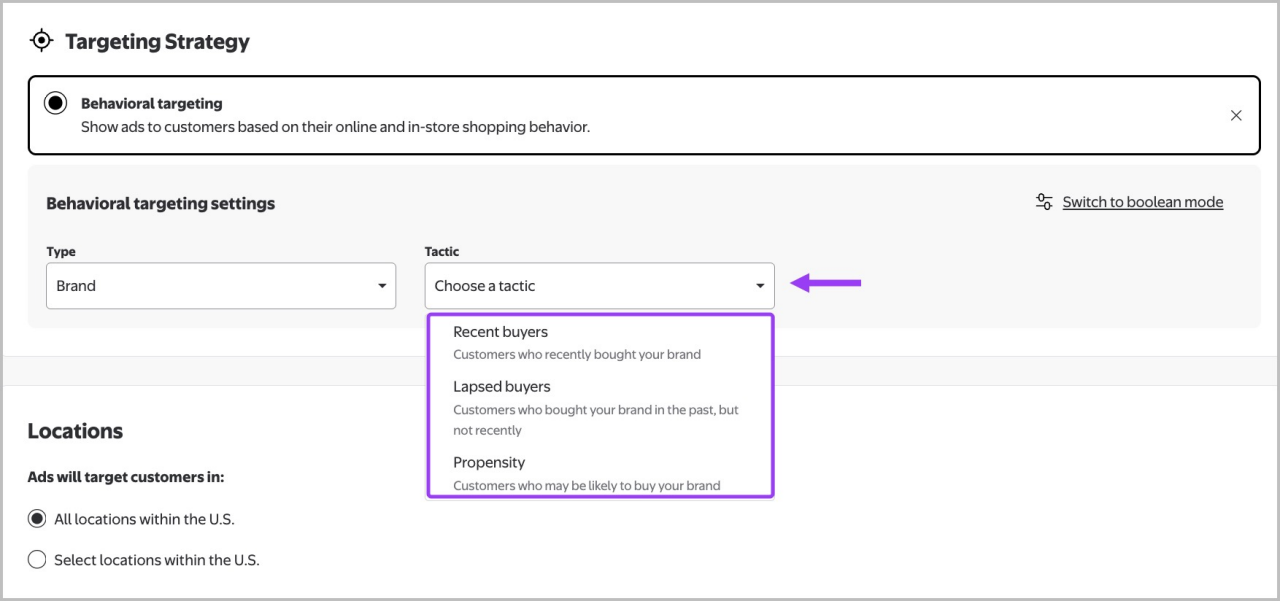
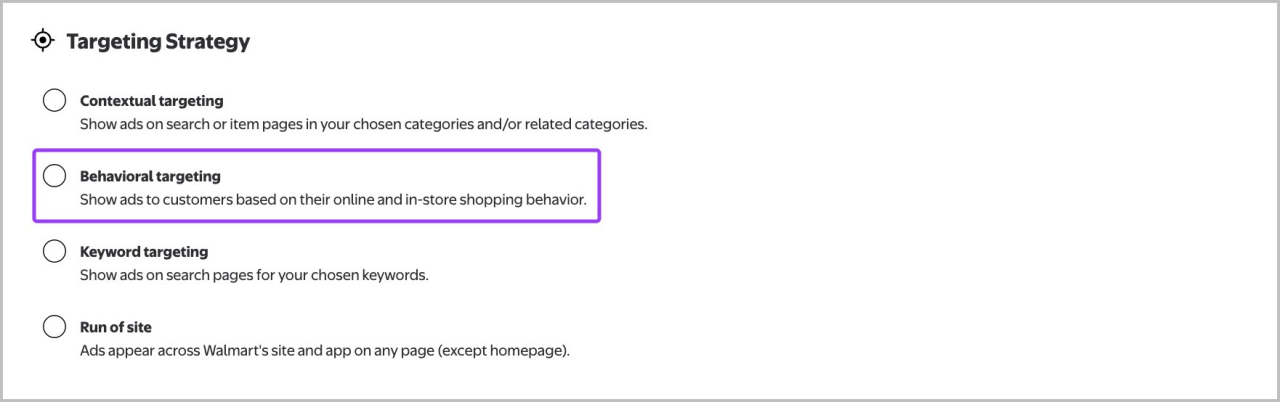
In the Campaigns page, go to ad group creation and fill in name, schedule and budget. Then, navigate to the Targeting Strategy section and select Behavioral targeting.
Under Type, select Brand.
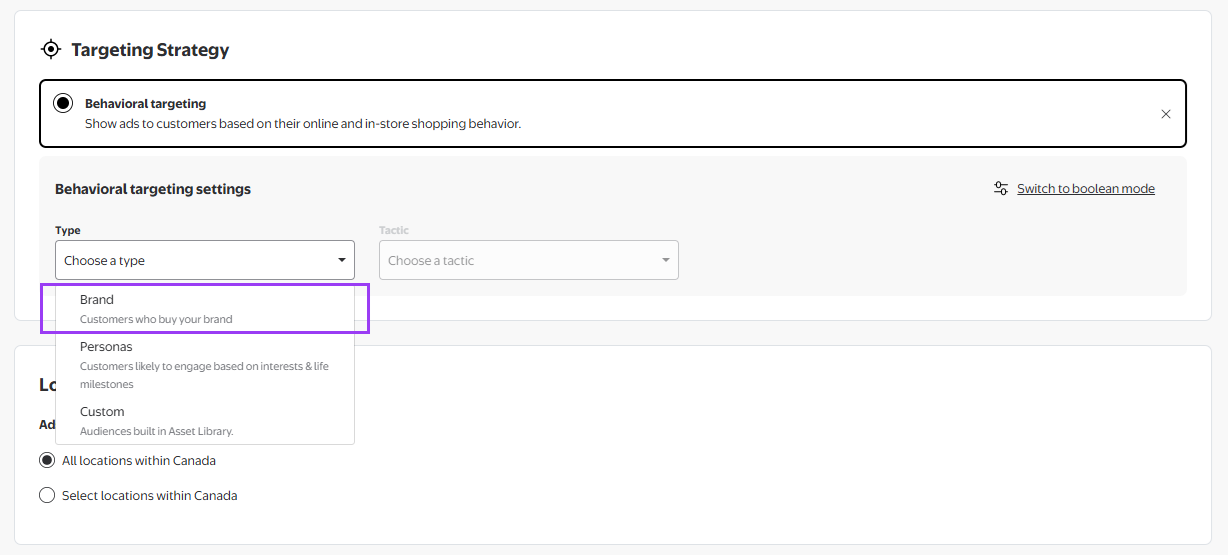
Select your targeting tactic (e.g., Recent buyers or Lapsed buyers).
Note: Propensity Brand audiences will be launched in Summer 2026.
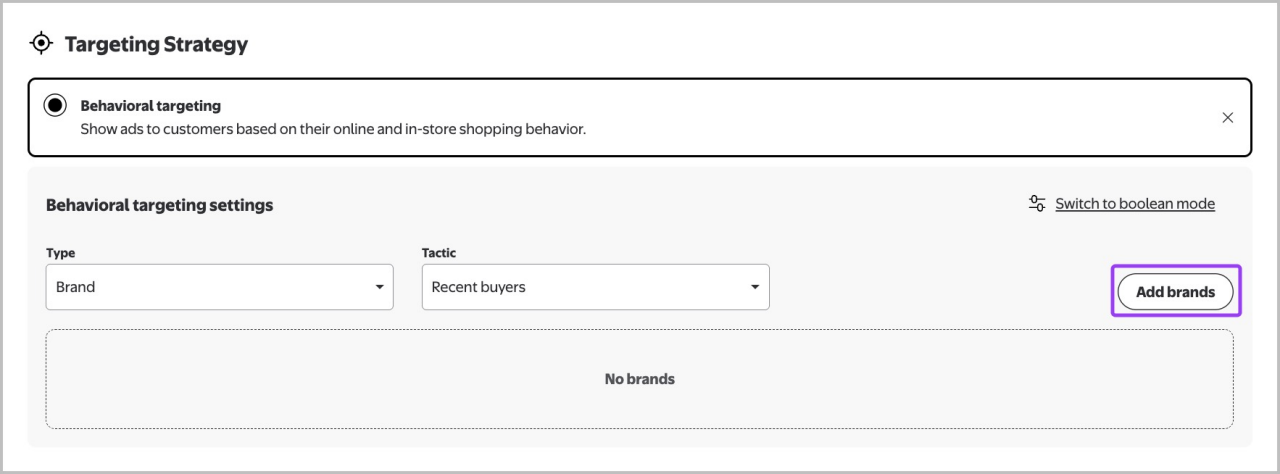
Select Add Brands. Use the side panel to select individual brands or select Add all to target all available brands. Select Done to confirm.
Review selected brands under Target Audience. Use the trash can icon to remove selections if needed. Select Save to finalize.
Persona
Personas are curated, cross-category audiences powered by machine learning that develops and refines segments based on our first-party, omnichannel data, including purchase behavior.
These dynamic profiles refresh weekly to monthly, depending on the specific audience, and rank Walmart customers by their likelihood of fitting the established persona definition.
Available persona tactics
See full list of available personas below:
Loyal Shoppers
- Deal Shoppers
- Everyday Savings Customers/Deal Shoppers
Parenting
- New Parents
- Families with kids 0–2
- Busy Families with kids aged 4 to 7
- Busy Families with kids aged 7 to 13
Seasonal
- Halloween
- Diwali
Beauty & Health
- Beauty Male
- Beauty Female
Demographics
- South Asian
- East Asian
Persona ad group setup
In ad group setup, navigate to the Targeting Strategy section and select Behavioral targeting.
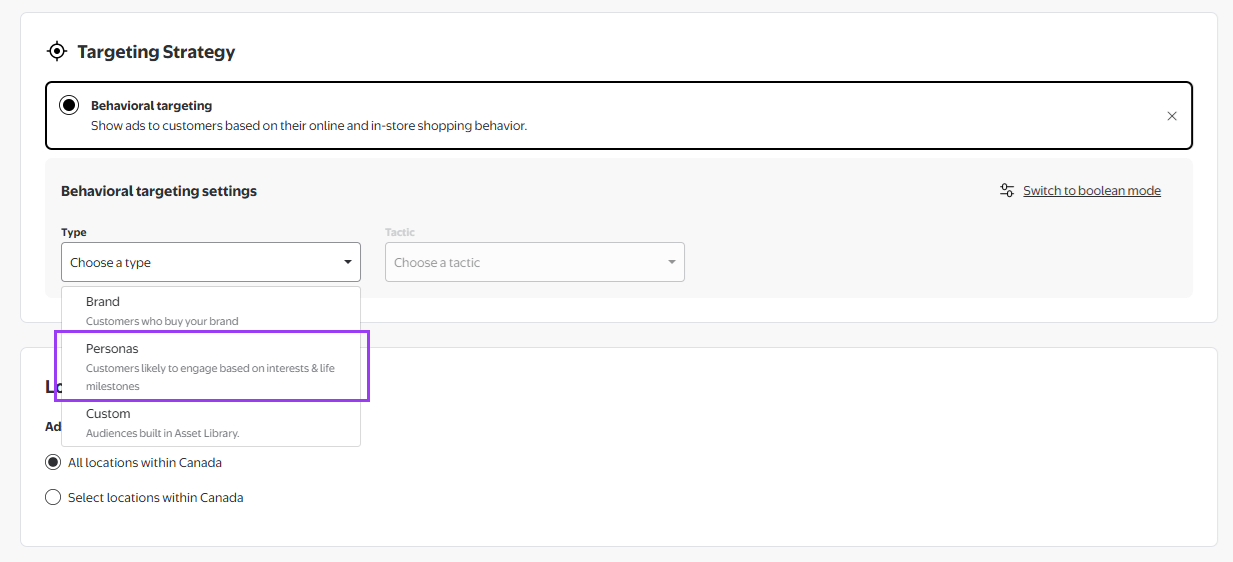
Under Type, select Personas.
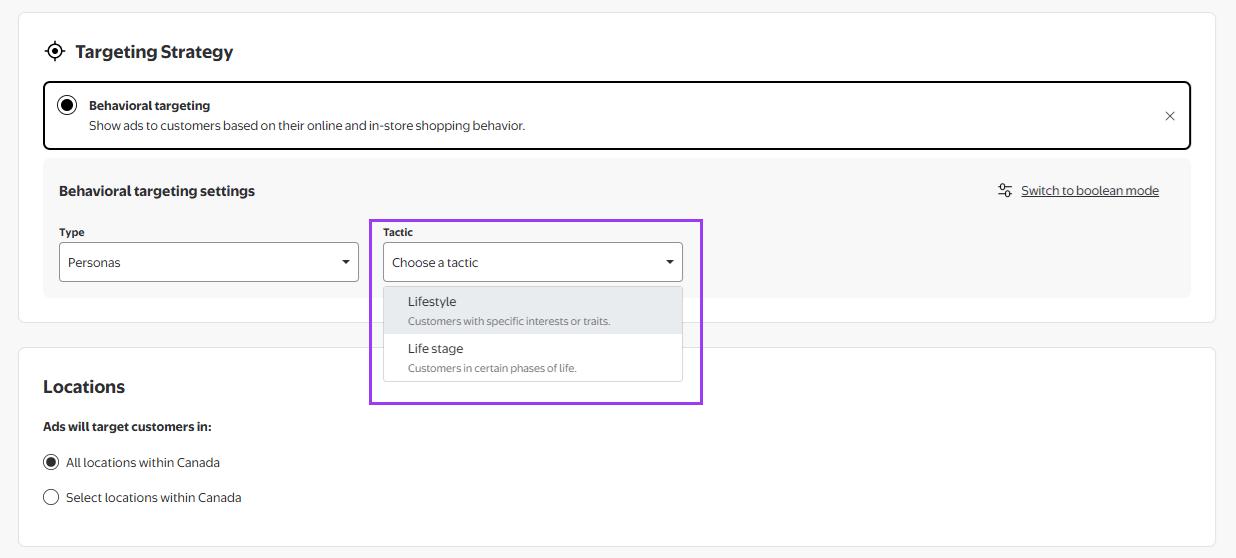
Choose your tactic (Lifestyle, Life stage, etc.).
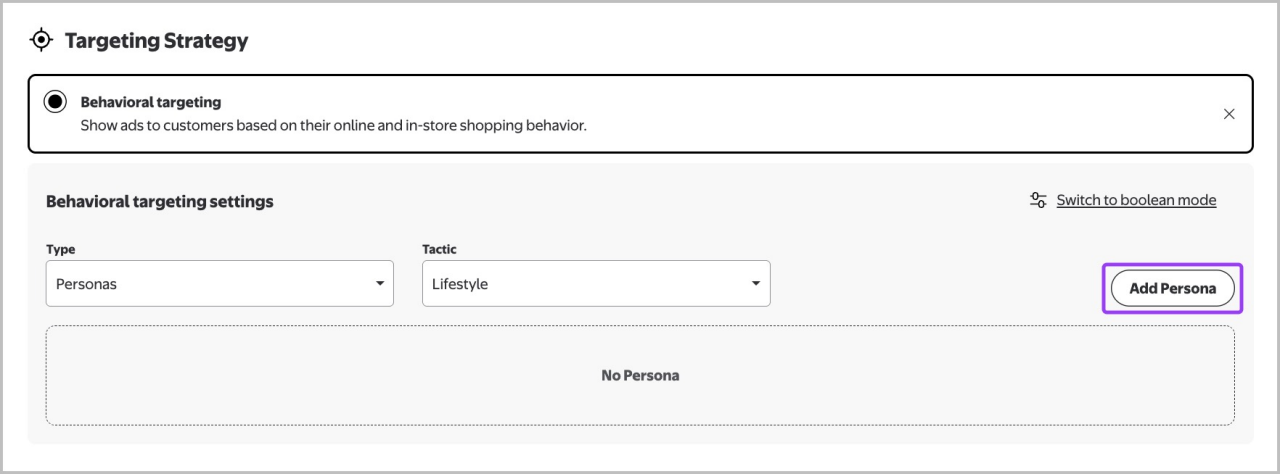
Select Add Persona to view the list of all available personas in the library and make applicable selections to your target audience.
Use the persona library or search bar to locate segments. Select Add for individual selections or Add all, then select Done.
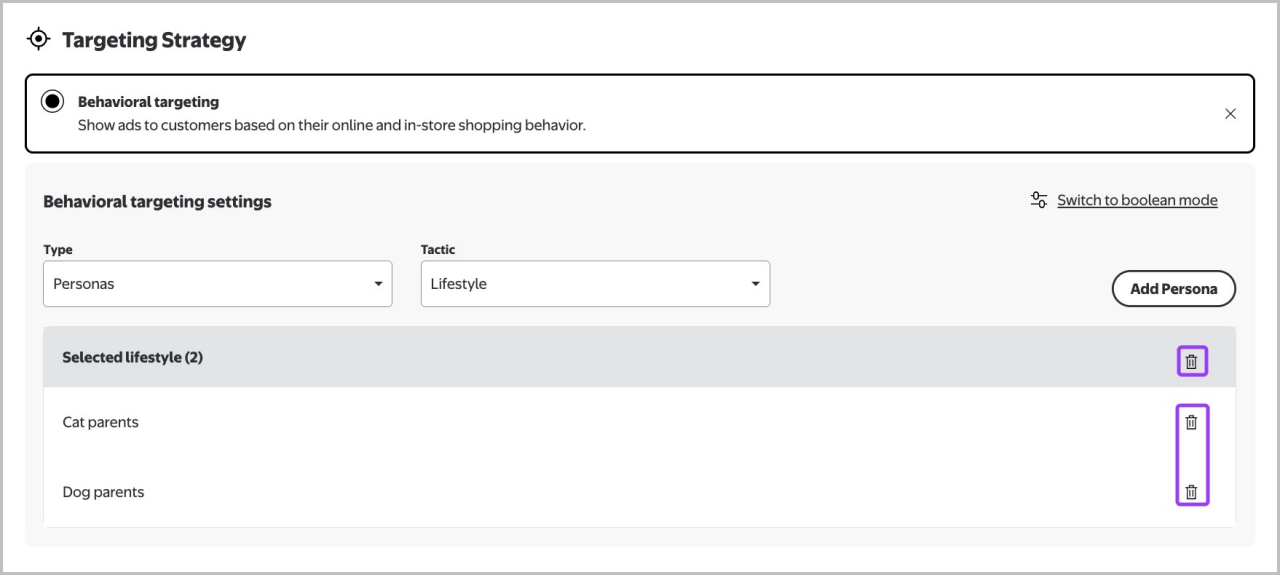
Review selected personas and use the trash can icon to remove individual or all added personas if needed. Select Save.
Custom audience options
If pre-built audiences don’t meet your exact needs, custom audiences provide additional flexibility and precision. Custom audiences can help you target by specific brands, categories, or items, customize lookback windows to align with purchase cycles and build conversion-focused audience strategies.
Custom audiences must be created in the Asset Library. Visit these guides for setup information: