



The Creative Hub is where you can create, view and manage all your self-serve Display creatives.
Table of contents
Reach customers when they’re ready to buy and drive impact across the purchase funnel.
The Creative Hub is where you can create, view and manage all your self-serve Display creatives.
Table of contents
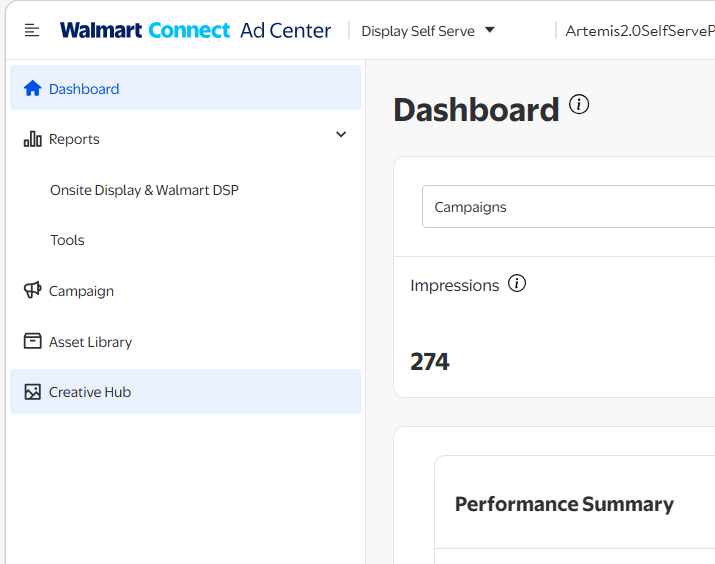
Access the Creative Hub by clicking the menu option on the left hand navigation.
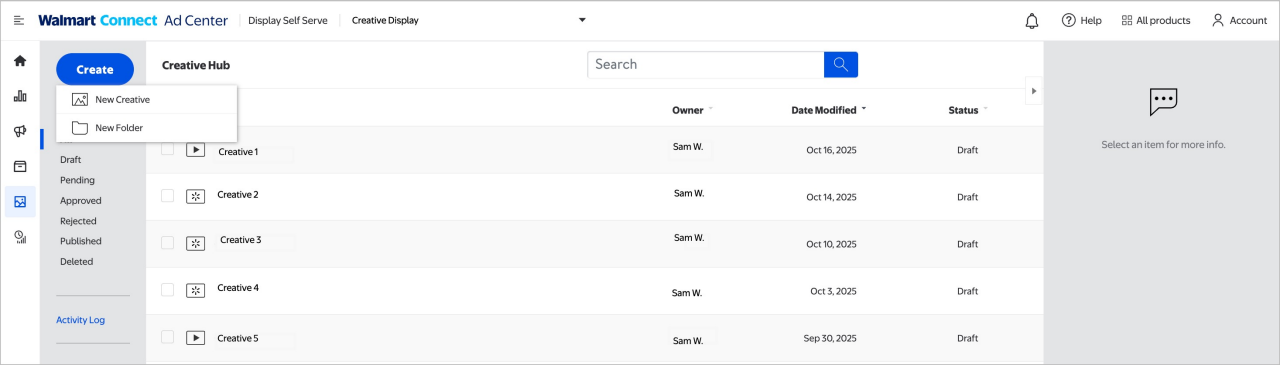
Within this page, you can filter and sort creatives by:
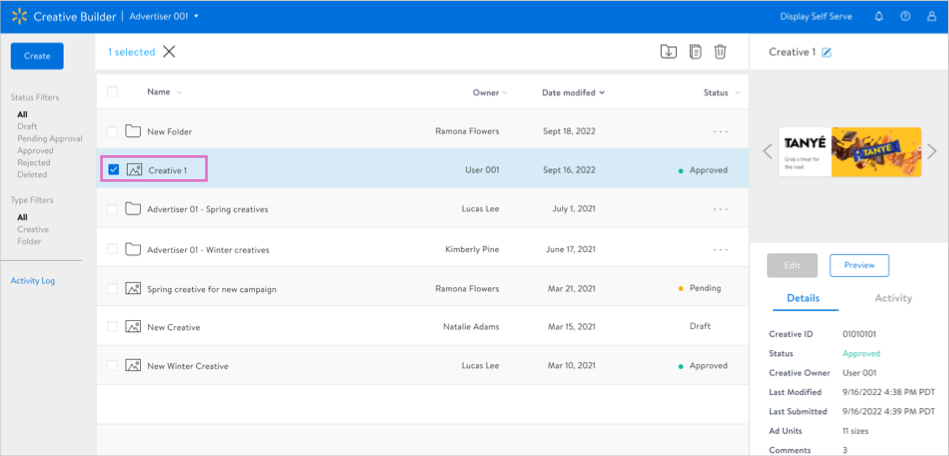
Click the name of a creative or select its check box to view its owner, most recent modification and any comments from the Walmart Connect creative team.
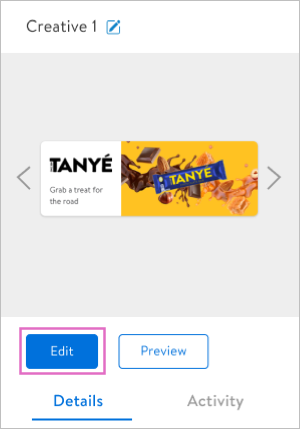
A creative may be edited until it is approved. To edit a creative, double-click its name or select Edit in the preview window.
To copy a creative, select the checkbox and then select the Clone icon in the upper right corner.

To delete a creative, select the checkbox and then select the Delete icon in the upper right corner.

Note: Approved creatives cannot be edited, but they can be cloned.
The template includes 3 ad units, each of these has device specific sizes. For more information, see the ad specs links below.
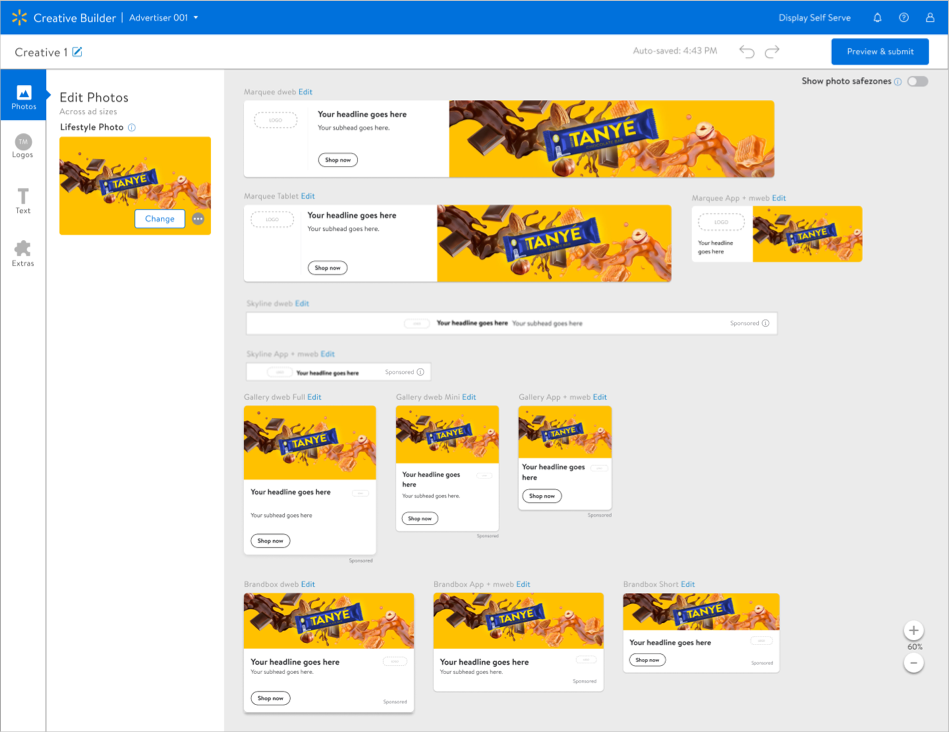
The Asset Panel is where you’ll upload the required components for each creative. The Creative Hub will automatically add components to the appropriate ad units, which will appear in the staging area to the right.
Step 1: You upload a single image and logo, and the Creative Hub applies it to all creative sizes
Step 2: You can go in and edit each individual unit's image by clicking on the individual component (image, logo, etc.) and then uploading an image or logo unique to that size. Or, you can click the Edit button above the ad size, then upload an image or logo unique to that size.
The Creative Hub auto-saves your work and allows you to undo and redo changes as needed.
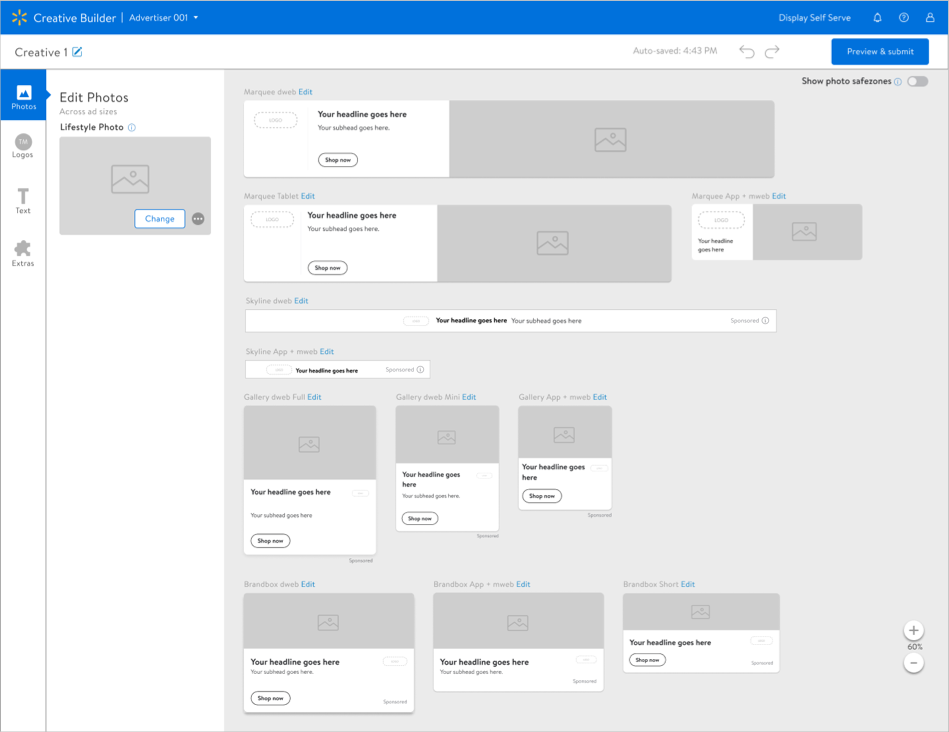
Global vs. Local edit
Global Edit applies assets to all ad units. Selecting Change or Edit in the preview panel applies the changes to all of the creatives. Local Edit applies changes only to the selected ad unit. To edit a specific ad unit, select Edit to the right of the creative title. Edits will only be applied to the selected ad unit.
Note: Ad type availability within the Creative Hub does not guarantee access to inventory.
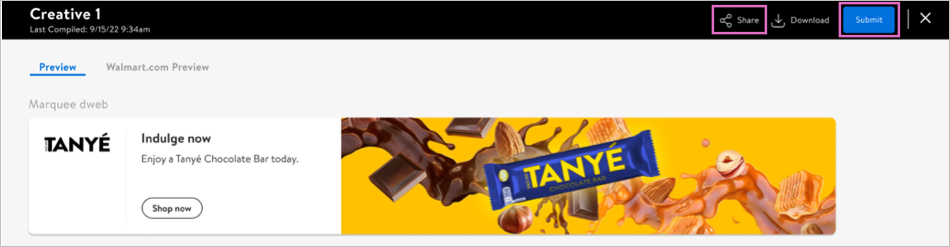
On the Preview page, you will see the ads you created in the Preview view.
Note: Ad units may appear differently in preview mode vs. Creative Hub build mode, depending on the chosen setting in the campaign manager.
Select Submit to send the creatives to Walmart Connect for approval, and then select the Share icon to send other account users a link to the creatives.
Please allow 3 business days after submission for creative review.