Advertising Help Centre

Onsite Display Guide

Reach customers when they’re ready to buy and drive impact across the purchase funnel.

Custom behavioral audiences

Custom audiences help you connect with high-value Walmart customers across the purchase journey using our first-party data. Audiences are based on Rules, which Target customers based on historical purchase, browse, or search data as well as other targeting criteria.

Custom audiences can help you reach relevant audiences, drive awareness and consideration, increase conversion and engage new and existing customers. 

All audiences are created in the Asset Library and take 2 business days to build. 

Table of contents


Rule-based custom audiences

Rule-based audiences are built from:

  • Purchase criteria (e.g., frequency, spend decile)
  • Browse behavior (e.g., visits, search terms)
  • Ad exposure (e.g., impressions, clicks)
  • Optional geotargeting filters

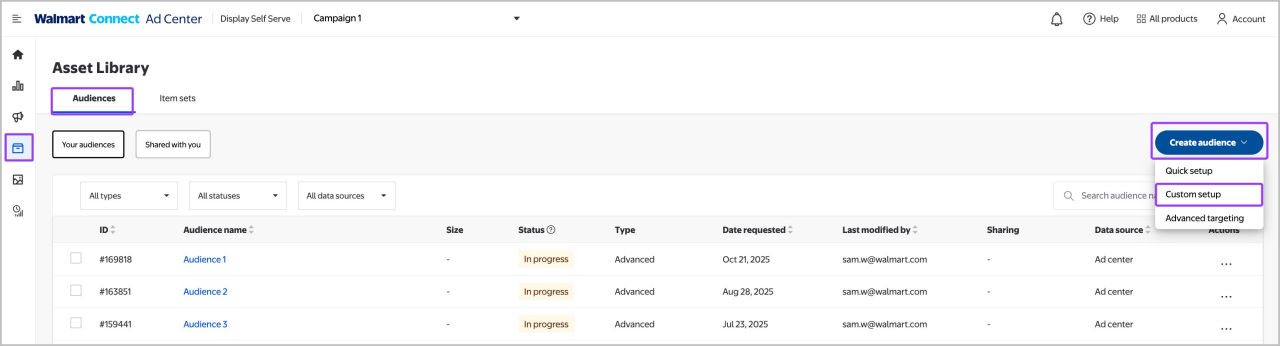
To create a rule-based audience, navigate to the Asset Library from the left-side navigation. Select the Audience tab and select Create audience. In the dropdown, select Custom setup

Creating a custom behavioral audience


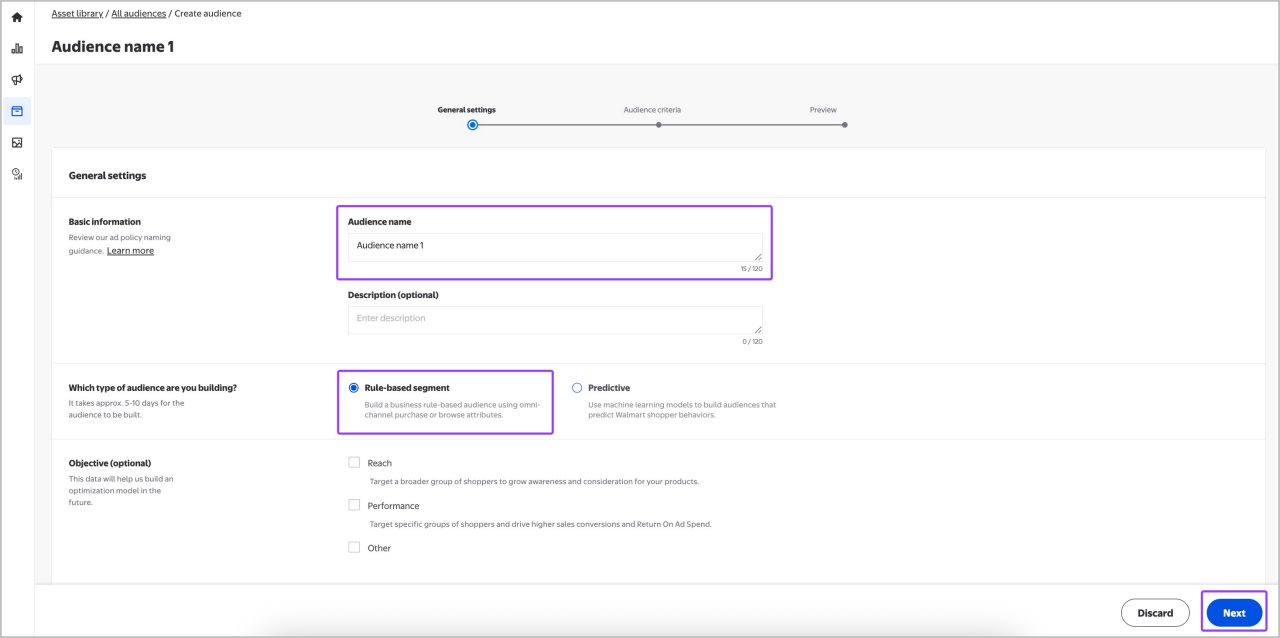
On the details page, name your audience using a clear, informative convention. 

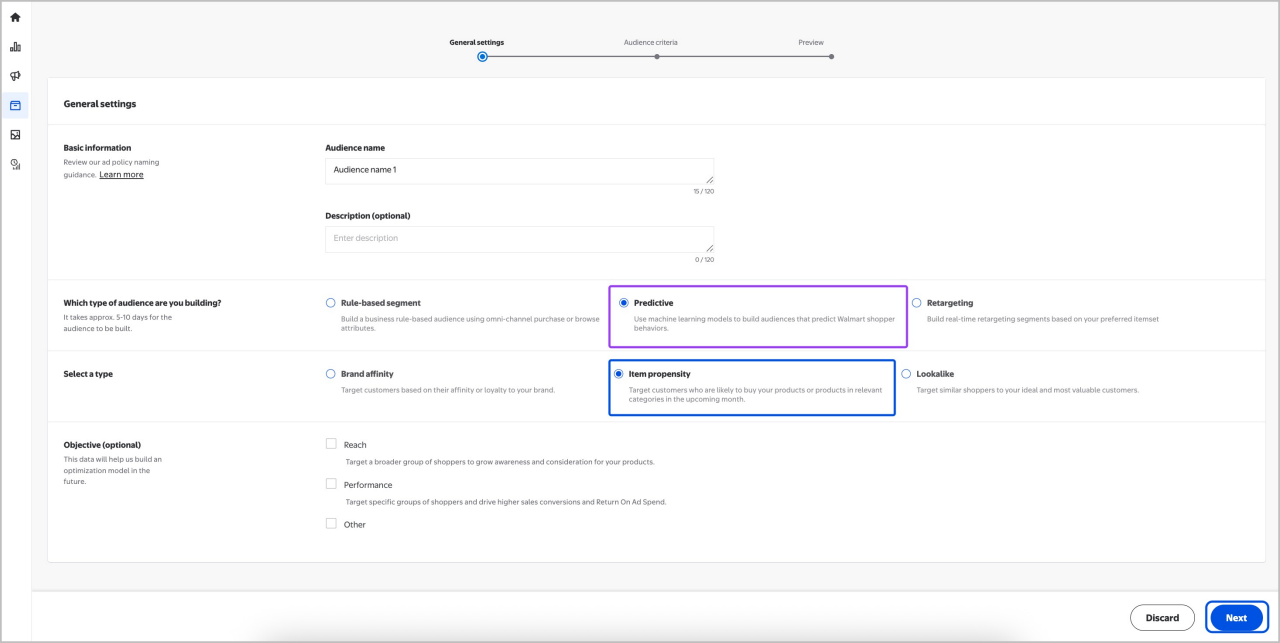
Select Rule-based as the audience type, then select Next

Selecting rule based audience


Note: At this time only Rule based custom audiences are available. Predictive audience types will launch in Summer 2026

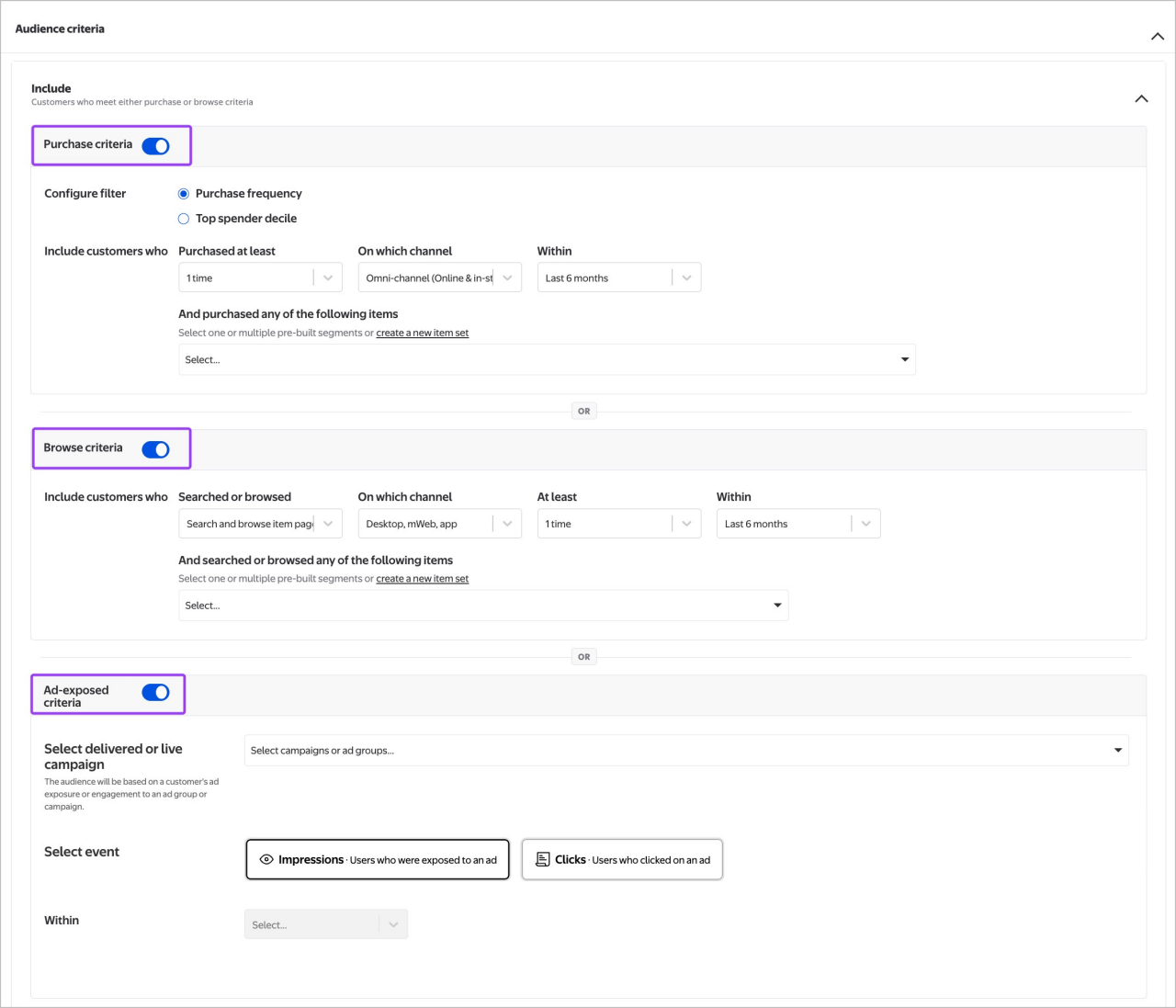
Click the toggle to on next to Purchase criteria. You can choose purchase frequency or spend level and then specify the channel, timeframe and add in your item set. 

After purchase criteria, you can click the toggle to on next to Browse criteria, specifying the activity type, lookback window, frequency and add in your item set. 

You can also add in Ad exposure criteria. Click the toggle to on next to Ad exposure criteria to reach customers based on prior exposure or engagement with your ad or campaign. 

Selecting criteria for audience targeting


You have the option to repeat the process for Exclusion criteria (e.g., exclude your brand buyers). Exclusion criteria is not required.  

Selecting to include or exclude groups from the audience


(Optional) Geographic overlay 

Enable geotargeting by Province, City or Postal Code (first 3 digits, Forward Sorting Area).

After customizing your audience criteria, select Preview Audience to review and then select Request Audience to submit, Back to adjust criteria or Discard to reset.

Best practices

  • Build item sets before you begin creating your audience. 
  • Use the Estimated Audience Size tool in the right side-bar to see real-time audience estimates. 

Rule-based custom use cases

Use case Goal Example
Top spenders Upsell higher-priced items and increase customer reach A high-end skincare brand identifies Walmart customers in the top 10% of spenders on facial moisturizers. They target these customers with ads for their newly launched premium anti-aging cream available exclusively in stores.
Custom lapsed buyers Retain customers and defend market share A cereal brand targets customers who purchased their oat-based cereal once in the past three months but not within the last four weeks. These customers receive a promotion for a limited-time flavor to re‑engage them.
Custom recent buyers Retain customers and launch new products A pet food brand targets customers who purchased their dry dog food twice in the past six months across both in-store and online channels. These customers are then introduced to a new wet food variety as a cross-sell opportunity.


Item propensity 

Note: Item propensity audiences are part of our Predictive audience capabilities, launching in Summer 2026

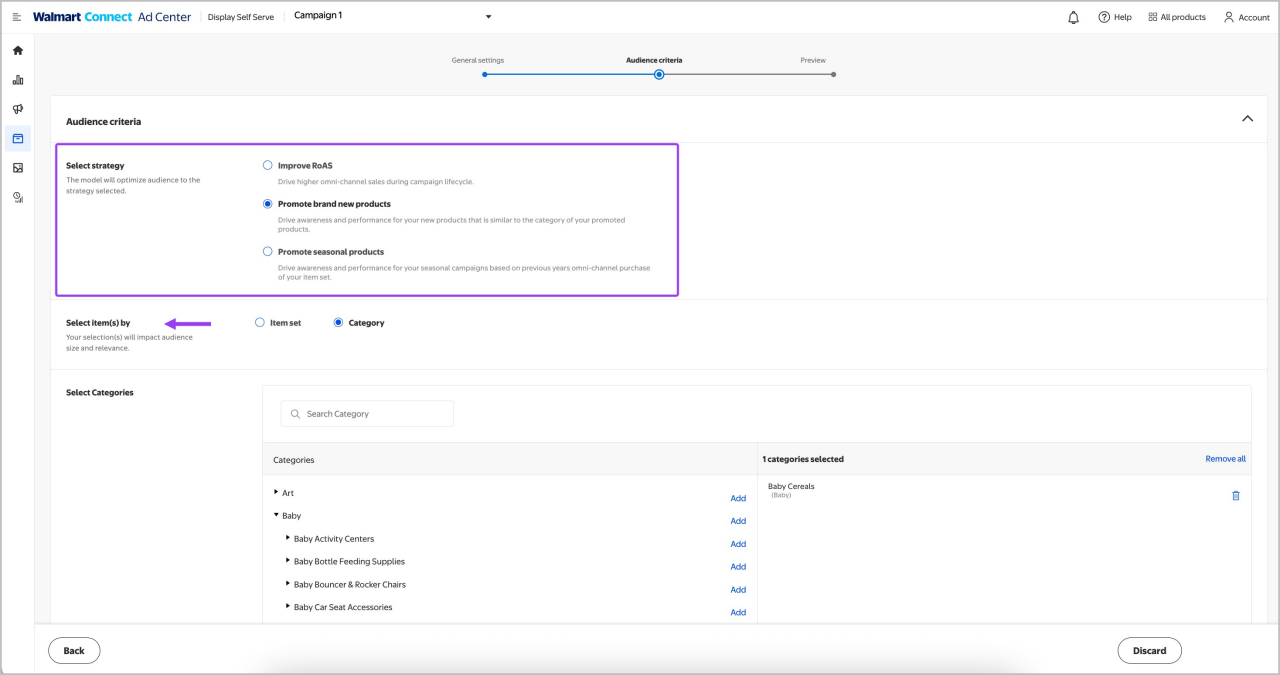
Item propensity targets high-intent customers likely to buy specific items or categories. You can choose from three strategies:

  • Improve ROAS: Help convert shoppers during the campaign window 
  • Promote new items: Helps increase new product discovery 
  • Promote seasonal products: Help drive awareness for limited-time items   

To create a predictive audience, navigate to the Asset Library from the left-side navigation. Select the Audience tab and select Create audience. In the dropdown, select Custom setup

Creating a predictive audience


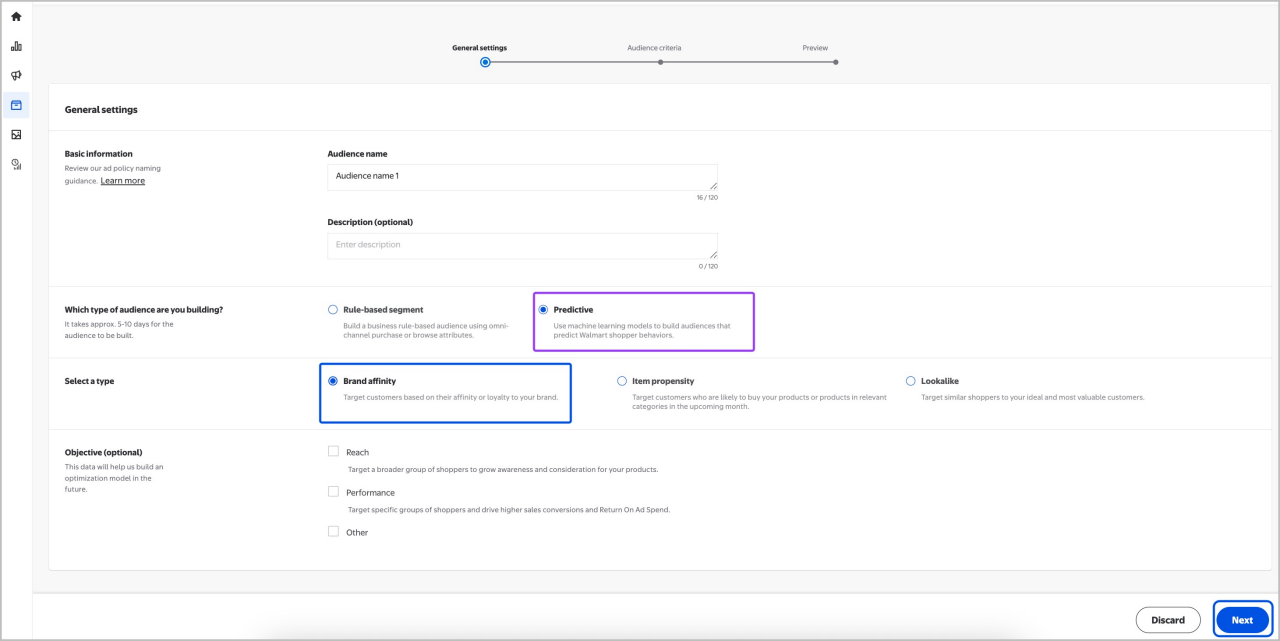
Select Predictive as the audience type, then select Item propensity. Select Next to continue.

Selecting predictive audiences


Choose a strategy and select your pre-built item set or categories.

Select an item set or category to apply to the audience


Select Preview which will show you a summary of your selections for you to confirm. Use Back or Discard to correct or start over if any selections are incorrect. You cannot change any selection once you’ve requested the audience. Select Request audience to start the build process. 

Best practices 

  • Use category-level or item-level sets only (brand item sets or hybrid item sets with brand inputs are not supported). 
  • Ensure sufficient transaction data for modeling, i.e., if your audience fails to build, expand the item set to improve reach. 
  • Only item sets with Ready status appear for selection. 

Item propensity use cases

Use case Goal Example
Promote seasonal items Drive awareness for seasonal or limited-time items A candy brand retargets customers who purchased their Halloween-themed treats the previous year with this season’s collection of spooky candies.
Promote new items Increase trial and discovery A snack company launches a new protein bar and targets Walmart customers who have bought competitive high-protein snacks, such as protein shakes.
Help optimize ROAS Convert high-intent customers during the campaign window A coffee brand targets Walmart customers who typically purchase ground coffee every two weeks, ensuring timely ad delivery during peak purchase windows.


Managing and editing audiences

After requesting your audience, the audience statuses may include: 

  • In progress: Audience is the process of being created and uploaded for activation. 
  • Available: Audience has completed a successful build and upload to ad server. 
  • Failed: Audience is not available for campaign activation. Read status message to see what to do next.  
  • Archived: Audience has been archived due to lack of campaign use. Restore audience using the Reactivate tool. 

You can edit an audience at any time once it’s Available. To edit, navigate to the Asset Library and select the Audience tab. Select the audience you want to edit.  

Editing details like Audience name or description does not require a rebuild. If you edit the criteria, like attaching a new targeting item set or purchase history, your audience will need to rebuild.  

Note: Rebuilding takes another 2 business days. 

Assigning audiences

To assign an audience to your campaign, navigate to the All Campaigns page, select a campaign and open or create an ad group. 

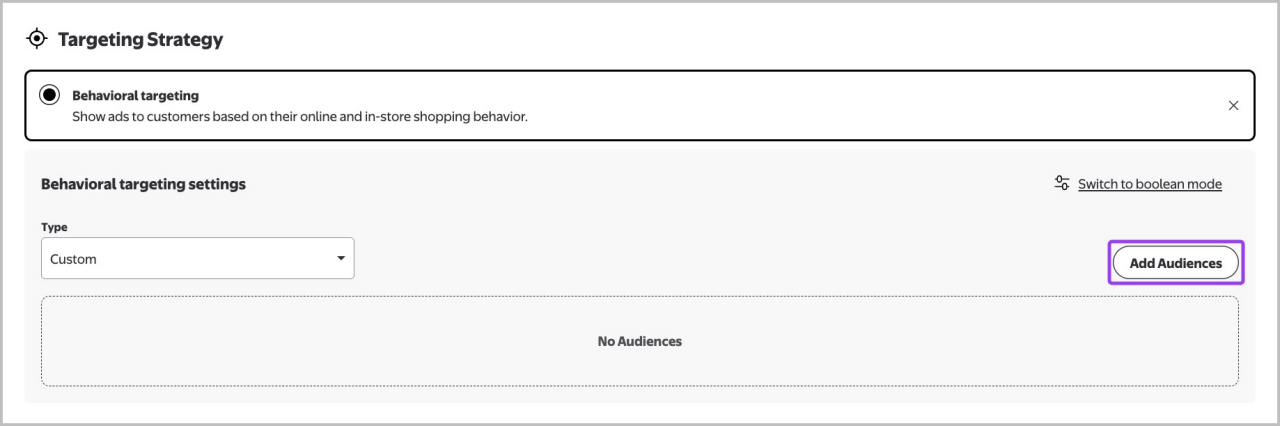
Under the Targeting Strategy section, select Behavioral targeting. Select Custom, then Add Audiences

Assigning an audience


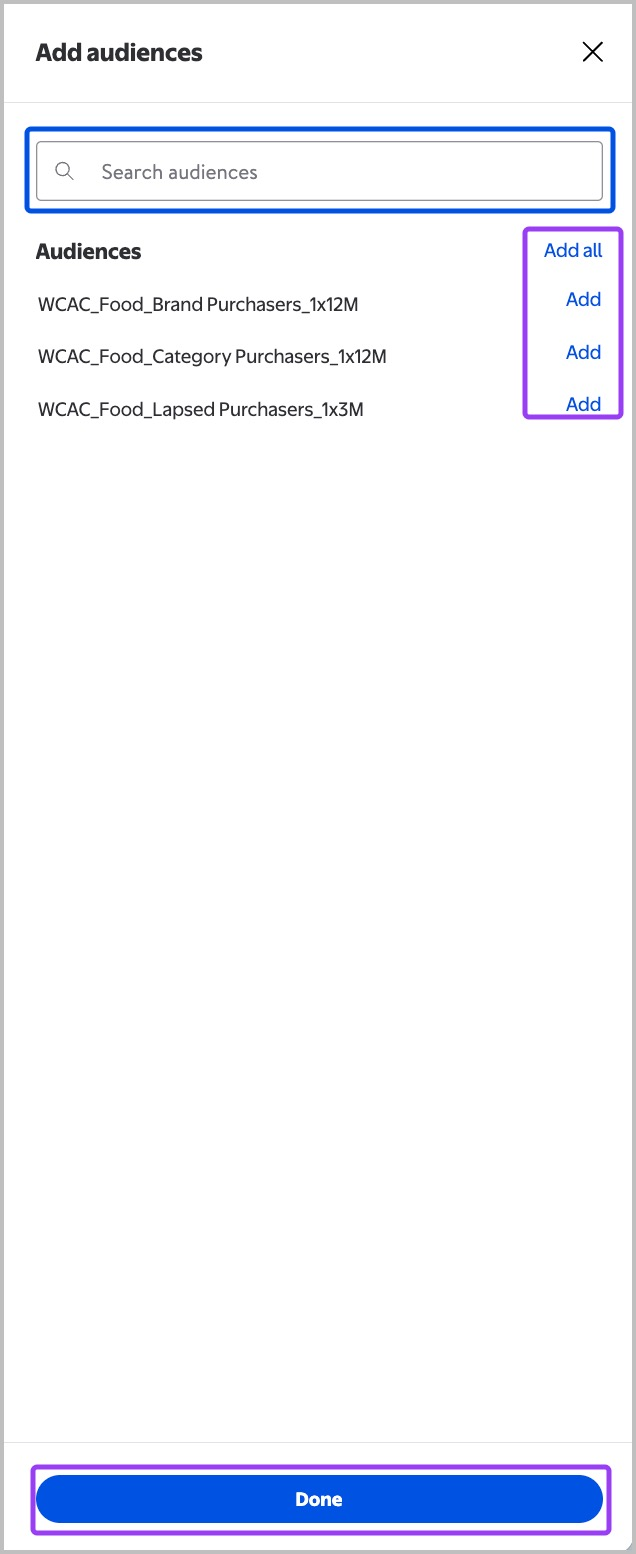
Search or scroll to your audience and select Add or Add all. After adding your audiences, select Done.

Assigning an audience


Complete the ad group setup and select Save.