Advertising Help Centre

Onsite Display Guide

Reach customers when they’re ready to buy and drive impact across the purchase funnel.

Campaign management & setup

This article provides an overview of the All Campaigns page, where you create and manage your campaigns. The sections below explain how to manage your campaigns.

Find a campaign or ad group

The All Campaigns page displays a table of all your campaigns and ad groups.

You can customize the number of campaigns shown per page and sort them in several ways to find the campaign or ad group you’re looking for. Hover over the name of the campaign or ad group to view its full name.
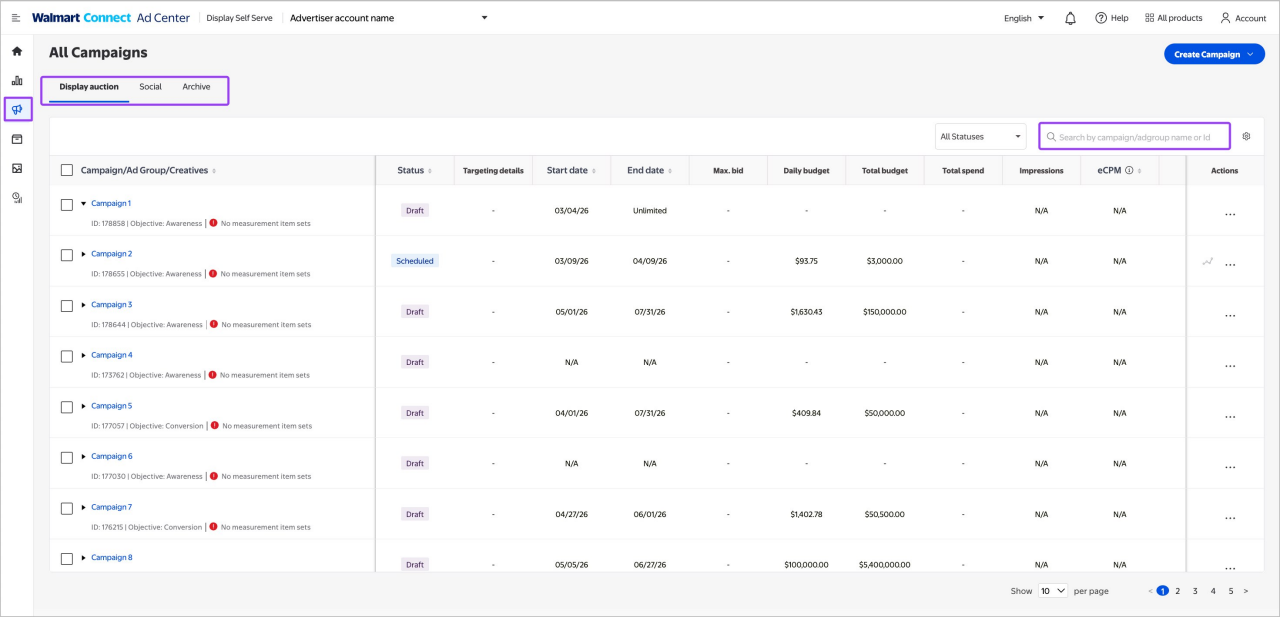
All campaigns page


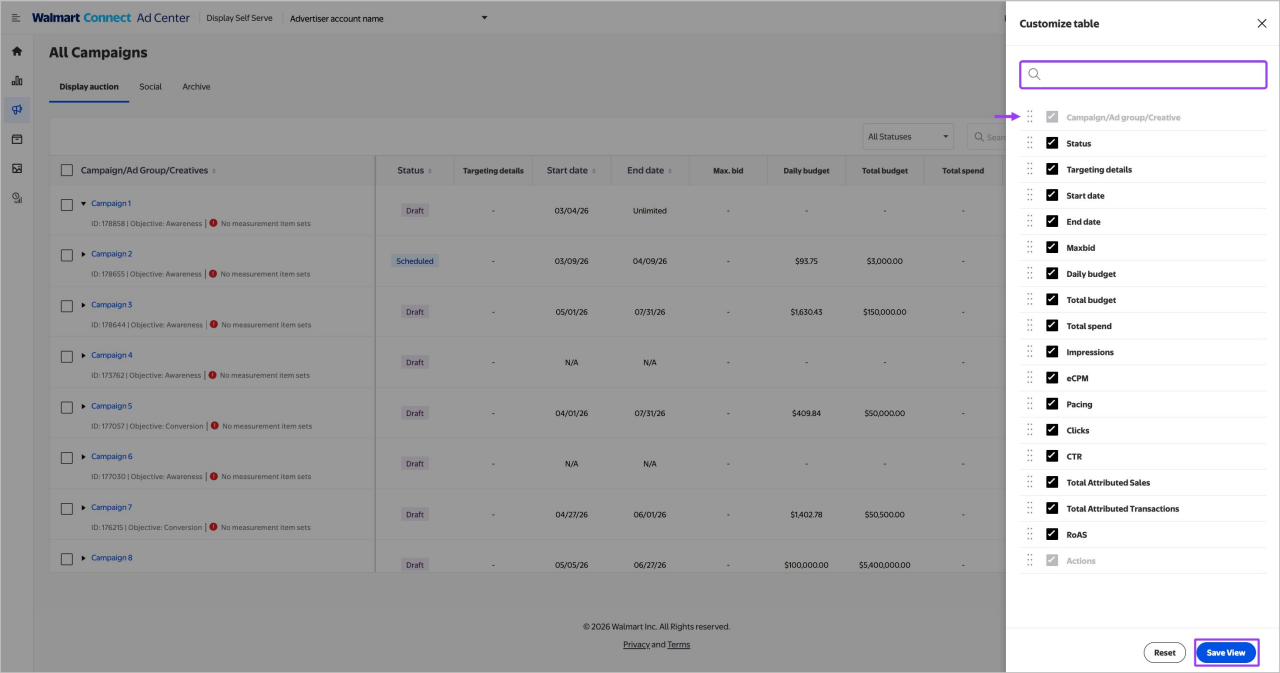
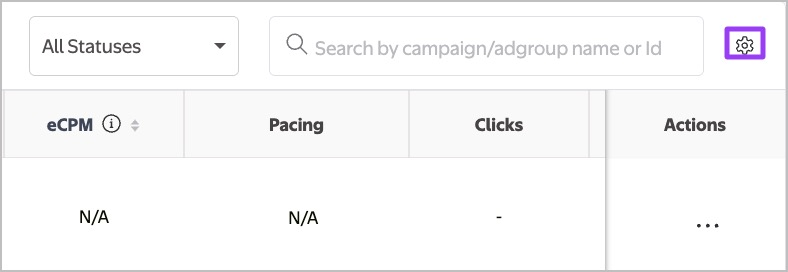
Click the gear icon to access a customizable table and use the checkboxes to select the metrics you would like to see on the campaign dashboard for each of your campaigns or ad groups.

Find the gear icon
Customize your table view


Note: If you can’t locate a campaign or ad group, make sure you’ve looked through all viewable pages before contacting support.

Campaign hierarchy


Tracking changes  

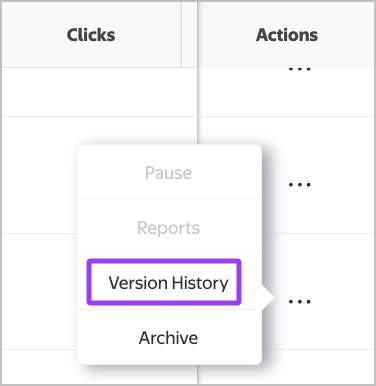
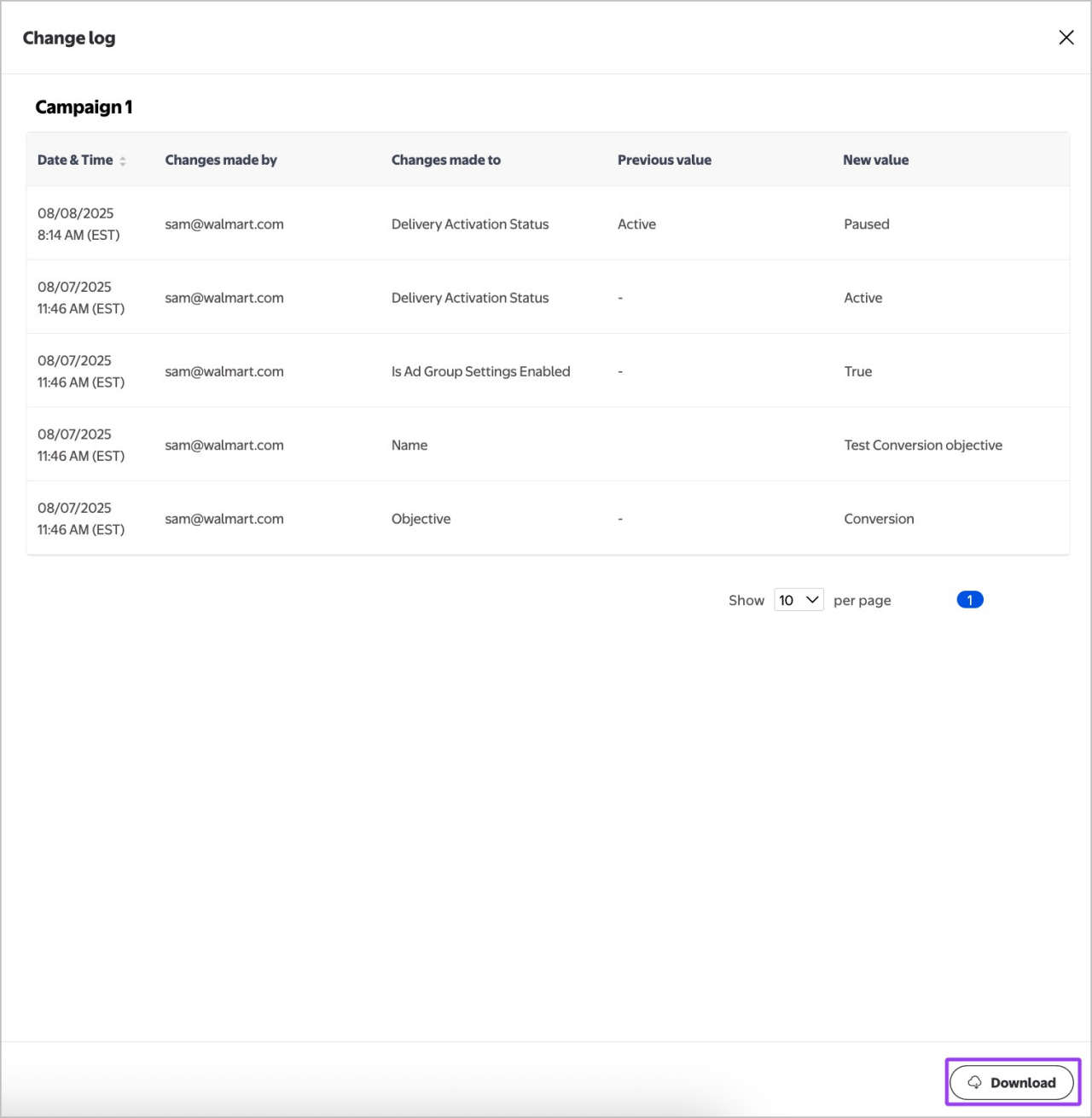
Click the three dots on the right of the campaign line, and then Version History to access a detailed view of the campaign audit history, including details of changes made by a single user ID. There is an option to download a full report of the history log.

Find version history
Change log


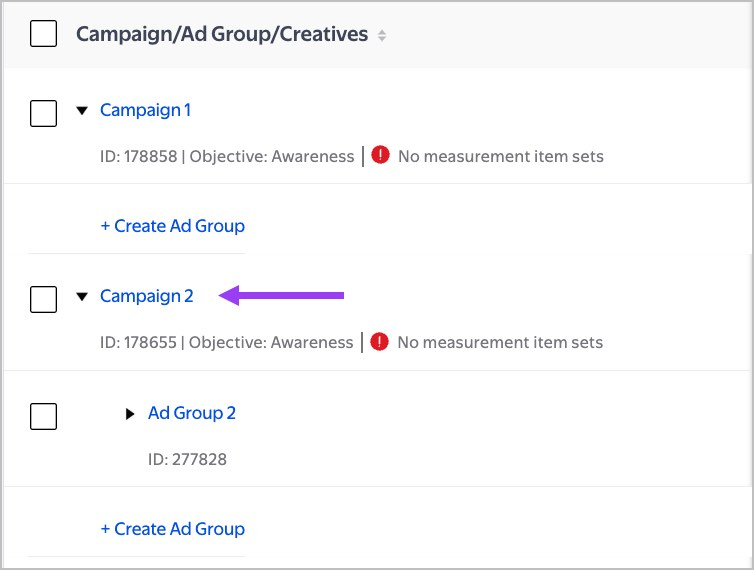
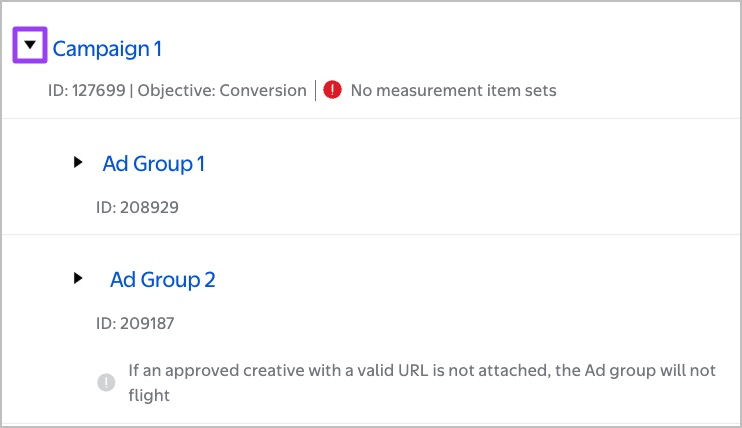
To access ad groups, click the arrow to the left of each campaign.

Access ad groups


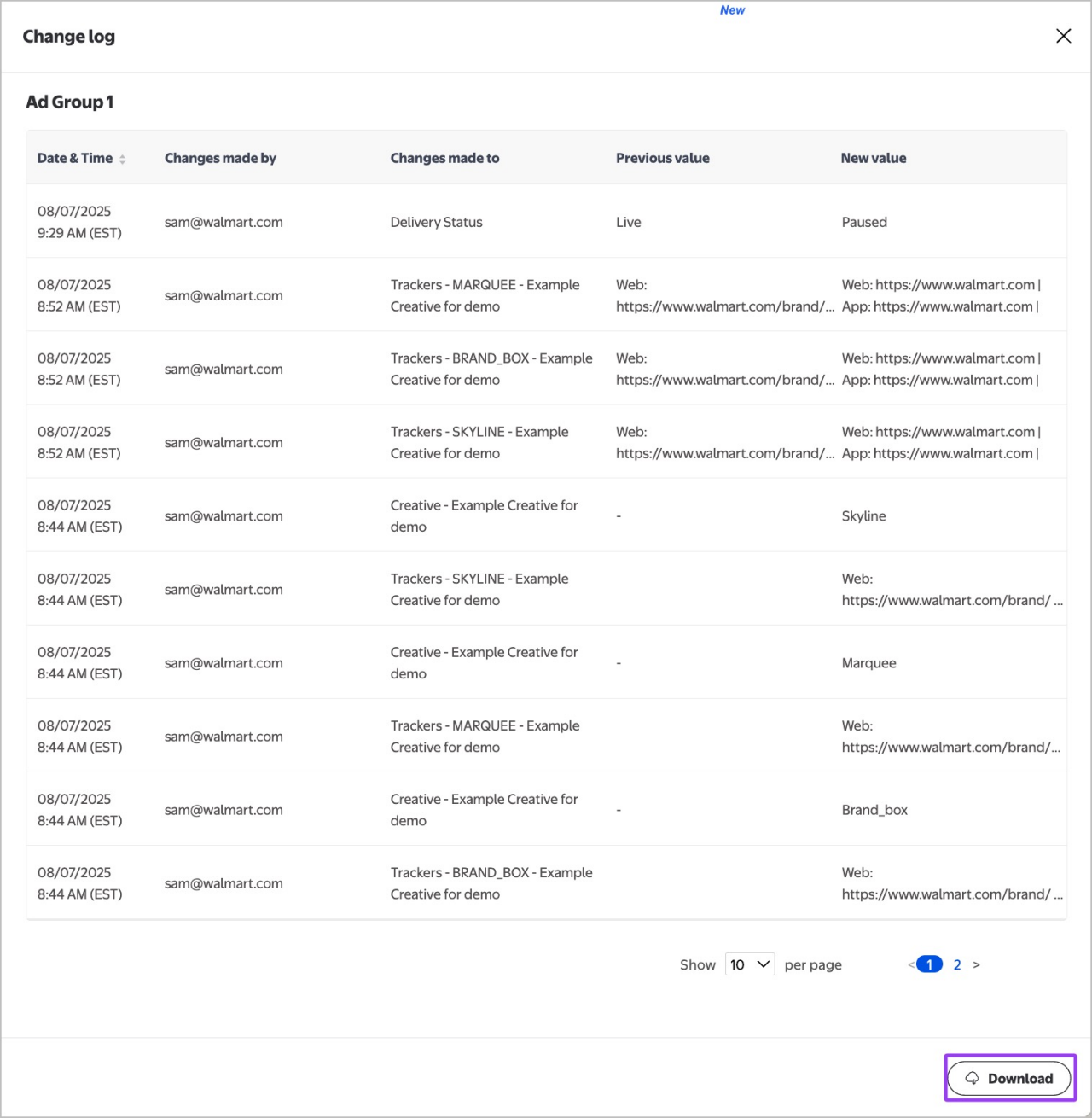
To access an ad group's version history, click the three dots on the right-hand side and then choose Version History to access a detailed view of the ad group audit history, including details of changes made by a single user ID. There is an option to download a full report of the history log.

Access version history
Change log


Pausing a campaign 

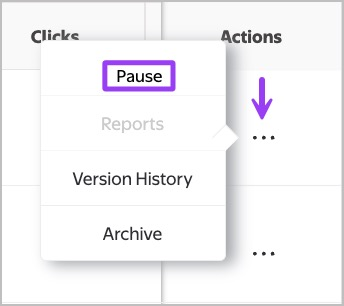
To pause the campaign, open the menu by clicking on the ellipsis to the right and click Pause.

Pausing a campaign


Clone an ad group 

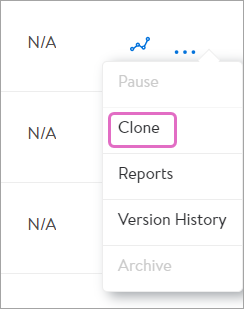
To clone an Ad Group, click the three dots in the far right column. 

Note: You must click into Ad Group level to clone.

Clone a campaign


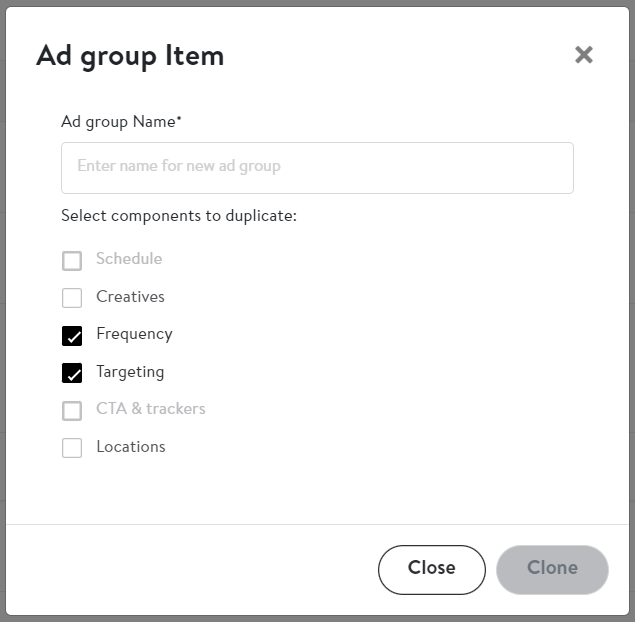
Click Clone and a pop-up box will appear with elements you can clone:

  • Schedule
  • Creatives with URLs and trackers
  • Frequency caps
  • Targeting
  • Location
Clone a campaign


Note: Targeting and frequency are selected by default.

Reporting  

Summary level data Spend, Impressions, Clicks and eCPM are available from the All Campaigns tab. To access full in-depth reporting, navigate to the reporting tab by using the left side navigation, or by clicking on the three dots and clicking Reports.

Note: Pacing indicators in the All Campaigns tab will be populated later in Spring 2026. For the time being, this column in the reporting summary on the All Campaigns tab will not populate.

Sales lift reporting is available if you set a budget of $125,000 or higher. The campaign must end with $125,000 minimum ad spend and be in-flight for 8 weeks or more to qualify. The metric will be available 30-day post-campaign, to account for Omni attribution.


Notifications 

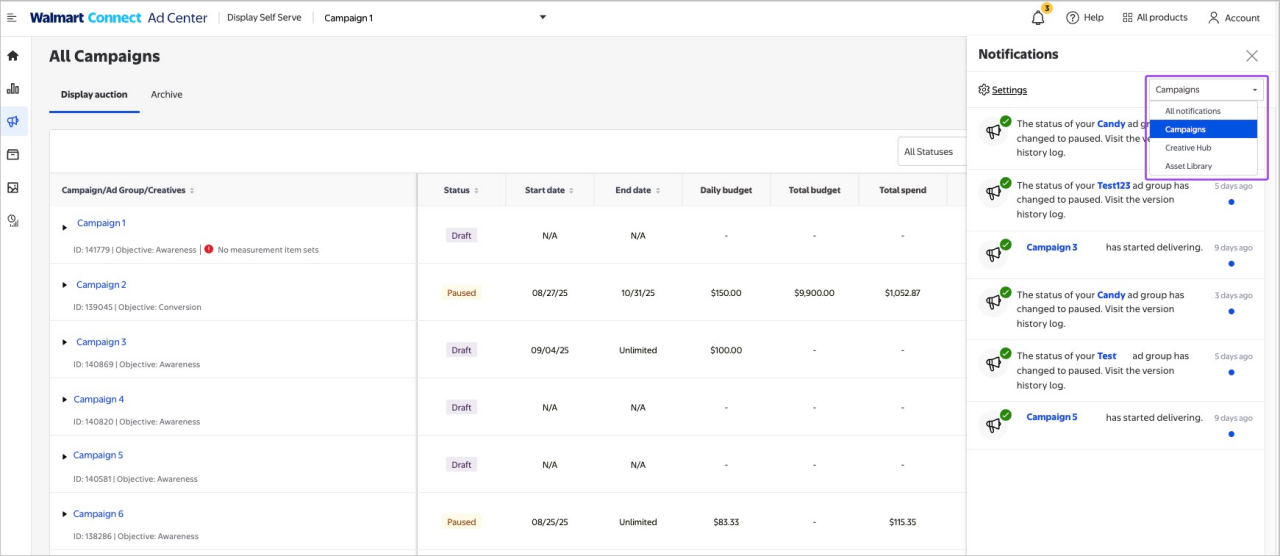
The Notifications Center for Onsite Display in Walmart Connect Ad Center actively monitors campaign events such as campaign setup, creatives status and item sets creation to generate timely and relevant reminders, updates and alerts that will help you stay informed and responsive. The Notifications Center is only available on Campaign Manager, Asset Library and Creative Hub. Click the bell icon on the top right and use the dropdown menu to navigate across all pages to review all available notifications.

Notifications controls


Notifications will appear via the bell icon in Walmart Connect Ad Center, or by email, helping you receive relevant updates within one to five minutes of event detection. All notifications include a link that will direct you to the areas that need your attention. 

The bell icon on the top right will display a yellow badge with a numeral indicating the number of new notifications there are to review. Click the bell icon to read, scroll, dismiss or act on the notifications. All new notifications can be identified by a blue dot. After you review the notification, the blue dot will disappear, but the notification will remain in your feed until you dismiss it. Notifications will disappear from your feed automatically after 30 days.  

Notifications bell icon


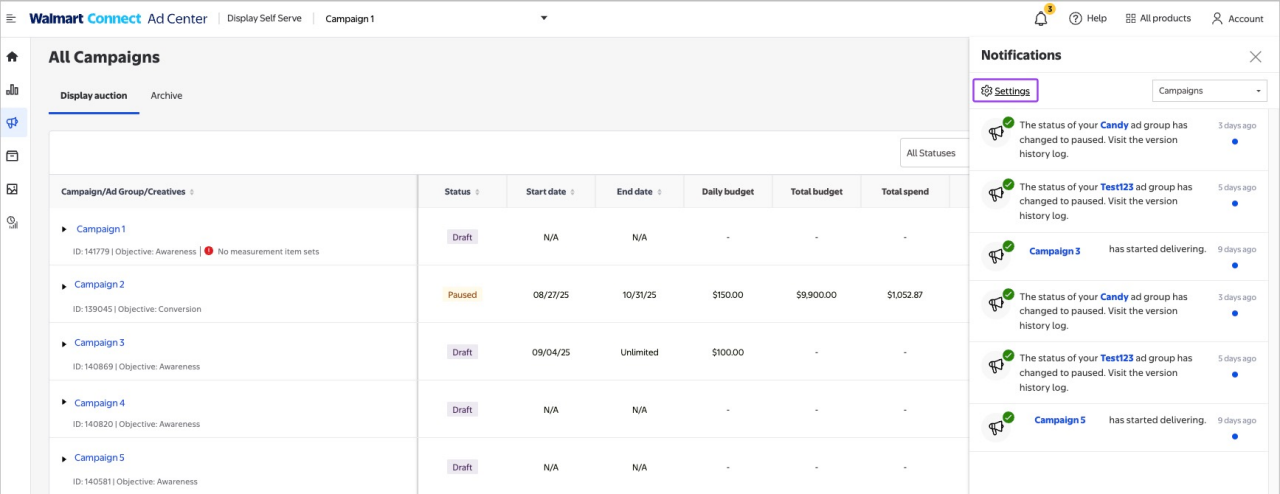
Click on the gear icon in Notifications to open Settings

Gear icon for notifications settings


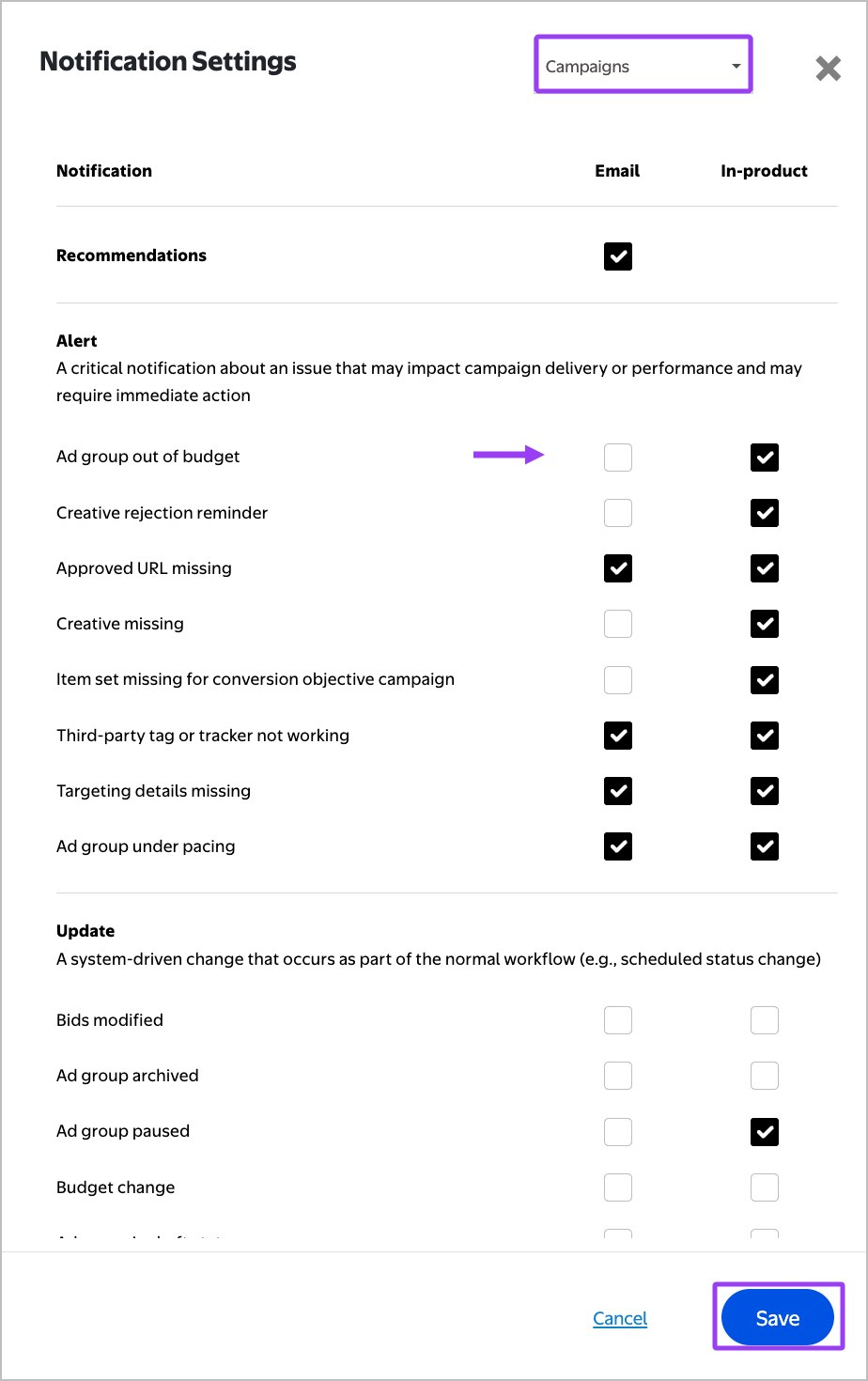
Click on the checkboxes to personalize your notifications selection and to either opt-in or opt-out of receiving in-app notifications or by email. Use the dropdown menu on the top right to navigate across all tabs.

Notifications settings


By default, in-app and email notifications are turned off. Advertisers must opt in to receive them. You can also use the toggle to either subscribe or unsubscribe to all non-critical email notifications at the bottom. 

Opt-in settings are managed at the account level and opt-out settings are managed at the user level. All advertisers with access to the same advertiser group account will receive the same notifications. If an advertiser within the group account decides to opt out of a notification, the other users will remain opted-in.   


Summary of notifications

Campaign Manager

  • Ad group archived 
  • Ad group paused
  • Ad group draft
  • Ad group live
  • Ad group scheduled
  • Ad group OOB
  • Ad group ending
  • Ad group under pacing
  • Budget modified
  • Bids modified 
  • Bid too low
  • Frequency cap modified
  • Unapproved URL reminder
  • Creative missing reminder
  • Issue with tag/tracker
  • Keywords approved
  • Missing targeting
  • No item sets attached for conversion campaign

Creative hub

  • Creative rejection reminder
  • Creative was rejected
  • Creative was approved
  • Creative was deleted
  • Creative was cloned
  • Creative needs more information 
  • Creative is in escalation review 
  • Creative is in creative review 

Asset library

  • Custom audience failed
  • Audience build success
  • Audience archived
  • Audience published
  • Audience shared
  • Item sets in ready state