



This guide provides step-by-step instructions for building your first ad group. Ad groups may be added to new or existing campaigns.
Table of contents:
Reach customers when they’re ready to buy and drive impact across the purchase funnel.
This guide provides step-by-step instructions for building your first ad group. Ad groups may be added to new or existing campaigns.
Table of contents:
You can choose to add an ad group during campaign creation or after. You need to have at least one ad group per campaign for the campaign to launch.
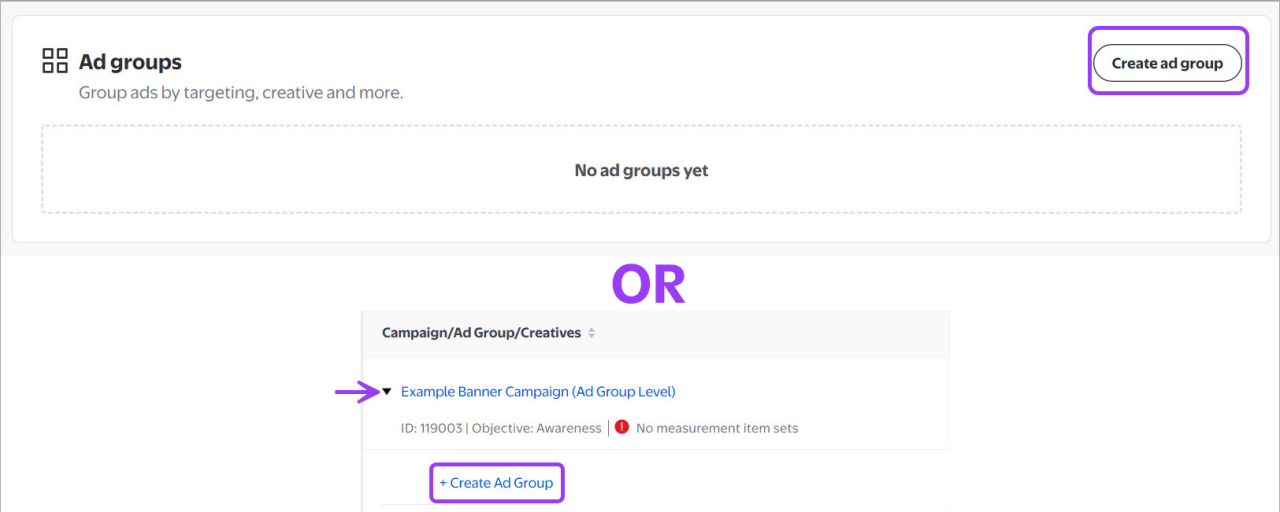
Within the campaign creation page, select Create ad group in the Ad groups section. This opens the ad group creation page. You can also add an ad group to an already-built campaign from the All campaigns page by clicking the expansion arrow and selecting +Create Ad Group.
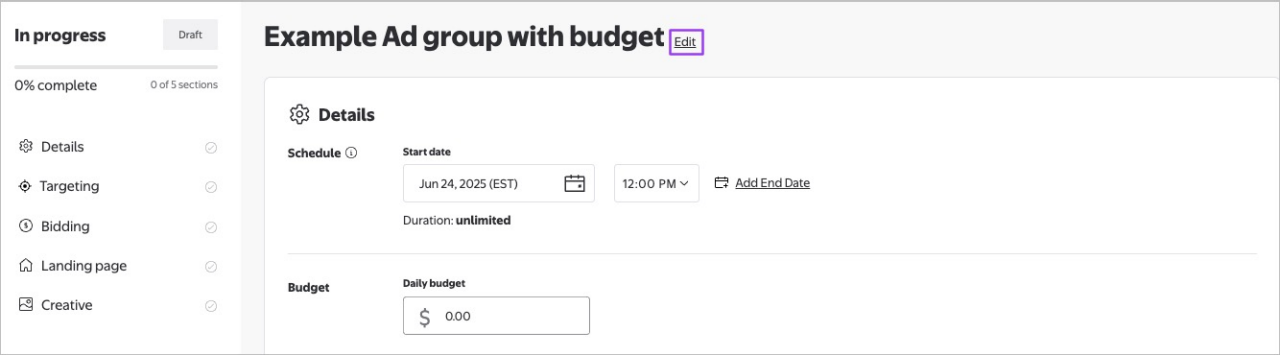
At the top of the page, select Edit to name your ad group. We recommend having an established naming convention to make it easier to manage multiple ad groups within a campaign.
If you chose to set your flight dates, times and budget at the ad group level, you will see those fields at the top of the ad group creation page. Ad groups are set to run indefinitely by default.
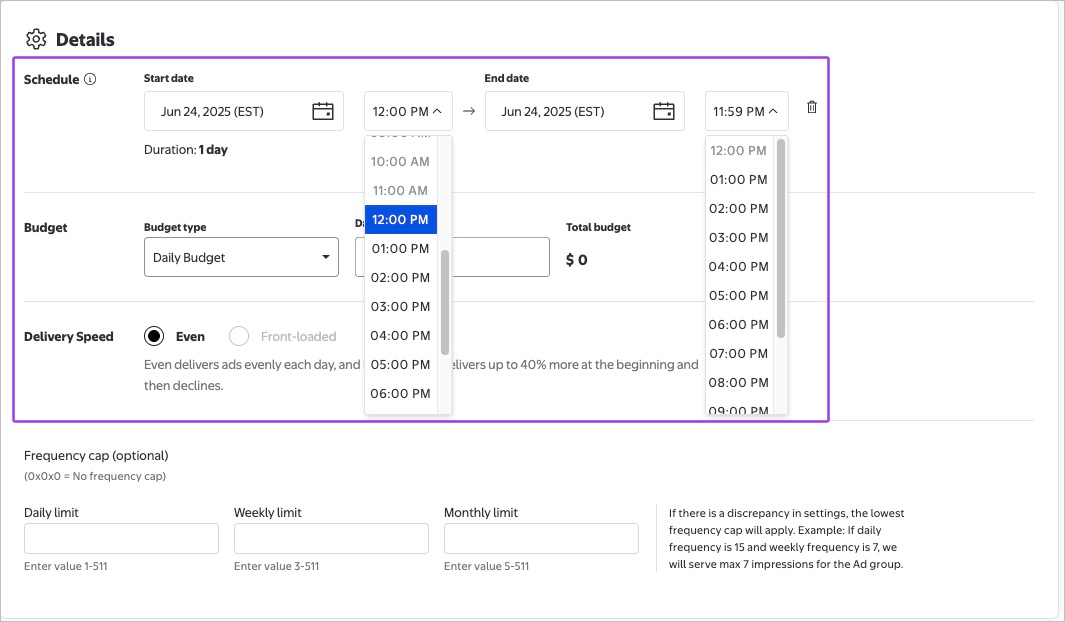
Use the time dropdown menu to choose custom future start and end times for your campaigns.
Note: When you schedule your ad group, your ad group must run for at least one hour. If you don’t select custom future start and end times, then standard serving time applies for start and end time (start at 00:00:00 hours and end at 23:59:59).
All start and end times are shown in Eastern Time (EST). Time of day selection is offered at the hour level. End time during the last day must always be ≥ 12:00 noon (EST), otherwise you will receive an error.
Select Add end date to enter an end date.
Note: If you don’t set an end date, you can only set a daily budget. Lifetime budgets are only available for campaigns with an end date.
You can create multiple ad groups — each with their own creative assets — and schedule them to serve at specific start and end times and dates.
Note: If an ad group has multiple creative assets, the same ad group scheduling applies to all of them. If you want to set a specific schedule for each creative set, please make sure that you create separate ad groups.
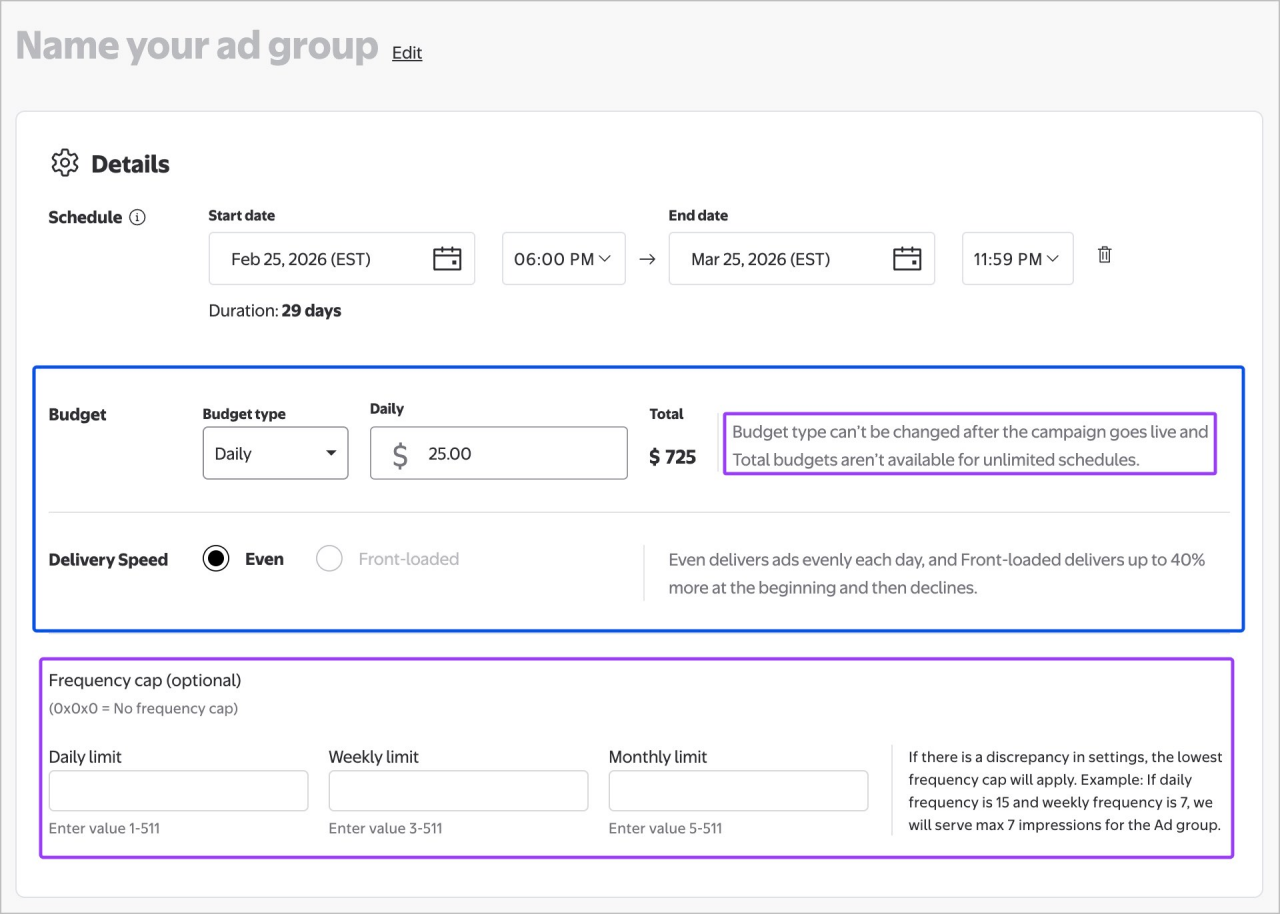
Enter your budget type (if applicable), value and select delivery speed.
Delivery speed selection can only be made when total budget is chosen. When selecting your delivery speed, you have the option of even or front-loading.
Frequency caps are optional, as they limit how often a viewer sees ads associated with the ad group. They are set to no limit by default. Set caps to a daily, weekly and/or monthly limit. We recommend not using them initially, but rather as an optimization tool in-flight. Minimum frequency caps:
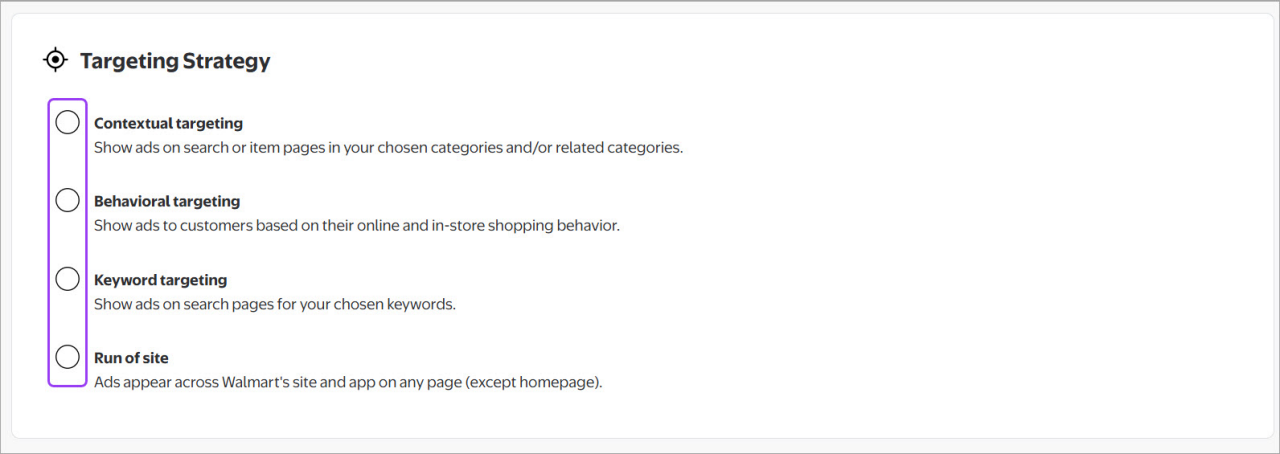
Choose from the available targeting options: Contextual targeting, Behavioral targeting, Keyword targeting or Run-of-site.
Once your ad group is in-flight, you cannot change its targeting type because this determines reporting, but you can make adjustments within that same type. To test different targeting tactics, we recommend running a separate ad group in your campaign for each of your desired targeting types.
To learn more about each targeting type, visit their respective guides:
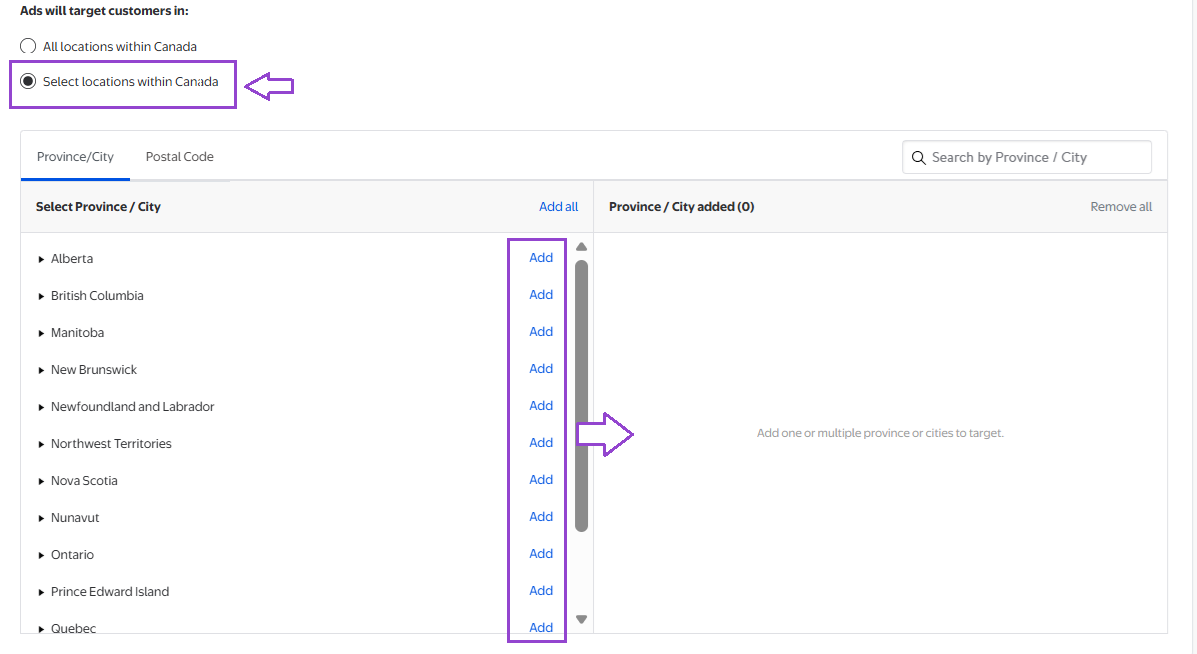
Add geotargeting to your ad group to target Walmart customers in specific cities, provinces or Postal Codes. Geotargeting can be layered on top of any targeting tactic. It presents an excellent opportunity to target campaigns based on regional preferences, local trends, weather patterns, food cravings and more.
Note: Postal Code targeting will be by Forward Sorting Area (FSA), the first 3 values of a postal code.
By default, All Canadian locations are selected. Use Select locations choose specific locations.
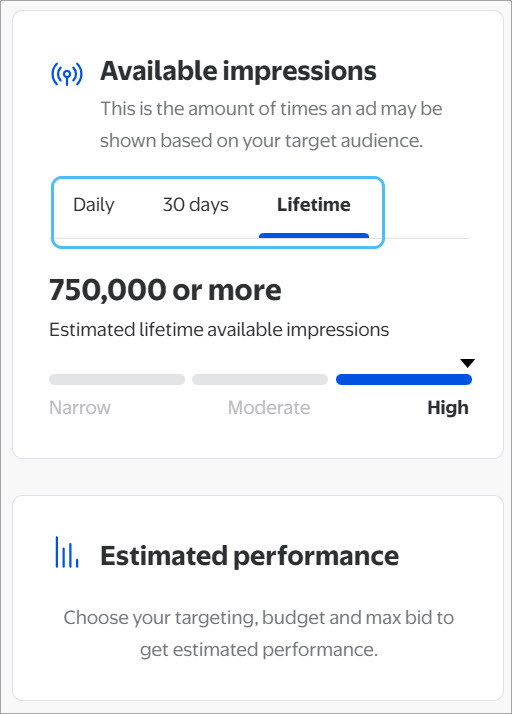
Once you’ve set up your flight dates, budget, targeting type and tactic (including geotargeting) for your ad group, the platform will automatically forecast a range of daily impressions for that targeting option. The range is categorized as narrow, moderate or broad.
If your reach is narrow, you may receive a tip within the forecasting tool to help increase your reach.
Walmart Onsite Display uses a first-price auction model with dynamic bidding. In a first-price auction, the highest bidder for each placement wins, but they never pay more than their max bid. Our platform will automatically adjust the bid up and down depending on campaign pacing and selected campaign objective. Pacing can be affected by various factors, such as inventory availability, flight dates and bid values.
Set your base and maximum bid. The platform will provide a recommended bid. This recommendation gives you insight into how much other advertisers are paying for similar targeting (Behavioral, Category, Keyword or Run of Site) and is updated regularly. Use this to determine your base and max bid range. The recommended bid should fall somewhere between your base and maximum bids, depending on your budget and eCPM allowance and key performance indicators. Your maximum should be the most you’re willing to pay for available inventory. Bids can be adjusted at any time including when your ad group is in-flight.

The forecasting panel is designed to get you a dynamic snapshot of your campaign’s estimated impressions during the ad group setup process, based on your selected campaign objective, flight dates, budget, max bid, among other parameters.
Changing targeting type and tactics, frequency caps, flight dates, budget and/or bid will impact the campaign delivery estimate.
Note: Remember the impression number you see is only an estimate of what is available on a daily basis.
These estimates should help inform your targeting decisions as well as your budget and bid. Adjust budget, flight dates, targeting selections, and max bid as necessary to change your estimates.
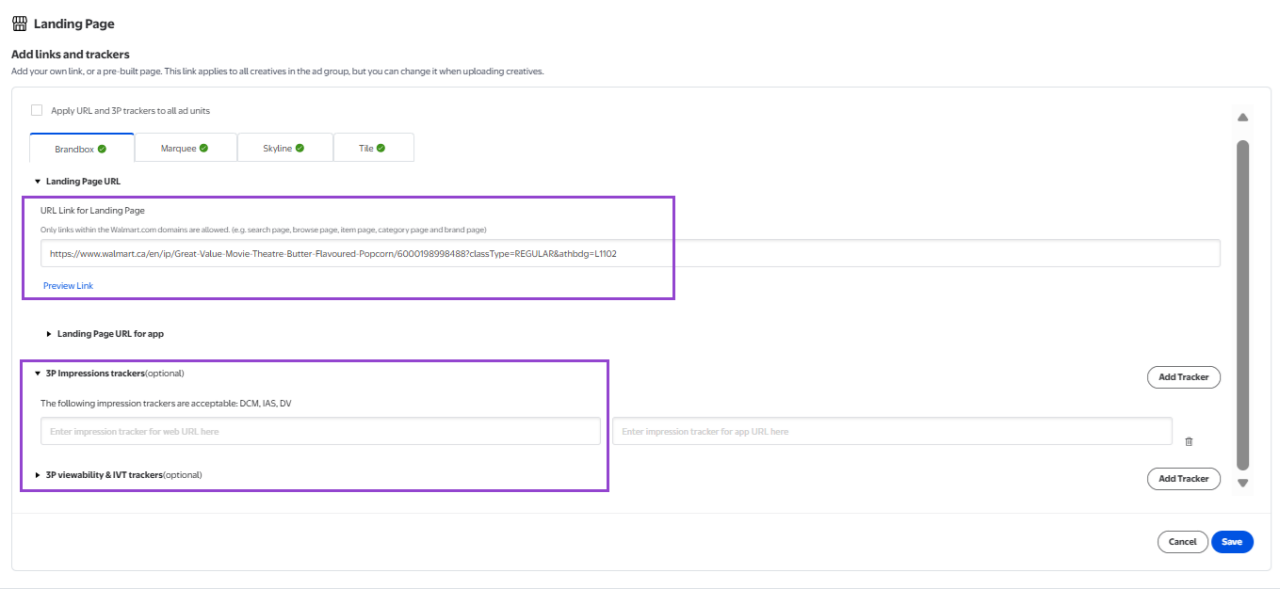
Add your click through destination in the Landing Page section for where the campaign should direct to. This must be a Walmart domain and the campaign will not move forward if you input a domain outside of Walmart.
By default, landing page will apply to all creatives that are uploaded. However, as you bring creatives to your ad group you can set the landing pages for them individually.
Under the Landing page section, are two separate fields to input third-party click tracker URL links, one for web and another for in-app tracking purposes.
Select Add Tracker to add third-party trackers. Add the tracker and then select Save.
The following impression trackers are allowed:
Impression:
· Impression: DCM, DV and IAS
· Viewability: DV and IAS
Note: Verify that your tracker has the following path /ddm/trackclk for the click tracking to work accurately.
Ad creatives are built using the Creative Builder in the Creative Hub. All ad creatives go through an approval process that also runs through the Creative Hub. To learn more about building and approving creative assets, visit our guides Uploading new creative assets using the Onsite Display ad template and Creative review, rejections and approvals.
Note: Ad type availability within the Creative Hub does not guarantee access to inventory.
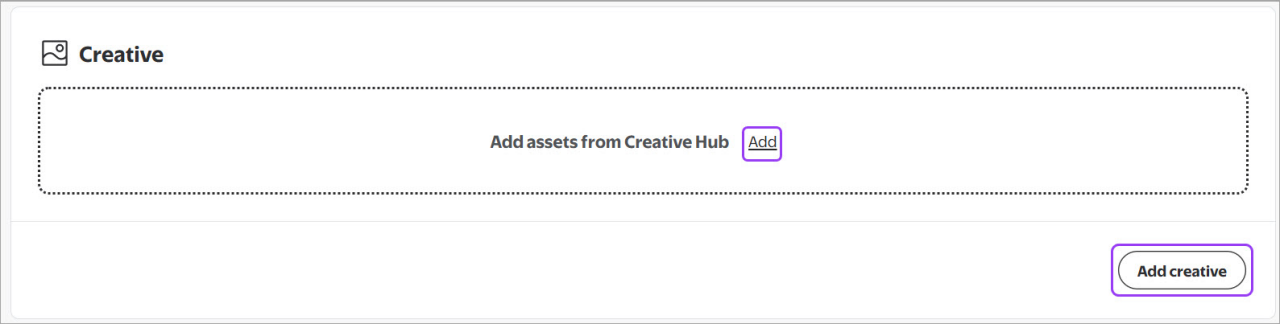
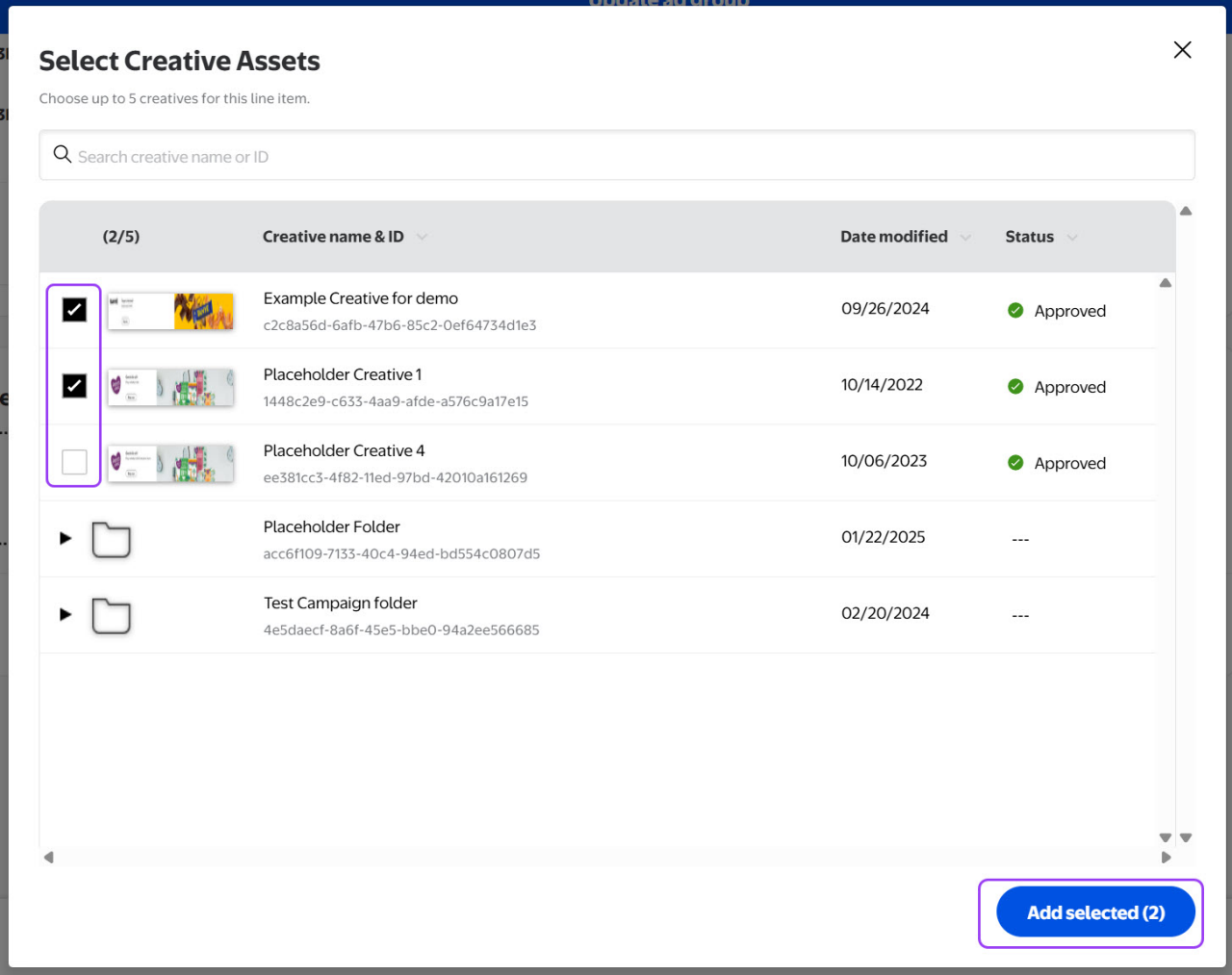
Once the ad creatives have been built, start adding them to new or existing ad groups. All ad groups must contain at least one ad creative. Up to five ad creatives can be added to a single ad groups, and creatives will rotate evenly as each ad is served. Click Add creative to see the list of available ad creatives. Only approved and pending approval ad creatives are listed. Use the search field to quickly find ad creatives.
Use the checkboxes to select ad creatives, then select Add selected. We recommend having between two to three creatives for each banner ad group.
Note: Remember you can reuse creatives multiple times between Campaigns or Ad Groups
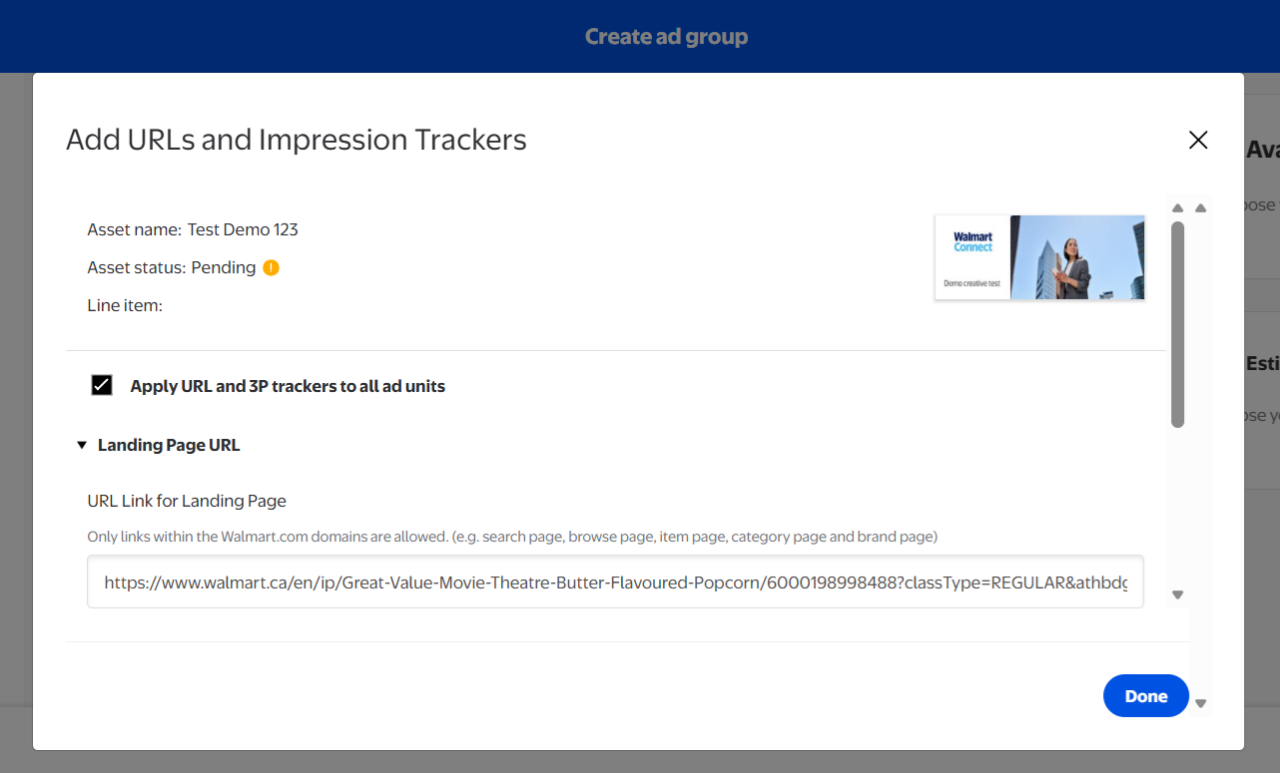
Select Add URL to assign a landing page for desktop, mobile and app as well as any approved third-party tags you want next to the ad creatives you added to the ad group.
You have the option to use an approved third-party tracker and tag URLs for Walmart’s site and app. These tags will be automatically reviewed and verified for functionality by Walmart Connect at the time of ad submission and approval. If the URLs are not broken, you may continue setting up your campaign without exiting the workflow. You can test the web landing page URLs embedded in your ad creatives by using he preview link option that will open the CTA links in a new tab.
The following rules must be observed for badges:
Select Done to be taken back to the ad group creation page.
Use the summary list on the left side of the page to confirm that you have successfully set all necessary information in all sections of your ad group.
Select Save and close to be taken back to the All Campaigns page.